Follow the List

Yesterday I compiled the Excel newsgroup statistics for September, a monthly task that entertains me, even if no one else reads them. Actually, the page gets a few hundred hits every month, so I guess a few other people find the numbers interesting too. Or maybe it’s one other person, with OCD.

Pulling the report together isn’t too complicated, but there’s a long series of steps involved — export messages from Agent, import to Access using QDN Stats, export totals from Access as HTML files, publish in Dreamweaver.

Use a Checklist

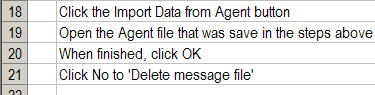
I have a checklist in Excel, and I print that, and follow it every month. Without that list, the process would take at least twice as long, because I’d have to think about every step, and probably miss a few.

Maybe the list is too detailed, but I’d rather include the seemingly obvious items, just in case someone else had to cover for me one month. (If you’d like to volunteer, please leave your name at the front desk.)

I have a few other checklists for things that I do occasionally, and they’re real time savers. Most of the lists are stored in Excel, so they’re easy to sort and edit, and make nice little check boxes beside the items.

Check It Or Wing It?

Do you use checklists, or is your memory better than mine, and you just wing it?

Could someone cover for you, and get all your key tasks done, or is your business on hold if you’re away?

No Response

A few times a day I get email that asks for a response receipt, and it’s usually from someone I’ve never heard of, asking for help with an Excel problem. Don’t these people trust the Internet? Are they the same people who used to call to see if you got the fax they had just sent?

I always click No to the requests, because it’s nobody’s business what I’m receiving or reading. Today, I finally got annoyed enough to find out how to turn these requests off, once and for all. Annoyance>Inertia=Action.

Turn Off Response Receipt Requests

After poking around in Outlook 2003 for a couple of minutes, and clicking quite a few buttons, here’s how I did it.

  • In Outlook, click on the Tools menu, and click Options.
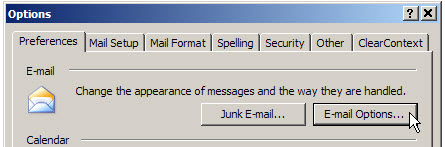
  • On the Preferences tab, in the E-mail section, click the E-mail Options button.


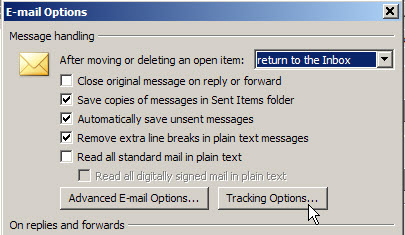
  • Under Message handling, click the Tracking Options button.

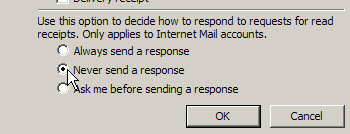
  • In the bottom section, click on Never send a response, then click OK.

  • Close all the dialog boxes, to return to Outlook.

So, if you send me an email, please don’t be concerned if you don’t receive a response receipt. Just assume that I got your email, and I’m busy writing a reply. 😉

Add Red X Icon to Excel Message – Critical Warning

Last week a client mentioned that he uses lots of message boxes in his Excel code, and finds that users just click OK when a message appears.

Most of the messages are informational, and users have read them before, so a quick click is fine.

Critical Messages in Excel

However, some of those messages are critical, and only appear when an important decision has to be made.

Because the users are so accustomed to seeing messages, they just click OK, without reading. That could cause problems!

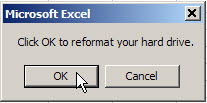
For example, the Excel message shown below says:

  • “Click OK to reformat your hard drive”

Busy office worker, clicking the OK button: “Sure, why not!”

Critical Excel Message with No Icon

Add Icon to Excel Message

I suggested that he add an icon to the critical messages, so they stand out from the rest.

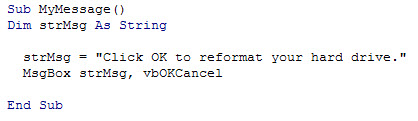
Here’s the current code for this message.

Excel VBA Message Code Revised

To add a warning icon to the message, follow these steps:

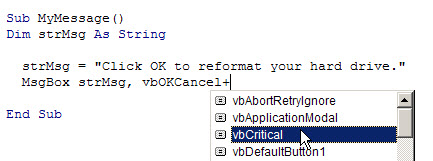
  • First, in the VBA message code, type a plus sign after vbOKCancel
  • Next, in the drop down list of settings, select vbCritical
  • Then, click the Save button, to save the code changes
Add vbCritical setting in VBA code

Excel Message With Red X Icon

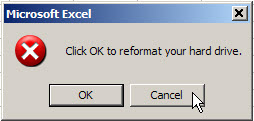
Now when the macro runs, the critical icon (red X) appears in the message.

That won’t force anyone to read the message, but the red X might catch their attention, and make them more likely to read it.

Critical Excel message with red X icon

Purging the Bookshelves

Do you have the inner strength to throw out old books?

I love computer books, and bring home way too many of them. Things were bad enough in the old days, when I had to leave my office and drive to a bookstore, in order to buy books.

Then the miracle of online shopping occurred, and now I can browse through the Amazon catalogue any time of night or day. A few mouse clicks, and there’s a pile of books headed to my front door.

The shelves in my office are crammed to capacity, and it’s time to purge some of the books, or buy new shelves. Since I’ve run out of wall space, additional shelving isn’t really an option, so purge it is.

The Toss Pile

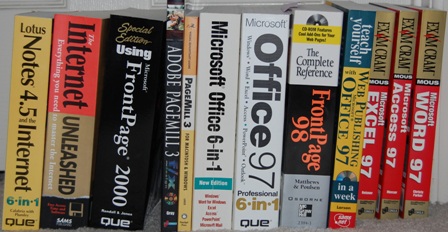
Here are some of the books I’m releasing into the wild today. The internet has changed a bit since I started using it, and I don’t use Office 97, Lotus Notes, FrontPage or PageMill these days. Judging by the publication dates, you can see that I don’t clear the shelves too often. It’s painful!

  • Teach Yourself Web Publishing with Microsoft Office 97; 1997 edition.
  • The Internet Unleashed; 1994 edition.
  • Lotus Notes 4.5 and the Internet; 1997 edition.
  • Adobe PageMill 3 f/x and design; 1998 edition
  • Special Edition Using Microsoft Front Page 2000; 1999 edition

There were several others, as you can see in the photo below. It cleared 18″ of shelf space, and reduced the load by about 30 pounds (my non-scientific estimate). Still lots that could be tossed, but this is a start.

The Keep Pile

I’m keeping this one though, because it’s an essential office reference guide:

  • The PreHistory of the Far Side; 1989 edition.

What’s in Your Toss Pile?

So, I’ve come clean. What’s on your bookshelf that’s ready for the toss pile?

Smell My Blog

According to an article in Neuromarketing, if things smell better, users assume they ARE better.

“In another study – a consumer test of shampoos – a shampoo which participants ranked last on general performance in an initial test, was ranked first in a second test after its fragrance had been altered. In the second test, participants said that the shampoo was easier to rinse out, foamed better and left the hair more glossy. Only the fragrance had been changed.”

Until I can get the smell-o-blog plugin working, please imagine the aroma of freshly baked chocolate chip cookies while you read this blog.

Maybe that’s the real reason for those annoying perfume strips in magazines.

Hmmm…should we add them to our Excel books too? Send an air freshener with every invoice? Food for thought.

I’m Not Perfect

I know — I’m more shocked than you are.

Yesterday I discovered a site where you can create quizzes and post them for others to try. So, I searched for Excel quizzes and found a few.

One quiz had the mysterious name, Excel 13-22, so I decided to try that one. I got off to a good start, and as I completed each question it told me that I had selected the correct answer. Woohoo!

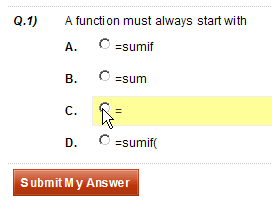
I ignored minor problems, such as the misuse of Function in Question 1, and carried on.


Then, things went horribly wrong. Question 18 was about chart backgrounds, but it was incomprehensible.

It was the only “fill in the blank” question, and I guessed wrong. However, the “correct” answer was in no way related to charts, so I was robbed.

Still in shock, I missed question 19 too, on how to end an argument. Since “yes, dear” wasn’t listed, I selected comma.

That was marked as wrong, but I still think I’m right. In my opinion, the question should have been “how do you end a formula?” Where do I get a refund?

Fortunately, things improved, and I got the remaining questions right. On the page where your final score appears, you can scroll down to see the correct answers, and a summary of how other participants have scored.

To my relief, not one person got the chart background question right.

If you pass, you can print out a certificate, and hang it proudly on your office wall. Here’s my certificate for a different quiz.

It had only one question, and I wrote the quiz myself, but I got it 100%!

Create Your Own Quiz

So, what questions would you put on an Excel quiz for a beginner class? I sure wouldn’t include the Natural Formula questions that were on the Excel 13-22 quiz.

You have to register for a free account if you want to create a quiz, but it was quick and easy. You can make the quiz public, or accessible only with a password. Later, you can edit the quiz, view individual results, or see a quiz summary.

If you create an Excel quiz at Quiz School and would like to share it, please post the link in the comments.

What Excel VBA Books Do You Recommend

Maybe you can help. I got an email this week from an Excel 2007 user who wants book recommendations:

“I have a question about Excel Visual Basic. My purpose is to write my own Excel formula. Where or what book do you think I could learn from? I have no prior knowledge of programming.”

Step By Step Books

I like the Step by Step books for a good intro to a topic, although I haven’t read the Excel 2007 version.

Power Programming

John’s Power Programming book covers all the basics, and well beyond. It might be overwhelming for someone with absolutely no programming experience though.

Advanced Programming Books

The following books are excellent resources, but for intermediate to advanced programmers, not beginners.

  • Professional Excel Development; Stephen Bullen, Rob Bovey, John Green; Addison-Wesley Professional; ISBN:0321262506
  • Excel 2007 VBA Programmer’s Reference; John Green, Stephen Bullen, Rob Bovey, Michael Alexander; 1176 pages; Wrox Press Inc; 2007; ISBN 978-0470046432

What Would You Recommend?

If there are other books you’d recommend for a beginner, please add them in the comments.
Thanks!

The Painful Process of Removing My Sharing Folders

When I installed Windows Live Messenger on my laptop, it also installed a folder named My Sharing Folders. Sometimes, when I try to drag a file to a different folder in Windows Explorer, it accidentally touches the My Sharing Folders, a message appears, and the copying freezes solid. Forever. Actually, I get tired of waiting after a few seconds, and use Ctrl+Alt+Delete to shut it down, and start over.

After it happened again today, I was determined to get rid of the annoying folder, but there’s no obvious way to delete it. It would make sense to right-click on the folder and select Delete from the list of commands, but it’s not available. So, the Googling started.

Failed Attempt #1

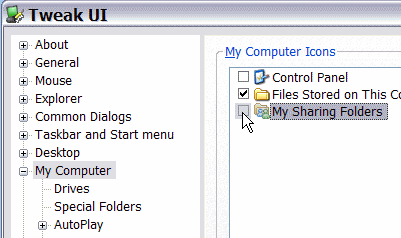
The first suggestion that I found said to install Tweak UI and uncheck the folder name in there.

No problem installing Tweak UI, or unchecking the box, but it had absolutely no effect on the folder, even after a reboot. Back to Google.

Failed Attempt #2

The next suggestion was to open Windows Live Messenger to determine its version number. I have Build 8.5.1302.1018 and of course there’s no way to copy that number onto the clipboard, so I typed it into a text file and copied from there.

Then, I closed the Help window, clicked the Windows Start button, and clicked Run.

I typed the long line below, pasting in my build number:
regsvr32 -u “%PROGRAMFILES%\MSN Messenger\fsshext.8.5.1302.1018.dll

I clicked OK, but unfortunately, that didn’t work either. All I got was an error message.

Failed Attempt #3

Back to Google, where I found a variation of attempt 2, but with a different path. I had to retype the ” which was slanted in the notes.

regsvr32 -u \”%programfiles%\\windows live\\messenger\\fsshext.8.5.1302.1018.dll

This line ran without problems, and removed the My Sharing Folders. The victory was short-lived though — the next time I restarted the laptop, it was installed again.

Success At Last

Finally, I found an article on the SuperWasp site. Their solution requires registry edits and file name changes, but it removed My Shared Folders and there was no re-installation when I restarted the laptop.

Woohoo! But why does it have to be so complicated?

Quick Navigation in a Word Document

Occasionally I work with long Word documents, and want to get from one section to another as quickly as possible. To do this, I use one of Word’s best hidden features — the Document Map.

It lists all the headings in your document, and to go to a section you just click on its name in the Document Map.

Just like an Excel outline, you can collapse and expand sections by clicking the + and – buttons at the left of the section names.

To view the Document Map in Word 2007, click on the View tab, and add a check mark to Document Map.

In Word 2003, and earlier versions, click the Document Map button on the Standard Toolbar.

If you like to use the keyboard, you can press the F6 key to move into the Document Map, and arrow up or down. Press Enter to select the highlighted section name.

Note: If you have the Document Map open, you can’t use Word’s Split Window feature.

Print What You Like and Decipher Mysteries

Although the title of today’s blog pretty much describes my meeting notes (what the heck do those scribbles mean?), I’m referring to a couple of utilities I found this week. Both have been very helpful already, so you might find them useful too.

Print What You Like

First is Print What You Like, a web site that lets you select sections on a web page, before you print. This should reduce the amount of paper and ink that you waste, when extra pages are printed.

I’ve spent time copying and pasting web site text into Word, to avoid those extra pages, and this is much easier.

  • To start, copy the URL for the page you want to print.
  • Go to Print What You Like, paste in the URL, and click Start.
  • Your target page appears, and you can point to a section, word, or paragraph, to frame it.
  • Click on a framed area to select it, and select as many sections as you’d like.

  • Use buttons at the left side of the editor to remove images, remove the background, change the font size and isolate or remove the selections

  • Experiment with the settings for a minute or two, and once the page contains only the elements that you want to print, hit the Print button.

LongURL

The other utility is LongURL, a FireFox add-on that lets you point to a condensed URL and see the full text for the designation URL. Twitter is full of these short links, and some are useful, but other, not so much.

This might help you avoid sites in which you have no interest, or that might not be suitable for work.

You have to register to download the add-on, and that took a few minutes, but the installation went smoothly, and the add-on works as promised. Occasionally it can’t decipher the URL, but most work fine.