Data Validation Selection Popup Tool – Contextures

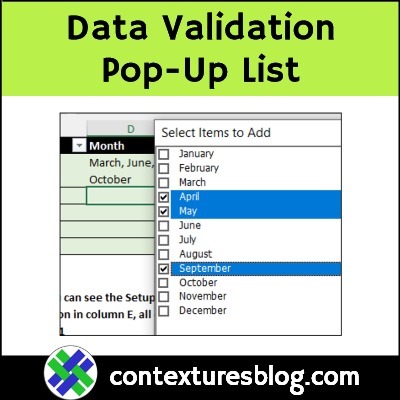
With the free Data Validation Select Popup (DVSP) tool from Contextures, you can add popup lists to Excel workbooks.

Set the rules you’d like for the pop-up lists — allow single item selection in some columns, and allow multi-selection in other columns.

Continue reading “Data Validation Selection Popup Tool – Contextures”

How to Prevent Duplicate Entries in Excel Column

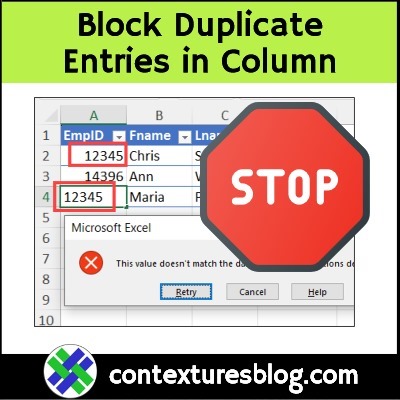
In some workbooks, you might need to block duplicate entries in a column. For example, we don’t want 2 employees to have the same ID number. See how to set up a custom rule for that, with data validation. And keep reading, to see why COUNTIF can cause problems for you.

Continue reading “How to Prevent Duplicate Entries in Excel Column”

Hide Used Items in Drop Down List With Excel 365 Formula

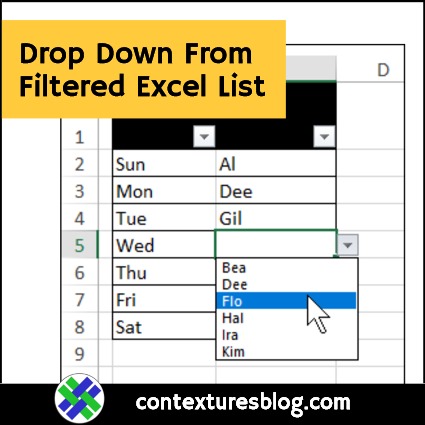
In some data entry lists, you only want each item selected once. For example, pick players for a baseball lineup, or assign employees for their weekly on-call assignment. To prevent entries from being selected twice, use this data validation trick, to hide the used items in an Excel drop down list.

Continue reading “Hide Used Items in Drop Down List With Excel 365 Formula”

Excel Drop Down List with Latest Items at Top

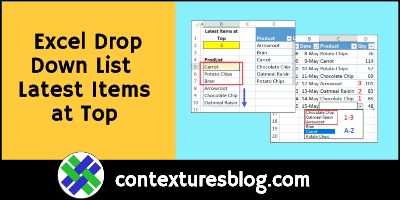
In this data validation drop down list, the most recently ordered products are at the top. The rest of the product names are below those, in alphabetical order. There’s a worksheet cell where you can set the number of top items. This technique uses new functions, SORTBY and MAXIFS, which are available in Excel 365.

Continue reading “Excel Drop Down List with Latest Items at Top”

Add Letter Headings in Excel Drop Down List

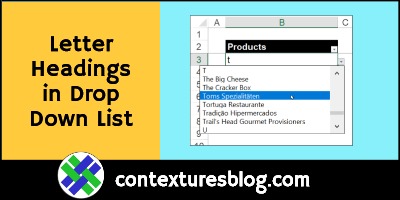
If an Excel drop down has a long list of items, it can take lots of scrolling to find the item you need. To make things easier, add single-letter headings in the list. You’ll be able to get to any starting letter quickly. See Roger Govier’s technique for setting that up, and an updated version of his macros.

Continue reading “Add Letter Headings in Excel Drop Down List”

Excel Drop Downs from Dynamic Arrays

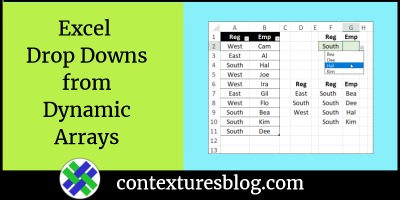
Select a region name in one Excel drop down list. Then, in the next drop down list, select from a list of employees who work in that region. You’ve seen this dependent drop down trick before, but watch my latest video below, to see a new twist on this technique.

Continue reading “Excel Drop Downs from Dynamic Arrays”

Dependent Drop Down List in Excel

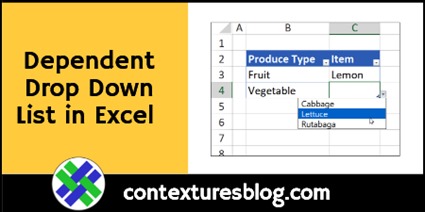
With Excel data validation, you can create drop down lists in worksheet cells. Show the same list all the time, or show a “dependent” drop down  list, based on the value entered  in another cell. This video shows how to set one up, and there are written steps too.

Continue reading “Dependent Drop Down List in Excel”