Defensive Design

Recently I’ve been skimming through Defensive Design for the Web, by 37signals and have found a few good tips for creating web forms, help and error messages.

It’s not the best book that I’ve seen on web design, but it’s easy to read, and illustrates its common sense guidelines with good and bad examples from popular sites.

At the end of the book there’s a design test that you can use on your own web site, to see how it rates.

When Things Go Horribly Wrong

As a customer, my worst web site experience was with the Westin Hotel, while booking accommodations for a conference. I selected my arrival and departure dates, then clicked a button to view room information, so I could decide which type I wanted.

I closed the room info window, completed the booking, and got my confirmation, which I quickly read, then filed.

About a week before the conference, I checked the confirmation, and realized that it was for only one night, instead of the four that I needed. A few frantic phone calls later, I had the four nights booked, although one night was a a different hotel, a few doors down from the Westin.

What went wrong? I went back to the site and tested. While booking, when I opened that room info window, it wiped out my departure date! Now that’s bad design. One of the book’s 40 guidelines suggests saving customer data in incomplete forms.

Other Applications

Some of the book’s ideas could also be applied to forms in Excel and Access. For example:

  • Highlight either required or optional fields.
  • If customers can’t choose it, don’t show it.
  • Make it fast, not cute.
  • Eliminate unnecessary navigation during multistep processes.

How Bright Are You?

Like you, I spend long hours at the computer, including many late nights. Almost all the applications that I use have a white background, and staring at the bright screen all day can be pretty hard on my eyes.

I’ve tried changing the Windows display settings, to choose a different background colour, but haven’t found anything satisfactory. Light greys and blues are easier on my eyes, but don’t provide enough contrast, so I strain to read what’s on the screen.

Today I discovered that I might have the brightness level too high on my monitors. My setting was about 80, but the calibration information at the Photographer USA and Display Calibration sites suggest a lower setting. I’ve lowered my brightness settings to about 55, and things seem better already.


How bright is your monitor? Can you lower the setting to save your eyes?

Never Procrastinate Again

Do you procrastinate? I’m pretty good at it, and that’s why I ordered a copy of Dave Navarro’s text/audio program, Never Procrastinate Again. Maybe I won’t live up to the title of this article, but at least I’m moving forward!

There are mp3 files with the recorded program, and a pdf file with the printed transcript. It’s only 47 pages, and I’m already about halfway through it. That’s good, because I won’t get stuck a few chapters in, and set it aside to read “later”. There are also a couple of worksheets to help you get started.

It’s a very practical approach to dealing with procrastination, and makes it seem possible to overcome. I liked this quote:

“You don’t have to beat procrastination. You just have stop avoiding this one next thing – and that’s manageable.”

Don’t Procrastinate!

Take a couple of minutes and visit the Rock Your Day blog. Dave has an entertaining writing style and lots of good tips. Here’s a link to one of his articles on procrastination.

The pre-release ($27) ends tonight (October 14th), and tomorrow the price goes up to $37. That’s a good reason to avoid procrastination! If you’re interested, sign up for the advanced discount list today, and you’ll get an email with details on how you can order it.

Excel Thanksgiving Date Formulas

It’s Thanksgiving here in Canada, so I’m taking the day off.And if you’d like to know when the USA Thanksgiving occurs this year, keep reading!

All Signs Point to Excel

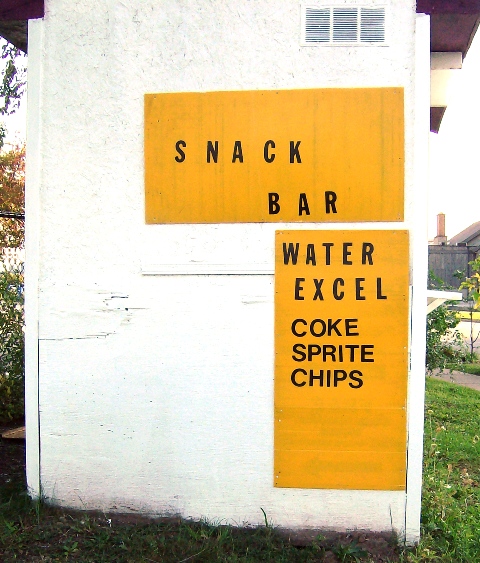
Below is a photo from my travels last week.

This tiny snack bar is selling something we should all be thankful for — Excel!

I’m sure you’ll agree that Microsoft Excel should be available almost everywhere! It’s nearly as important as water, for getting through the day.

Sign on snack bar shop - WATER, EXCEL
Sign on snack bar shop – WATER, EXCEL

When Is USA Thanksgiving?

Some holidays are celebrated on the same date every year, like New Year’s Day, Canada Day, and Christmas.

Other holidays are the Nth weekday in a specific month. For example, USA Thanksgiving occurs on the 4th Thursday in November

To calculate the date, use one of the formulas on the Find Nth Weekday in Month page, on my Contextures site.

Excel formula to calculate 4th Thursday in November

Video: Find Nth Weekday

[Update} I made this video in 2022, and the formula uses the WORKDAY.INTL function, which is available in Excel 2010 or later

This video shows how to find the Nth weekday in a specific month and year, by using the WORKDAY.INTL function in an Excel formula.This function is available in Excel 2010 or later.

To calculate the date in earlier versions of Excel, use one of the WEEKDAY formulas on the Find Nth Weekday in Month page, on my Contextures site.

Can You Count?

It’s been a long week. Do you still have the ability to count?

If your machine has Java installed, and it’s active in your browser, you can watch this brief video. Your task is to count the number of times that the basketballs change hands.

How many did you count?

To see the answer, you can read the results of this experiment.

Maybe that’s why so few people read the messages that we put in our Excel applications. They don’t even see them!

Building a Software Business

If you’re a software developer, you might be interested in this. Neil Davidson has created the Business of Software social network, “For anybody interested in building long term, sustainable, profitable software businesses.”

Getting Unstuck

Meanwhile, if you’re stuck on a project, whether it’s software or something else, the SCAMPER Random Question Tool might help dislodge your mental blocks.

To understand the theory behind the tool, you can read the SCAMPER guide.

Bring Your Laptop to Work

Last month, Dick Kusleika, at Daily Dose of Excel, said, “Get the same laptop at work that you have at home. I liked my D810 so much that when I started a new job I got a virtually identical machine. Now that my personal D810 is at Dell getting fixed, I can use my work laptop by just swapping hard drives.”
They’re using a similar idea at Citrix, where employees can buy their own laptop and maintenance plan, then use it at work, as well as home. The company provides $2100 for the purchase, but if employees leave within three years they’ll have to repay some of the money. Maintenance will be the employee’s responsibility.

What’s the advantage?

Why would you want to buy your own computer and use it at work?
I guess it’s a nice perk if you can’t afford your own computer at home, since you’d own this one after three years. Maybe the policies on what you can install are less strict than usual IT policies, so you can have games or other personal favourites on the machine.
What happens when it’s broken though? Do you use a sick day to take it to the repair shop?
Given the option, I’d leave the laptop in the company’s hands, assuming I could take it home when necessary. Life’s complicated enough, without having to be my own IT department.

What’s Your Backup Plan?

Last Thursday I asked if you use checklists, and if someone could cover for you if you were away.

Who knows enough about Excel do do those tasks?

Based on your comments, it looks like we could use some improvement in that area!

List of Excel tasks
List of Excel tasks

What About Excel Backups?

In the same vein, what about backups? What happens if you show up for work, but your key files don’t?

When I’m writing, or working on a client project, I upload all my Excel files to my online storage account at the end of the day.

That way, the current project files are available off-site, in case of fire, flood, tornado, can’t remember where I live, whatever.

At one of my clients, they have extra server disks, and the latest one is taken off site at the end of the day.

On-Site Storage

For on-site storage, the Excel files from my desktop computer are backed up overnight to an external hard drive, and the laptop files are backed up to its external hard drive.

The backup program doesn’t copy the files from the Program Files folder though, so I have to remember to do that myself, once a week(ish).

What’s Your Backup Plan?

It feels like there are holes in my backup bucket, so maybe I need to add some steps.

  • Do you have a backup routine in place?
  • Does yours copy everything, including the program files?

Where’s My Internet?

Last Friday I arrived in my office about 8:30 AM, ready to tackle several small projects, and get them sent off to clients. Full of motivation and caffeine, nothing could stop me. Nothing, that is, except a dead Internet connection. The first clue was MailWasher, lying on its back with its paws in the air. No email was coming in or going out.

Excellent! I couldn’t get to YouSendIt and upload or download client files. A client asked me to check some files on their network, but Citrix doesn’t work either, if you can’t connect to it.

So, the first hour of the workday was spent muttering, assuming the connection would be back up shortly. That didn’t happen, so I spent 1/2 hour on the phone with the ISP’s tech support, diagnosing and fixing the problem.

Apparently my static IP had become a little too static, and that was fixed by unplugging the modem for five minutes. I’ve made a note in my ISP manual, beside the tech support phone number, so I’ll remember to try that next time, before wasting my time on the phone.

Finally back in action, I managed to complete most of my to-do list. I’ll be travelling with my laptop this week, and hope it all goes smoothly. (What could possibly go wrong?)

Browser Tip

And speaking of the Internet, how have I been using the it for all these years, without knowing this trick?

  • In a web browser, press the space bar on your keyboard, to scroll down a page.
  • Shift and the space bar will scroll up a page.

Insert or Delete Cells with AutoFill

Here are a couple of quick Microsoft Excel tips for you . Try these tips a few times today, and maybe you’ll still remember them by Monday.

Insert Cells With Toolbar

I often have to insert a few cells in a list, so here’s how I would do that, using the Excel Toolbar commands:

  • First, select a range of cells
  • Next, on the Excel toolbar, choose Insert►Cells
  • In the list, click Shift cells down
  • Finally, click OK.

That method works very nicely, but it’s four clicks. I don’t have time for four clicks!

Insert Cells With Mouse

Recently I learned that you can quickly insert cells with a mouse shortcut!

Here are the steps:

  • First, select a range of cells, in a single row or column
  • Next, press the Shift key on the keyboard
  • Then, on the worksheet, point to the AutoFill handle, at the bottom right corner of the active cell
  • Next, drag the AutoFill handle in any direction, to insert cells.
    • You can drag up, down, left or right, to insert cells in any direction.

Blank cells are inserted, and the other cells shift, to make room for the new cells

Insert Cells With Mouse Shortcut

Delete Cells With Mouse

You can use a similar technique to delete cells too.

Here are the steps:

  • First, select the range of cells that you want to delete
  • Next, press the Shift key on the keyboard
  • Then, on the worksheet, point to the AutoFill handle, at the bottom right corner of the active cell
  • Next, drag the AutoFill handle up, over the selected cells, to grey out the cells..

The cells are deleted, and the cells below shift up

Delete Cells With Mouse