There’s a sample Excel workbook on my Contextures website that uses a bit of Excel VBA to automatically add new items to an Excel data validation drop down list.
Add New Item to List
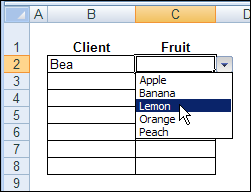
For example, if the drop down list shows Apple, Banana and Peach, you can type Lemon in the data validation cell.
Then, as soon as you press the Enter key, Lemon is added to the named range that the data validation list is based on.
The source list is sorted too, so that Lemon appears between Banana and Peach.
New item added to data validation drop down list
Read the Instructions
Someone emailed me last week, and asked if I would explain how the Excel VBA code works.
It rained (and even snowed a little) on Friday, so it was a good day to stay in, and work on a new page for the website.
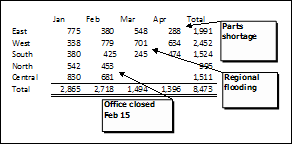
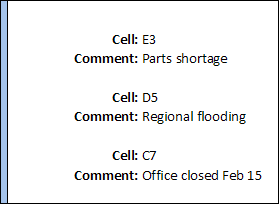
When printing Excel comments as displayed, you can either show all the comments, or just show one or more comments that you want to print.
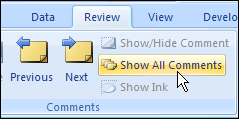
To show all the comments, on the Ribbon’s Review tab, click Show All Comments.
Show All Comments
Show Specific Comment
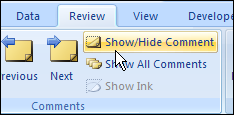
To show a specific comment, select a cell that contains a comment. Then, on the Ribbon’s Review tab, click Show/Hide Comment.
Arrange Comments for Printing
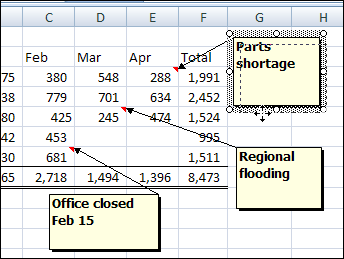
If necessary, rearrange the comments, so they don’t overlap, or cover the data.
Arrange Comments for Printing
Page Setup Dialog Box
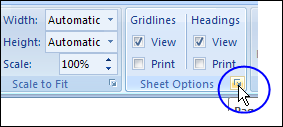
Then, on the Ribbon’s Page Layout tab, click the More button for Sheet Options
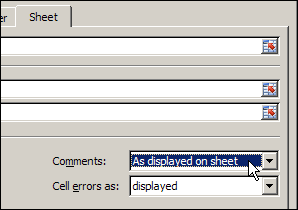
In the Page Setup dialog box, on the Sheet tab, select As Displayed on Sheet from the Comments drop down.
Page Setup Dialog Box
Quick Check With Print Preview
If you want to see how the comments will look when printed, click Print Preview
Click OK to close the Page Setup dialog box.
Print Comments at the End
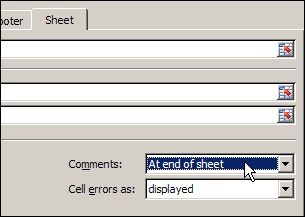
Instead of printing the Excel comments as displayed, you can print them at the end of the worksheet.
On the Ribbon’s Page Layout tab, click the More button for Sheet Options
In the Page Setup dialog box, on the Sheet tab, select As Displayed on Sheet from the Comments drop down.
If you want to see how the comments will look when printed, click Print Preview. The comments and their addresses will appear on a separate sheet, at the end of the worksheet’s data.
Click OK to close the Page Setup dialog box.
Watch the Video
This Excel Quick Tips video shows how to display all the worksheet comments, and then print the worksheet with the comments displayed.
“In the back of my mind, I always knew that charts would help me,” says the market researcher in this promotional video from 1982. Wow, did you really have to wait weeks for your data processing department to make your charts, back in the old days?
It’s easy to hide rows and columns in an Excel worksheet, and you or your boss or co-worker might do that when setting up an Excel file.
Occasionally though, you might have trouble unhiding Excel row and columns. There are written steps and a video below, that show how to fix the problem
If you have the day off, you can spend some time playing this Excel Treasure Hunt game. Or, if you celebrate Easter, give this to your kids — it’s cheaper and easier than hiding chocolate eggs!
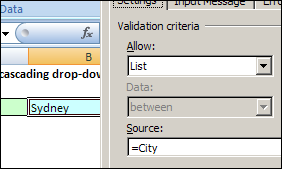
Cascading lists and kangaroos? Today, Ed Ferrero shares his technique for creating dependent data validation from pivot tables. Ed’s from Australia, and it looks like we’ll learn a bit about his country too, as we go through his sample file.
Dependent Data Validation
We’ve created dependent data validation drop downs before, based on named ranges, or sorted lists. Ed’s technique is perfect if you have a large data source, and it isn’t sorted in the order that you need.
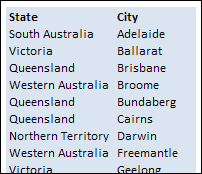
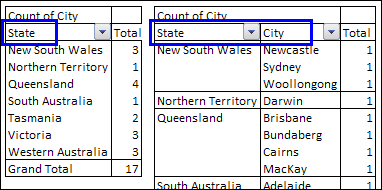
In this example, there’s a list of States and Cities, with the cities in alphabetical order.
Create the Pivot Tables
Ed created two pivot tables, one with State in the row area, and one with State and City in the row area.
Instead, Ed created a couple of named ranges, and some dynamic ranges.
The first range is State, which is the list of state names and Grand Total in the first pivot table.
The second range is StateCity, which is the list of state names and Grand Total in the second pivot table.
Tip: If you reduce the worksheet zoom to 39%, you can see the range names.
Create the Dynamic Ranges
The first dynamic range is for the City heading in the second pivot table.
CityHeader: =OFFSET(StateCity,-1,1,1,1)
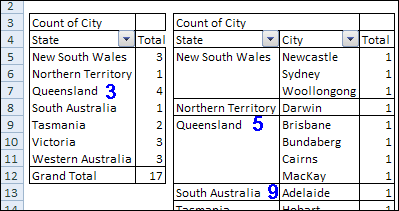
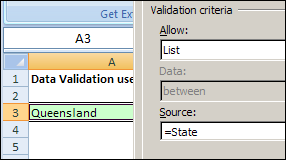
The next two dynamic ranges, StateNo and StateCityNo, use relative references to read the value of the state from the cell to the left of the active cell. For example, if the selected State is in cell A3 on Sheet1, these formulas are used:
StateNo: =MATCH(Sheet1!A3,State,0)
StateCityNo: =MATCH(Sheet1!A3,StateCity,0)
Queensland is the selected State, so StateNo =3 and StateCityNo =5.
Then, the next State is found in the StateCity range.
Don’t get too close to this blog today – I’ve got a miserable cold, and wouldn’t want you to catch it!
Roger Govier has created an Excel file to track your medical treatments, for people who have varying dosages or injection sites. It won’t help me feel better, but it might help you, or someone you know.
Enter the Treatment Sequence
Roger’s workbook has two worksheets – Calendar and Setup. Start on the Setup sheet, where you’ll enter the medication sequence.
First, enter your daily dosages in the Treatment List column.
For example, someone who’s taking a medication might be prescribed to take daily doses of 2 mg, 2mg, 3mg, 2mg, 5mg and then back to the start of the sequence.
They would fill in 5 cells in the Treatment List, shown in section 1 in the screenshot below.
enter your daily dosages in the Treatment List column
Next, after you’ve entered the daily dosage sequence in the Treatment List, click the Fill Treatment Column button (number 2 in the screenshot above).
A macro runs, which clears the Treatments column (number 3 in the screenshot) and then fills it again, based on the treatment sequence that you entered.
View the Treatment Calendar
After setting up the Treatment Sequence, go to the Calendar sheet, which shows a monthly calendar.
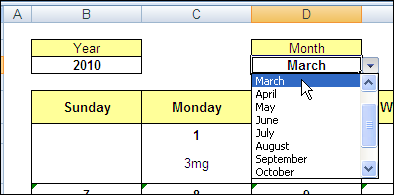
At the top of the worksheet, select a year and month from the drop down lists.
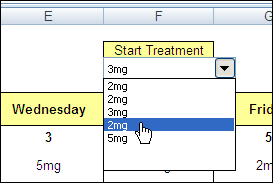
Then, from the Start Treatment drop down, select the starting treatment for the selected month. In this example, the previous month ended with a 3mg dosage, so the fourth dosage, 2mg, is selected.
The calendar automatically adjusts to show the new treatment schedule.
Download the Sample Treatment Workbook
Click here to download Roger’s Sample Excel Treatment Workbook. It’s a zipped file in Excel 2003 format, and contains a macro.
You’ll have to enable macros to run the FillColumn macro on the Setup sheet.
Healing Music
If you’re sick too, this video, with the soothing sounds of Peggy Lee, might help you feel better, and get rid of your fever.
Yes, if your last name is Dalgleish, some people think it sounds like “Dog Leash”, and hilarity ensues. And no, I never get tired of that joke, thanks for asking. 😉
Anyway, unlike the proverbial old dog, those of us who have been using Excel for a long can CAN learn new tricks. Keep reading to discover which new Excel feature I recently discovered.
Long Time Excel Users
Maybe you’re a long time Excel user too. Last month I polled readers on my Debra D’s Blog, and asked How Long Have You Been Using Excel?
Almost half of the 80 respondents have used Excel for 16 years or more, and they shared some interesting stories in the comments.
Old Excel Habits
You learn a lot about Excel over the years, and appreciate both its strengths and limitations. You find workarounds for some of the features that don’t work the way you’d like, and accept that some things can’t be done in Excel.
Maybe you’ve even learned to love (tolerate?) the Excel Ribbon, despite all the years that you spent learning where the Menu commands were.
But occasionally, new features are added, without much hoopla, and you don’t even notice them. At least, that’s what happened to me!
Old Excel Header Tricks
Excel has customizable headers and footers, where you can place items like the date, or file name, in one of three sections — left, centre or right.
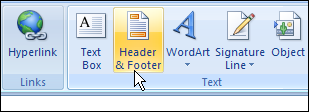
On the Excel Ribbon, click the Insert tab, and click the Header & Footer command, to change to Page Layout view, with the Header activated.
See Header and Footer Tools
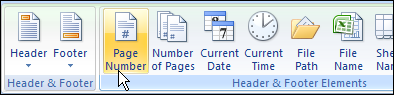
While the Header or Footer are activated, there’s a Design tab on the Ribbon, with Header and Footer tools.
You can click on an Element, like Page Number, to add it to a section in the Header or footer.
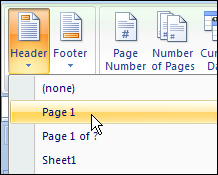
Or, select one of the default options from the Header or Footer drop down lists.
The Page Layout wasn’t available in previous versions of Excel, but the Header and Footer Elements are pretty much the same as they’ve always been.
New Excel Header Tricks
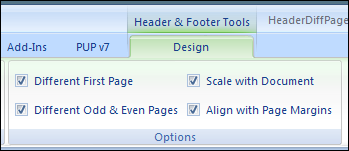
After working with Excel 2007 for almost three years, I finally noticed that the Excel Header and Footer have some fancy new Options. (How embarrassing!)
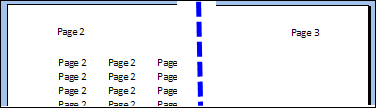
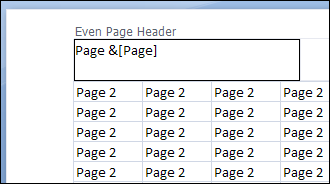
Now you can have a different header/footer on the first printed page, and different header/footer on the odd and even printed pages.
So, you could show a title on the first page only, then have page numbers at the left on even pages, and on the right on odd pages.
Microsoft Word has always had these options, but Excel didn’t. We just accepted that “Excel isn’t a word processing program” and did without the header options.
Align Header and Footer
You can also align the Excel Header and Footer with the page margins, which is another nice feature. In the old days, the Header and Footer margins couldn’t be changed, so they sometimes looked a bit out of line with the rest of the printed page.
Here’s the Page Layout view, with the Align With Page Margins feature turned on.
align Excel Header and Footer with page margins
I hope you found these new Excel Header and Footer options long before I did, and remember to use them in your printed worksheets.
__________
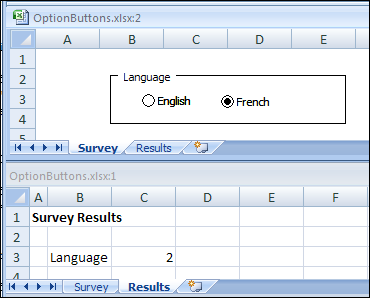
Male or female? English or French? Yes, No or Maybe? Those are just a few of the choices that you can make with Option Buttons in Excel. When people select answers with Excel Option Buttons, you can provide a list of possible answers to a questions, and users can only select one answer from the list.


 If you have the day off, you can spend some time playing this Excel Treasure Hunt game. Or, if you celebrate Easter, give this to your kids — it’s cheaper and easier than hiding chocolate eggs!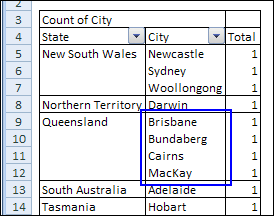
 Cascading lists and kangaroos? Today, Ed Ferrero shares his technique for creating dependent data validation from pivot tables. Ed’s from Australia, and it looks like we’ll learn a bit about his country too, as we go through his sample file.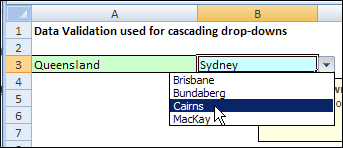
 Don’t get too close to this blog today – I’ve got a miserable cold, and wouldn’t want you to catch it!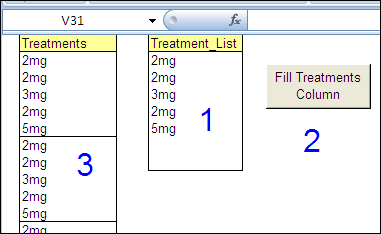
 Yes, if your last name is Dalgleish, some people think it sounds like “Dog Leash”, and hilarity ensues. And no, I never get tired of that joke, thanks for asking. 😉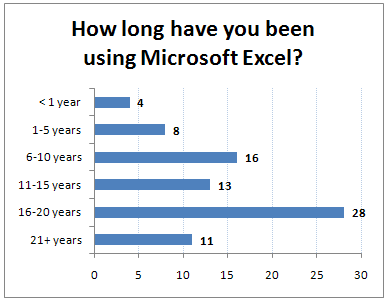
 Male or female? English or French? Yes, No or Maybe? Those are just a few of the choices that you can make with Option Buttons in Excel. When people select answers with Excel Option Buttons, you can provide a list of possible answers to a questions, and users can only select one answer from the list.