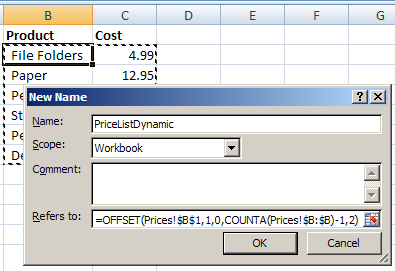
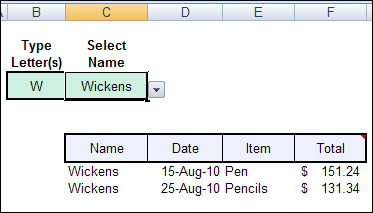
An Excel data validation drop down list only shows 8 items at a time, and with a long list of items, it might take you a while to scroll through that long list.
To make data entry easier, see how to shorten data validation list, by using a macro.
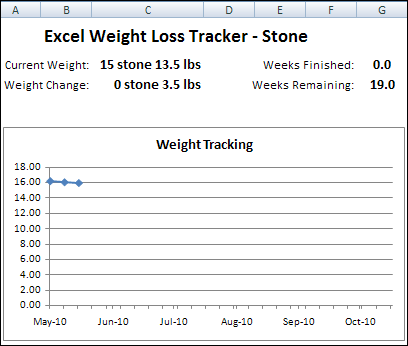
In January, you read about the Excel Weight Loss Tracker in which you could enter your current height and weight, and record your weekly weight loss. That version was in pounds.
A couple of people asked about a stone/pound version, so I’ve finally created one — just in time for swimsuit season!
If you use a macro frequently, you can add its icon to the Quick Access Toolbar (QAT). There are written instructions below the video
Add Macro Button to QAT
In this example, there is a macro named ToggleR1C1. that I use frequently. The macro toggles the worksheet reference style from letters (A1 style) to numbers (R1C1 style)
The ToggleR1C1 macro is stored in my Personal Macro Workbook, which is named Personal.xlsb.
Tip: Further down this page, there’s a video that shows how I recorded and edited the ToggleR1C1 macro
To add that macro to the QAT, I followed the steps below.
First, at the right end of the QAT, click the drop down arrow
Click More Commands
Excel Options Window
When the Excel Options window opens, the Customize category, at the left, is automatically selected.
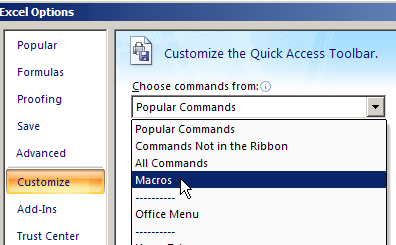
In the window pane at the right, near the top, click the drop down arrow for the “Choose commands from” setting
In the drop down list, click on Macros
Select a Macro
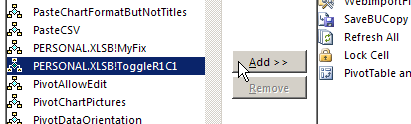
Next, in the list of macros, click the PERSONAL.XLSB!ToggleR1C1 macro
PERSONAL.XLSB is the file name for the Personal Macro Workbook
Then click the Add button, to move the selected macro to the Quick Access Toolbar
Choose Macro Button Icon
Next, follow these steps to add a picture (icon) to the Macro button
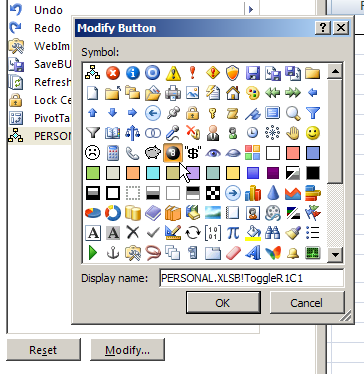
At the right, in the QAT list, click the PERSONAL.XLSB!ToggleR1C1 macro
Next, below the list, click the Modify button
When the Modify Button dialog box opens, look for an icon will remind you of what your macro does.
Next, click on the icon you want to use for the macro
I used the 8-ball, because the macro switches headings from letters to numbers, or vice versa.
Then, click the OK button, to close the Modify Button dialog box
And finally, click the OK button, to close the Excel Options window
Use the Macro Button
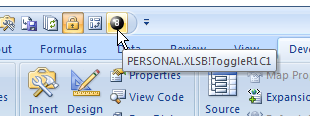
When you’re back in Excel, the macro icon now appears on the QAT.
When you want to run your macro, just click its icon on the QAT.
New I can I click the 8 Ball icon, when I want to toggle the worksheet reference style from letters (A1 style) to numbers (R1C1 style)
Video: Record & Edit Macro to Toggle Styles
Watch this video, to see how to record your own macro, to change between R1C1 style (column numbers) and A1 style (column letters). Then, add a button for the macro on the Quick Access Toolbar.
Video: Add Excel Options to QAT
If you use the Excel Options window frequently, you can add a command to the Quick Access Toolbar, to open that window quickly.
In this video, I show how to turn off the Excel Option Boxes, with a setting in the Excel Options window. Next, I show how to add an Options command to the QAT, so the window opens with a specific tab activated
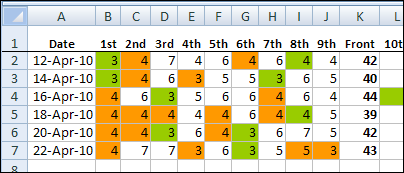
I’d need wider columns to hold my golf scores, but this Excel template for golf scores might help you keep track of your annual progress.
template to keep track of your annual golf scores
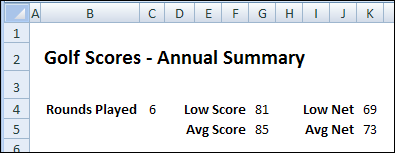
Annual Summary
There’s also an annual summary sheet, that calculates your average score and best score for the year.
Conditional Formatting for Scores
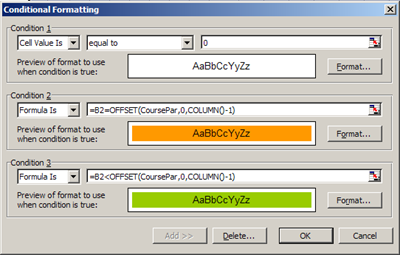
The golf scores template uses conditional formatting to highlight the holes where you shot par or below par, so you can see at a glance how things are going.
You enter the course pars on the Summary sheet, and the conditional formatting is on the Scores sheet.
Name the Cell
Because conditional formatting won’t allow you to refer to cells on another sheet, I named cell B8 as CoursePar, and use that name in the conditional formatting formulas.
Lots of people visit my Contextures website looking for information on the Excel Count functions.
Counting seems like an easy thing to do in Excel, if you’ve been using the program for a while. But, if you’re just starting out, it might not be so obvious.
Count Quirks
Even if you’re an experienced Excel user, there are a few quirks with the Count functions, that you might not have noticed yet.
For example, different count functions treat “empty” cells differently, as you can see in the screenshot below.
In Row 5, the blue cells contain a formula that creates an empty string.
The COUNTA function counts that cell, even though it looks empty.
The COUNTBLANK function counts the cell too, even though it contains a formula.
There are many more tips, examples and videos on the Excel Count functions page on my Contextures site.
Video: 7 Ways to Count in Excel
To see a quick overview of 7 ways to get a total count of cells in Excel, watch this 77-second video. There are written steps for each count function on the Excel Count functions page.
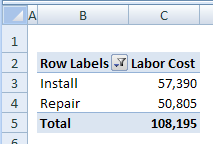
When you summarize data in a pivot table, it usually shows a sum of the values. (If there are blanks or text values in the field, usually the pivot table shows a count instead.)
In this pivot table, you can see the total labour cost for each Service Type.
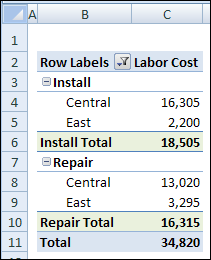
If there are two or more fields in the Row or Column area, subtotals are automatically created for all the fields except the last one.
In the screenshot below, the District field was added below the Service Type field. Subtotals were automatically added to Service Type.
Change the Summary Function
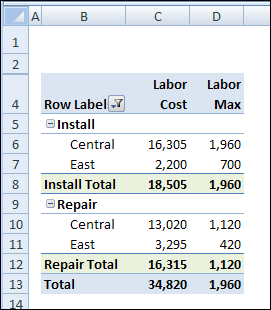
Instead of seeing the Sum of the data, you can change the summary function, and show the Average, or any of the other options. You could even put the same field in the Values area of a pivot table multiple times, and use different summary functions in each column.
In this example, the sum of the labour cost is shown in column C, and the Max function is used in column D.
Subtotals for Sum and Max
Change the Subtotal Summary Function
If your pivot table already has lots of columns, you might not want to make it wider, by adding another copy of one of the Value fields.
Instead, you can change the summary function for the Subtotal, so it uses a different function than the Value fields.
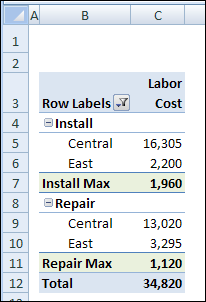
Now the Value fields show the sum of labour costs, and the subtotal for each service type shows the highest labour cost that was charged for that service.
You can see the maximums, without adding extra columns to the pivot table.
More Info on Pivot Table Subtotals
You can read more about pivot table subtotals, and the steps for changing them, on the Contextures website: Excel Pivot Table Subtotals.
Watch the Pivot Table Subtotals Video
To see the steps for changing the pivot table subtotals, and creating multiple subtotals, you can watch this short video.
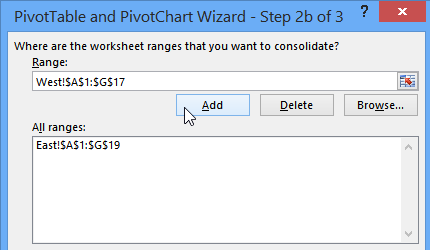
If Excel data is on different sheets, you can create a pivot table from multiple sheets, by using multiple consolidation ranges. My video, further down this page, shows you the steps.
Of course, it’s better if the data is all on one sheet. But, if you don’t have that option, the multiple consolidation ranges will pull all the data into one pivot table.

 In the
 I’d need wider columns to hold my golf scores, but this