
If you have a long list of items, you could use formulas to count how many times each item occurs in the list.
It would take a few steps, including pulling a list of unique items from the list, then creating a formula to count each item. Is there an easier way?
Count Items With Pivot Table
I find it quicker and easier to create a pivot table to count the list items.
You’ll have to add a heading to the list, if there isn’t one already.
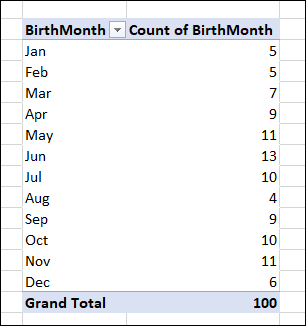
Next, create a pivot table from the list, with the same field in the Row Labels area and the Values area.
Watch the Video
To see the steps for using a pivot table to count items in a list, watch this short video. The full transcript is below the video.
Video Transcript
Here are the results from a survey, where a hundred people were asked for their birth month, and I’d like to see how many birthdays fall in each month. This is Sarah from Contextures.com
Birthdays Per Month
I’d like to see how many birthdays fall in each month. I could do that by listing the months over here, and then using a formula to get the results, but it would be way faster to use a pivot table. So, of course that’s what I’m going to do.
Get Started
The first step is to add a heading to the list, as you see here, and I need this to make sure the pivot table works properly.
Insert a Pivot Table
Next, I’m going to click on any cell in my list, and head to the Insert tab on the ribbon. I’ll then click PivotTable.
The dialog box shows that the range from my list is already selected, so I’ll leave that.
Down below I need to indicate where I want the pivot table to live.
Instead of having the results on a separate worksheet, I’m going to select Existing Worksheet and then select the location.
I want it to start on D3. So I’ll select that.
Count Duplicates
I’ve got a blank pivot table, and now I want to select the birth month in the pivot table fields.
Now you can see that all of the months populate.
Now to get those totals, I’m going to have to drag the birth month into the values area.
And there you go, the results of the survey and much faster than using a formula.
___________
0 thoughts on “Count Items in List with Excel Pivot Table”