
As part of the Excel programming series, I described how to run an Excel macro by adding a button to the Quick Access Toolbar (QAT).
Video: Add Macro Button to QAT
If you use a macro frequently, you can add its icon to the Quick Access Toolbar (QAT). There are written instructions below the video
Add Macro Button to QAT
In this example, there is a macro named ToggleR1C1. that I use frequently. The macro toggles the worksheet reference style from letters (A1 style) to numbers (R1C1 style)
The ToggleR1C1 macro is stored in my Personal Macro Workbook, which is named Personal.xlsb.
- Tip: Further down this page, there’s a video that shows how I recorded and edited the ToggleR1C1 macro
To add that macro to the QAT, I followed the steps below.
- First, at the right end of the QAT, click the drop down arrow
- Click More Commands
Excel Options Window
When the Excel Options window opens, the Customize category, at the left, is automatically selected.
- In the window pane at the right, near the top, click the drop down arrow for the “Choose commands from” setting
- In the drop down list, click on Macros
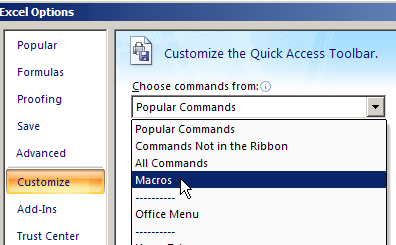
Select a Macro
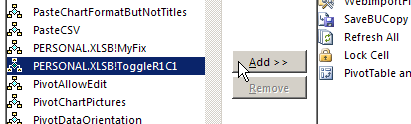
- Next, in the list of macros, click the PERSONAL.XLSB!ToggleR1C1 macro
- PERSONAL.XLSB is the file name for the Personal Macro Workbook
- Then click the Add button, to move the selected macro to the Quick Access Toolbar
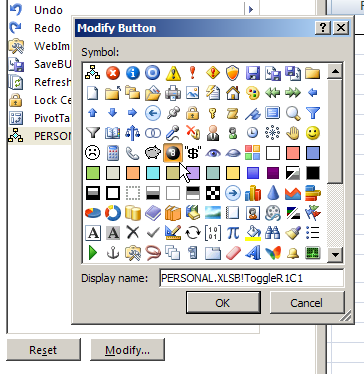
Choose Macro Button Icon
Next, follow these steps to add a picture (icon) to the Macro button
- At the right, in the QAT list, click the PERSONAL.XLSB!ToggleR1C1 macro
- Next, below the list, click the Modify button
- When the Modify Button dialog box opens, look for an icon will remind you of what your macro does.
- Next, click on the icon you want to use for the macro
- I used the 8-ball, because the macro switches headings from letters to numbers, or vice versa.
- Then, click the OK button, to close the Modify Button dialog box
- And finally, click the OK button, to close the Excel Options window
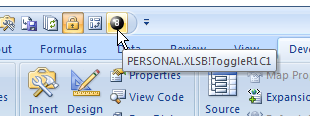
Use the Macro Button
When you’re back in Excel, the macro icon now appears on the QAT.
When you want to run your macro, just click its icon on the QAT.
New I can I click the 8 Ball icon, when I want to toggle the worksheet reference style from letters (A1 style) to numbers (R1C1 style)
Video: Record & Edit Macro to Toggle Styles
Watch this video, to see how to record your own macro, to change between R1C1 style (column numbers) and A1 style (column letters). Then, add a button for the macro on the Quick Access Toolbar.
Video: Add Excel Options to QAT
If you use the Excel Options window frequently, you can add a command to the Quick Access Toolbar, to open that window quickly.
In this video, I show how to turn off the Excel Option Boxes, with a setting in the Excel Options window. Next, I show how to add an Options command to the QAT, so the window opens with a specific tab activated
More Quick Access Toolbar Tips
Visit my Contextures site for more tips for using the Quick Access Toolbar with your macros, such as adding QAT buttons that run macros for a specific workbook only.
___________