
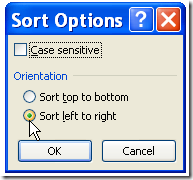
Usually when you sort data in Excel, you sort the rows, to put them in a different order. For example, you could sort the rows in a Customer list by the customer names in column A. Occasionally, you might need to sort a list horizontally, to put the columns in a different order. Here are the steps for sorting columns instead of rows in Excel, and there’s a video too.
Author: Debra Dalgleish
Advanced Excel Conference
[Update] This conference is no longer available.
Excel Resources
For information on other Excel Resources, such as tips and tutorials, Excel videos, and online courses, see the following pages on my Contextures website.
Excel Help – Online Resource List
Other Online Excel Resources
List of online Excel help forums and other resources where you can ask questions or find answers
There’s a wealth of Excel information on the Microsoft web site
List of resources if you need help with Power BI questions and problems
Links to Microsoft Support Pages on Excel Topics
Great reference – Excel Function Bible (free) by Norman Harker and Ron de Bruin
_____________________
Summer Hours for Contextures Blog
Monday was Victoria Day in Canada, which is the unofficial start of summer. However, my tomato plants are huddled in the garage, wearing little polar fleece sweaters, hoping it will warm up soon.
It dipped to 1°C last night, but at least it didn’t snow!

Despite the frosty weather, I’m putting the Contextures Blog on summer hours, and will be posting Monday, Wednesday and Friday.
I hope it’s warmer where you are!
_____________
Dynamic Dependent Data Validation Lists
Roger Govier has created a sample workbook and instructions that show you how to create dynamic dependent data validation lists.
His technique lets you create multiple levels of dependent data validation, without defining a named range for each list.
INDEX and MATCH Functions
Instead, Roger’s formula uses the INDEX function, with MATCH, to find a column heading, then shows the list from that column.
For example, on one sheet you can list regions, countries, areas and cities.
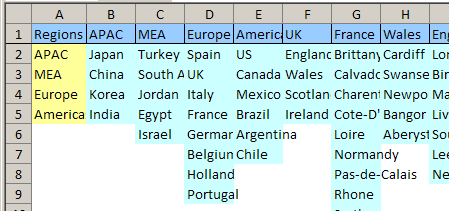
Data Entry Sheet Drop Downs
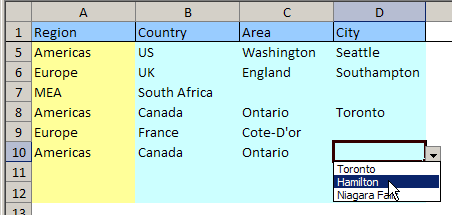
Then, on another sheet, select a region in column A, and see only the related countries in column B’s data validation drop down.
In column C, you’d see only the areas in the selected column, then only the applicable cities in column D.
How It Works
With Roger’s technique, you’ll create four defined ranges, then use two of those ranges as the source for data validation drop down lists.
The ranges are dynamic, so you can add more items to any list, or add new lists, and the defined ranges will automatically adjust.
There are full instructions for Data Validation – Dynamic Dependent Lists, and a sample workbook that you can download.
Also, Roger Govier‘s contact information is at the bottom of that page.

____________________
Microsoft Office 2010 Information
If you’re eagerly awaiting the next release of Microsoft Office, you can find some early information at the new official Office 2010 blog.
There’s not much news there yet, but you can subscribe to the RSS feed and read any updates as they’re posted.
Office Site and Forums
Also, there’s an Office 2010 web site, where you can apply to join the Technical Beta. I’ve signed up — did you?
Ask your questions in the Office forums on the Microsoft site.
Excel Team Blog
For Excel related news, watch the Microsoft Excel blog. They did a great job leading up to Excel 2007, and I hope they’ll do the same for this version.
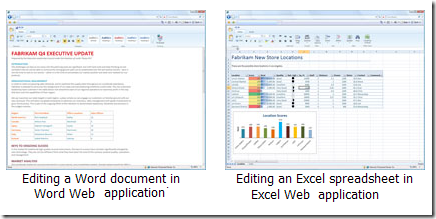
There are even a few screen shots in the Microsoft press gallery.
_______________
Excel Drop Down List From Different Workbook
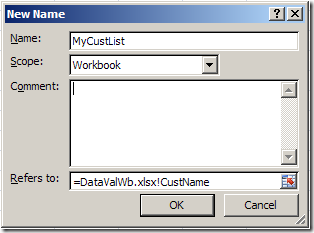
In Excel, you can create a drop down Data Validation list, so it’s easy to enter valid items in a cell.
Usually, the list of valid items is stored in the same workbook, but it’s possible to set up a drop down from a list in another workbook — as long as the other workbook is open.
Continue reading “Excel Drop Down List From Different Workbook”
Create Excel Pivot Chart With Chart Wizard
If you select a cell in a pivot table and click the Chart Wizard button on the toolbar, a default pivot chart is created, on a new chart sheet.
Sometimes you might want to step through the Chart Wizard, so you can set the options as you create the pivot chart.
Use the Chart Wizard
If you follow the steps below, you can use the Chart Wizard, instead of creating the default pivot chart.
- Select an empty cell on the worksheet, away from the pivot table and any other data.
- On the Excel toolbar, click the Chart Wizard button.
- In Step 1 of the Chart Wizard, select a Chart type and Chart sub-type, then click Next.
- In Step 2 of the Chart Wizard, click in the Data range box, and select any cell in the pivot table.
- The entire pivot table will be automatically selected, and its address will appear in the Data range box.
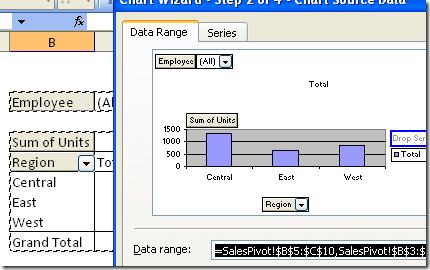
Complete Chart Wizard Steps
Next, complete the remaining Chart Wizard steps, selecting the options you want
When you’re done, click the Finish button, to create the pivot chart.
Chart Wizard Note
If you select a pivot table as the data range, you can’t return to Step 2 of the Chart Wizard.
To use a different data range, you’ll have to start over, and create a new chart.
__________________
Jump to the Next Data Entry Cell in Excel
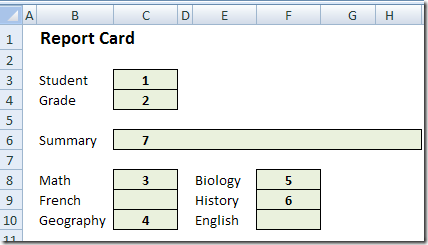
If you’re filling in a form, the data entry cells might be scattered throughout the worksheet. You’d like a quick and easy way to move through the cells, in a specific order. Here is a technique that lets you jump to the next data entry cell in Excel, without any macros.
Continue reading “Jump to the Next Data Entry Cell in Excel”
Problems With Dynamic Charts in Excel
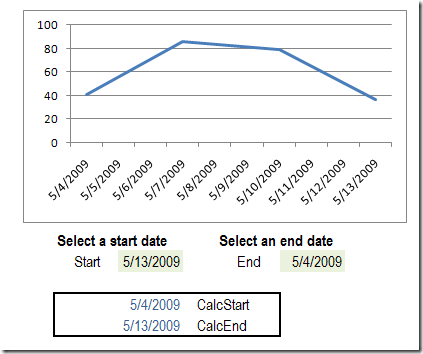
Recently, I wrote about creating dynamic charts in Excel, where you can select a date range from drop down lists. In that article I warned that the dynamic values would disappear if the entire range is selected, in Excel 2007.
I’ve done more testing, to see when the values stick, and when they disappear, and there’s a new version of the file for you.
Excel List of All MP3 Files in a Directory
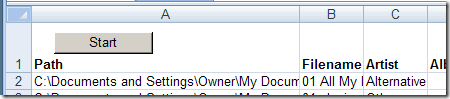
If you have a folder full of MP3 files, you can use Excel to create a list of the files, including title, artist, and song duration.
Continue reading “Excel List of All MP3 Files in a Directory”