
Usually when you sort data in Excel, you sort the rows, to put them in a different order. For example, you could sort the rows in a Customer list by the customer names in column A. Occasionally, you might need to sort a list horizontally, to put the columns in a different order. Here are the steps for sorting columns instead of rows in Excel, and there’s a video too.
Dates in Different Columns
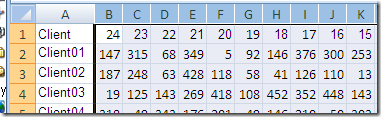
In this example, I’m working with a data download that dumps the previous 24 months of sales.
- The download has no headings — just the data
- The latest data (1 month ago) is in the first column
- The oldest data (24 months ago) is in the last column
In my reports, I want to show the data in chronological order, so I need to reverse the order of the columns.
You could use a macro to sort the columns, if you need to do this frequently, but here are the steps for manually sorting columns instead of rows.
Create Temporary Headings
Here are the steps that I used, to sort the date columns in the Excel list. There aren’t any headings on the downloaded data, so I’ll add a heading row. Later, the new headings will be used for sorting columns into a different order.
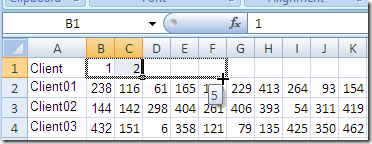
- Insert a blank row above the data, to use for temporary headings
- In the blank row, type headings above the text column, as placeholders. For example, in the column above the client names, type Client, or simply type Column01.
- In the blank row, above the first two columns to be sorted, type 1 and 2. These numbers will be used to create a series of numbers for the sort order.
- Select the cells that contain the the two numbers
- Point to the AutoFill handle at the bottom right of the selected range, and when the pointer changes to a small black cross, drag to the right.
- Drag to the last column that you want to include in the sort. In this example there are 24 columns, so I’ll drag across all 24 columns to create heading numbers.
Sort the Columns
The next step is sorting columns, based on the new heading row.
- Select all the columns that you want to sort. In this example I’ll select columns B:Y, which contain the 24 months of data.
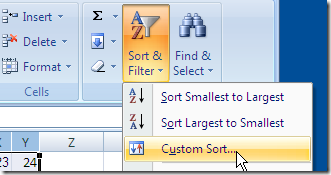
- On the Ribbon’s Home tab, click Sort & Filter, then click Custom Sort.
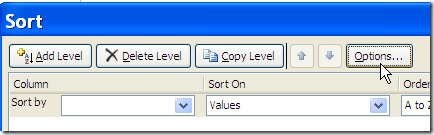
- In the Sort dialog box, click Options
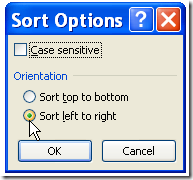
- In the Sort Options dialog box, click Sort Left to Right, then click OK
- From the Sort By drop down list, click on Row 1, because that’s where the headings are located.
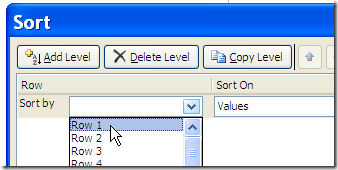
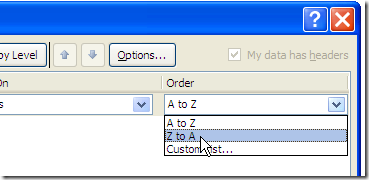
- In this example we want to reverse the column order, so in the Sort dialog box, click the drop down arrow for Order, and select Z to A.
- Click OK, to sort the columns.
After sorting, columns are now in chronological order, with the earliest sales data at the left, and the newest sales data at the right.
As a final step, you can delete the temporary row that contained the headings.
Video: Sort Columns Instead of Rows
Watch this short video, to see a couple more examples of sorting a list to change the order of the columns, instead of rearranging the rows.
Learn More
Sort Multiple Columns in Excel
Sort Lottery Number Rows in Excel
Sort Data With Excel Custom Lists
_________________
SUPER helpful!! I had 67 columns that I need to flip the order of and this is a major time saver! THANK YOU!!
Thank you!
Copy your row
paste special on a new worksheet, but use the “transpose” option. Icon has rows to columns
Sort the new worksheet as you would a single column
Copy again
paste back over original using the same transpose option
That works well if you just need to sort the items in one row.
In the example shown above, the entire table had to be sorted, to put the columns in reverse order
I love sites that provide valuable insights years after they were published.
Excellent work!
Tks, you are the best.
Thank you! I am an advanced user, never knew that you could do this!
Thanks, Gary, and I’m glad you finally found this trick!