
One of the best features of Excel is that it’s quick and easy to sort columns of data. From what I’ve seen, sorting is one of the first things most people learn to do, when they’re getting started in Excel.
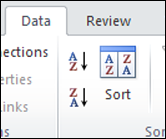
Sort Across Row
Usually, we sort Excel data based on a column’s values, but there are other options available for you.
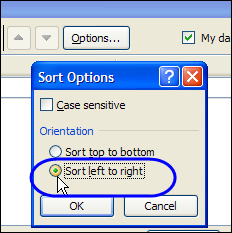
You can even sort data in an Excel row, left to right, by changing one of the sort options.
This method sorts the columns in the entire list of data, based on the values in the selected row.
To see an example, watch the short video in the next section.
Video: Sort Data By Row Values
In this example, I show how to sort a table of monthly sales, so the month with the largest sales total is at the left. To do this, I used a right-click popup menu, for a custom sort.
Sort Multiple Rows of Data With a Formula
In a comment on the Sort a Row in Excel 2010 blog post, Debbie asked about sorting 2000 rows, individually, left to right.
She didn’t say they were lottery numbers, but her example, shown below, sure looks like that to me.
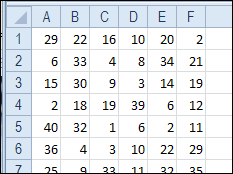
Sort With Formulas
One way to sort the rows is to use a formula, in columns to the right.
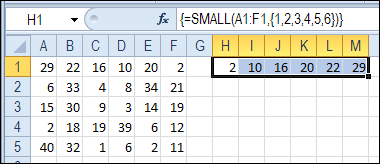
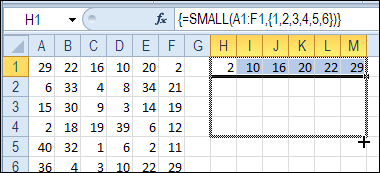
In the screen shot below, cells H1:M1 are selected, and this SMALL formula is entered:
=SMALL(A1:F1,{1,2,3,4,5,6})
Then, to array-enter the formula, press Ctrl+Shift+Enter
The formula sorts the 6 numbers from A1:F1, in ascending order, and shows the results in the 6 cells where the formula was array entered — H1:M1
Copy Formula Down
After you enter the formula in row 1, select cells H1:M1
Then, point to the fill handle at the bottom right of the selected range
When the pointer changes to a black fill handle, like the one in the screen shot below, drag down to the last row of numbers
Then, release the mouse button, and each row’s formula shows the row’s original numbers in ascending order.
Change to Values
After the formulas have been copied down to the last row of data, you can leave them as is.
Or, as a final step, you could copy the columns of formulas, and paste them as values. This short video shows a different Excel workbook, where I used a mouse shortcut to copy formulas, and paste them as values.
Sort Multiple Rows with a Macro
If you don’t want to mess with formulas, you could use a macro to sort each row, left to right.
The following macro, from Dave Peterson, will sort all the rows on the active sheet, starting in row 1, and assumes there are 6 columns of numbers.
Make a copy of your original worksheet, before sorting with the macro.
Sub SortLotteryRows()
'posted by Dave Peterson
Dim iRow As Long
Dim FirstRow As Long
Dim LastRow As Long
With ActiveSheet
  FirstRow = 1 'change to 2 if there are headings
  LastRow = .Cells(.Rows.Count, "A").End(xlUp).Row
  For iRow = FirstRow To LastRow
    With .Cells(iRow, "A").Resize(1, 6)
      .Sort Key1:=.Columns(1), _
      Order1:=xlAscending, _
      Header:=xlNo, _
      OrderCustom:=1, _
      MatchCase:=False, _
      Orientation:=xlLeftToRight
    End With
  Next iRow
End With
End Sub
Other Row Sorting Ideas
Do you have any other ideas for sorting lots of rows? Please share your ideas in the comments.
And for more Excel sorting tips, go to the Excel Sorting page on my Contextures site.
_____________
16 thoughts on “Sort Lottery Number Rows in Excel”