
In the old days, the Sort dialog box in Excel only had 3 levels.
However, with a bit of planning, you could sort Excel data by 4 columns or more, and once you learned that trick, life was good. Or at least it was sort of good. 😉
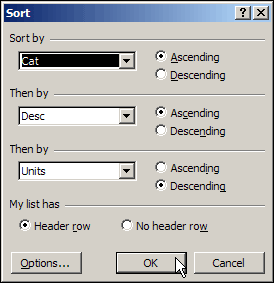
Sorting in Excel 2007
In Excel 2007, the Sort dialog box is much fancier, and you can include up to 64 sorting levels.
I’ve never needed anywhere near that many – 5 or 6 fields is plenty for most tables that I’ve had to sort.
Sort By Colour
Another new feature in Excel 2007 is the ability to sort by cell or font colour, or by cell icon.
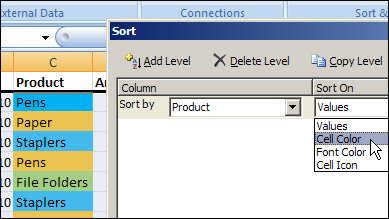
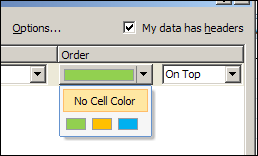
If you have different colours in a column, you can choose one to show up at the top or bottom of a sorted list.
If you used conditional formatting to add cell icons, such as traffic lights, you can sort by those icons.
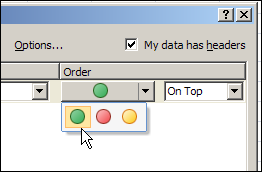
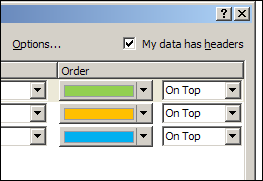
To put the colours or cell icons in a specific order, you can add the same field multiple times in the Sort dialog box, and choose a different colour or cell icon for each sorting level.
This won’t be too difficult if you have only a few colours in the list, but will be more challenging if you have lots of colours.
Worksheet List Sorted by Colour
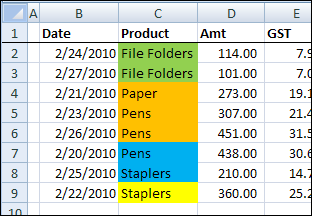
The list on my worksheet, that was previously sorted by date, is now sorted by the colours, in the order that I selected above.
Yellow isn’t in the Sort level specifications, so it appears at the bottom of the list.
Sort By Colour At Your Own Risk
Even though you can sort by colour now, I wouldn’t recommend it. I’ve seen too many rainbow coloured Excel worksheets, where nobody can remember what the colours mean.
Is yellow good? Is blue bad? Is there a colour code somewhere?
Sort By Text or Number
I’d rather add another column in the worksheet, and put a number code or text comment there. S
o, instead of marking the overdue accounts with a red fill colour, type “Overdue” in another column, or use a formula to calculate which accounts are overdue.
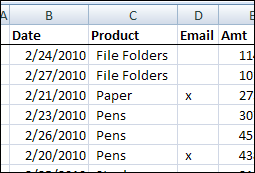
Or, instead of highlighting the customer names that you want to send an email to, type an X in an Email column.
Then, you can sort or filter the Overdue accounts or the Email column, to focus on the rows of interest.
Do You Sort By Colour?
Maybe I’m missing something, and the feature is working well for you. Some people must have asked for the feature, since they added it to Excel 2007.
In your Excel worksheets, do you ever sort by colour? In what kind of lists or situations is it most helpful for you?
_______________
I use a bright yellow fill color to mark cells where data are still missing. (Either formatted manually or by conditional formatting for empty cells.) Then I sort those rows to the top of the list and know exactly, which missing data I have to ask my team members for.
Thanks Ute-S, it’s interesting to see what other people do with the Excel features.
[…] know how to sort an Excel list alphabetically, and with Excel 2007 you can even sort an Excel list by colour. Did you know that you can also create a custom list in Excel and use that to sort your data, […]
[…] There you have it – Sorting by color in Excel 2003. As I mentioned before, Excel 2007 has a better (built-in) solution. So learn how to sort by color in Excel 2007, check out Debra’s Post. […]