
If you’re filling in a form, the data entry cells might be scattered throughout the worksheet. You’d like a quick and easy way to move through the cells, in a specific order. Here is a technique that lets you jump to the next data entry cell in Excel, without any macros.
Select the Data Entry Cells
To set up this technique, you will create a named range. The steps below show how to do this.
In this example, we have a report card, and the cells are numbered, to show the data entry order.
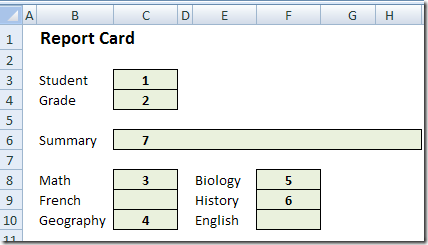
- First, select the second cell in which you want to enter data.
- In this example, we’ll select cell C4, where the student’s grade level will be entered.
- Then, hold the Ctrl key and select the next cell, then the next, until the remaining cells, 3 to 7, are selected.
- Finally, select the first cell in the sequence – cell C3 in this example.
Because cell C3 was selected last, it becomes the active cell in the range. Later, when we use this range, we’ll automatically start in cell C3.
- Note: In Excel 2003 and earlier versions, you’re limited to 255 characters in the named range formula. Depending on the length of the sheet name, you’ll probably be able to include 10-15 cells in the named range.
Name the Range
Next, you’ll create a name for the selected cells.
- Click in the Name box
- Type a one-word name for this group of cells – Grades in this example.
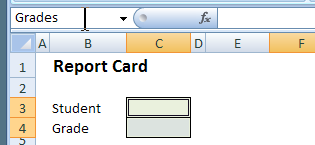
- Press the Enter key to save this name.
Use the Named Range for Data Entry
Now, when you want to enter information into these cells, you can select the named range, and tab through the cells.
- At the right of the Name box, click the drop-down arrow.
- Click on the name that you created – Grades
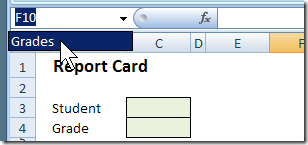
- With the named range selected, type in the active cell.
- Press the Tab key, or the Enter key, to move to the next cell.
- When all the cells are completed, click a cell outside the named range, to deselect the range.
Video: Jump to the Next Data Entry Cell
To see the technique to jump to the next data entry cell in Excel, watch this short video.
For more data entry tips and video, go to the Excel Data Entry Tips page on my Contextures website.
_______________
hey Debra thanks for the reply
yes i can do so but isn’t it possible then it goes by it self i got for exempel 400 student and would prefere just typ blindely on my key board the marks of the student and it goes on and on. is there a solution please help tnx
i made a mistake in the range and named/saved it how can i delete it from the selection and that it will disapear
tnx
See first comment
i got 320 data cell’s, is there not an other way to select more then 24 a 27 cells?
Hi
Could somebody help me on the requiremnet below?
Cell 1 – Jan 2012
Cell 2 – Feb 2012
Cell 3 – Mar 2012
How do i get ‘Feb 2012’, ‘Mar 2012’ in cell 2 and 3 respectively automatically when cell 1 is filled with ‘Jan 2012’?
Hi,
I used the “Jump to the Next Data Entry Cell” in Excel 2007
Great tip, only I still have a problem.
I need to protect the sheet. When I protect the sheet, the jump to does not work. Is there a way around this ?
Thank you,
Keith, the technique should work when the sheet is protected, as long as those cells are unlocked. That setting is on the Ribbon’s Home tab, in the Cells group. Click Format, then click the Lock command, to toggle the setting.
Hi Debra.
Great tip thanks. I have the same problem as Keith- when I protect the worksheet the name range stops working even though those cells are unlocked.
Has anyone come up with a solution?
Thanks, Aaron
Aaron, when you protect the sheet, check the boxes for ‘Select locked cells’ and ‘Select unlocked cells’. Then you should be able to select the range and tab through the selected cells.
Thanks Debra. Ticking Select Locked Cells allows the name range to work, but also allows users to access those locked cells which were the reason for protecting it?
Aaron, ticking that box just allows users to select the locked cells — they can’t make changes to those cells.
Fabulous- that’ll do me. Much appreciated! Cheers, Aaron
Respected sir!
i read your tip of name range. it is a good method. but i want to be, nobody enter data other than specific cell (cell that used in name range). or new computer user not select every time cell name range from cell no tool bar.
Thanks