Rename Excel Pivot Table Value Field

When you add a field to the pivot table Values area, it’s automatically given a custom name, such as Sum of Units.
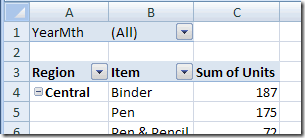
Default pivot table value field names

Use a Shorter Name

You might want to change the custom name to Units, so it’s easier to read and makes the column narrower.

However, if you select the cell and type Units, you’ll get an error message: “PivotTable field name already exists.”

Use a Slightly Different Name

If you try to create a custom name that’s the same as a field name in the source data, you’ll see the error message. In this example, because one of the fields in the source data is named Units, you can’t use Units as a custom name in the pivot table.

However, you can avoid this problem, by adding a space character to the end of the custom name, and it will be accepted.
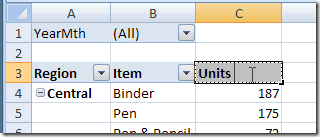
PivotUnitsChange

Use Replace All

Or, if you have multiple value fields in the pivot table, select all the captions, and use the Replace All command to fix all the captions at once.

  1. In the Find What box, type “Sum of” (do NOTadd a space at the end)
  2. Leave the Replace With box empty
  3. Click Replace All.

This will leave a space at the start of the caption, so it’s different from the original field name, and will be accepted.
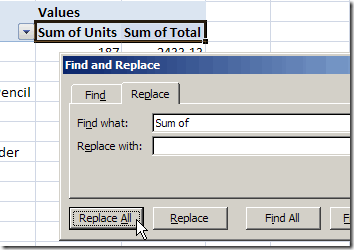
Find and Replace dialog box

____________________

Select Excel Chart Dates From a Drop Down List

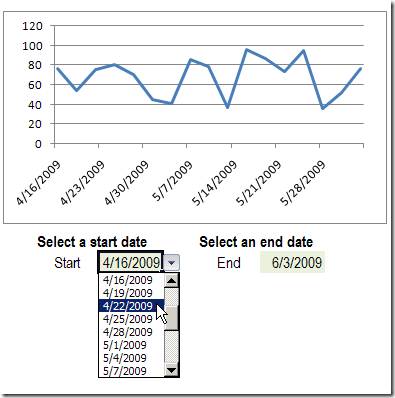
Instead of showing all the data in a chart, you can select a specific date range, and show only the data from that period. In this example, drop down lists of dates are created with data validation. Select Excel chart dates from a drop down list, and the chart changes to show the new range.

Continue reading “Select Excel Chart Dates From a Drop Down List”

Automatically Update Access Front End Files

When sharing an Access database, you should have the data in one file (the back end) and the queries, reports, forms and modules in a separate database (the front end).

Give each user their own copy of the front end, linked to the shared back end.

Keep a master copy of the front end file, tucked away in a safe place. If you need to update the front end, such as adding new features to a form, make the changes in the master copy of the front end file (make a backup copy first!)

To distribute the revised front end to all users, you can use a utility like Tony Toews’ Auto FE Updater. I use this utility for most of the databases that I’ve installed at client sites, and it works beautifully.

[Update: This utility no longer has a free version]

The utility adds a shortcut to the user’s desktop, which they double-click to open the database. If the master copy of the front end has been updated, the utility downloads a copy of the revised version.

Remember to Compile

The only problem that I’ve had was with one user, who has Access 2000 installed. I’m using Access 2003 to update the master file, and all the other users have Access 2002 or 2003 installed.

Sometimes, after I’d updated the master file, that user couldn’t open the new version. Error messages would appear, and the VBA code looked like pieces were missing. Very strange.

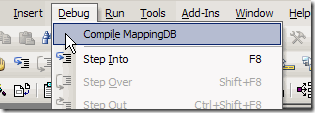
When I made the latest change to the database, I compiled the code before closing the file.

DebugCompile

It dawned on me that maybe I’d occasionally forgotten to do this, and that could be causing the problem.

I checked the previous version, and it wasn’t compiled. When I uploaded the new compiled version, that user was able to open it with no problem.

That’s not definitive proof that compiling will prevent future problems, but I’m keeping my fingers crossed.
____________________
Make Excel Numbers Line Up Correctly When Zoomed

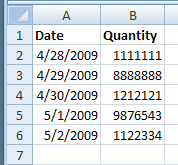
At 100% zoom setting in Excel, the numbers display correctly. If I have a column of 7 digit numbers, all 7 numbers line up correctly, all down the column.

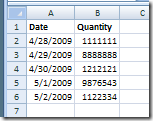
For example, in the screen shot below, 1111111 is the same width as 8888888.

NumPropor01

Problem When Zoomed

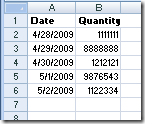
However, if I zoom to something less than 80%, the numbers become proportional, and don’t line up correctly. Here are the same numbers and dates, at 70% zoom.

NumPropor02

An entry of 1,111,111 is much narrower than 8,888,888.

This can cause problems, if you’re skimming down a long column of numbers, to spot entries that are unusually large.

[Update] There is a newer version of this article here: Keep Numbers Aligned When Zooming

Change a Registry Setting

You can change a registry setting, as described in the following MSKB article, to prevent numbers from displaying in proportional font.

  • WARNING: As always, you should make a backup copy of the registry before you tweak any settings:

Here is the article link:

Euro Currency Character Is Not Displayed Correctly in Excel 2003

This is really a fix for a Euro symbol display problem, but it also fixes the proportional font display.

Steps Suggested by Microsoft

Here’s what the article suggests, and you can replace the 11.0 with the version of Excel that you’re using:

  • Quit any programs that are running.
  • Click Start, and then click Run.
  • In the Open box, type regedit, and then click OK.
  • Locate, and then click to select the following registry key:
    HKEY_CURRENT_USERSoftwareMicrosoftOffice11.0ExcelOptions
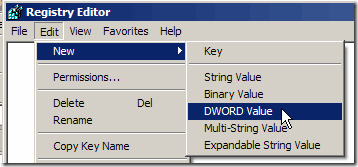
  • After you select the key that is specified in step 4, point to New on the Edit menu, and then click DWORD.

RegistryDWord

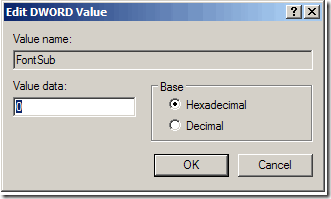
  • Type FontSub, and then press ENTER.
  • Right-click FontSub, and then click Modify.
  • In the Value data box, type 0, and then click OK.

RegistryDWordEdit

  • On the File menu, click Exit to quit Registry Editor.
  • Start Excel.

Test the Result

After making the registry change, open Excel and zoom to 75% or lower. The numbers should remain displayed in non-proportional font.

Here are those numbers at 70%, after the fix – problem solved!

NumPropor03
_________________

Excel Keyboard Shortcuts for Ribbon

While trying to type a hyphen in Excel 2007, I stumbled onto a handy keyboard shortcut.

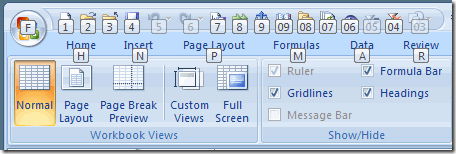
I had a bit of an overreach on the hyphen, and hit the F10 key instead. To my amazement, the Ribbon filled with little tags.

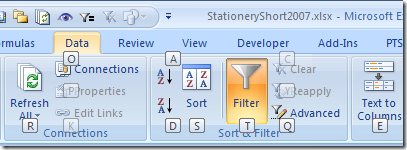
RibbonTags

Maybe I’ve been living under a rock, but I don’t remember seeing those tiny tags before. Have you noticed them?

There’s a number or letter on each Ribbon tab, like H for Home, N for the Insert tab, and R for the Review tab.

Above that, there is a tag for each icon on the Quick Access Toolbar (QAT) too! They are numbered from 1 to 9, and then a set of descending numbers, from 09 down to 01.

Use the Shortcut keys

Here’s how you can use the shortcut keys that those tags represent:

  • First, press the F10 key, to activate the Ribbon.
  • Next, type the letter(s) or number(s) that you see on any Ribbon tab or on any of the QAT commands

See Data Tab Commands

For example, I can type an A to activate the Data tab. (Note: Even if the Data tab is active, you’ll have to type an A to see its command tags.)

Tags will appear on the available Data commands.

RibbonTagsData

Because the active cell is in a named Excel table on my worksheet, most of the Data tab commands are available.

  • For example, I can type the letter T, to add an AutoFilter
  • Or, I could type the letter Q, to start an Advanced Filter.

Useful Feature

It seems like a useful feature, and the only shortcut that I have to memorize is the F10 key.

Anyway, it’s nice to know that a typo can lead to an interesting discovery.
_____________________
Turn Off Excel Paste Options Popup

It’s nice to have a new laptop, but it’s amazing how many options and settings need to be adjusted.

For example, on my other machines I’ve changed the settings so those annoying Paste Options and AutoFill Options buttons don’t appear.

Now it’s time to fix them on the new laptop. Does anyone actually use those buttons?

Video: Turn Off Paste Options

Here’s a video I created while changing the Paste/AutoFill options.

Note: I’m also testing the latest version of Camtasia Studio, and it has some video recording settings that I need to adjust too!

To turn off the buttons in Excel 2007:

  1. Click the Office Button, then click Excel Options
  2. Click Advanced, and in the Cut, Copy and Paste section, remove the check marks from ‘Show Paste Options buttons’ and ‘Show Insert Options buttons’.
  3. Click OK
Cut, Copy and Paste section

To turn off the buttons in Excel 2003 and earlier:

  1. On the Tools menu, click Options
  2. On the Edit tab, remove the check marks from ‘Show Paste Options buttons’ and ‘Show Insert Options buttons’.
  3. Click OK

_________________

Sort Microsoft Word List-Ignore The

You don’t have to put all your lists in Excel – Word has a Sort feature too.

And Word has an extra feature that makes it easy to sort a book list — your can ignore “The”, at the start of the book title.

Book Titles List

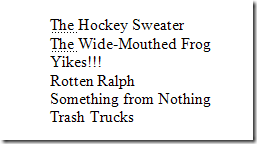
For example, in this list, several of the book titles start with “The”.

When sorting the list, I’d prefer to ignore that word, and sort by the second word in the title. (Picture books for 2-year-old boys sure have interesting titles!)

WordBookList

Format as Hidden Text

I’ll format those “The” words as hidden text, before sorting.

  • Select all the titles in the book list.
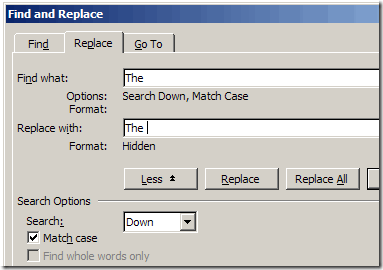
  • On the Ribbon’s Home tab, click Replace
  • In the Find What box, type ‘The ‘, including a space character, and with an upper case T.
  • Click the More>> button, to see the options.
  • Add a check mark to Match case
  • In the Replace With box, type ‘The ‘, including a space character, and with an upper case T.
Word Replace Hidden
Word Replace Hidden

Format Settings

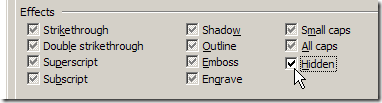
  • Click the Format button, and click Font.
  • All the Effects should have grey check marks.
  • Click Hidden, to add a black check mark.

TextHidden

  • Click OK to close the Replace Font dialog box.
  • Click Replace All, to replace the text, and click any confirmation messages that appear.
  • Close the Find and Replace dialog box.

Sort the List

When the text is hidden, and hidden text is not visible, that text will be ignored when sorting.

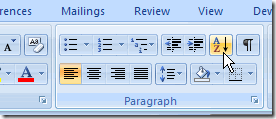
  • With all the book titles selected, click the Sort button on the Ribbon’s Home tab.

WordSortRibbon

  • Click OK to sort the list.

Note: In Excel 2003 and earlier versions, the Sort command is on the Table menu.

Show All Hidden Characters

To toggle the hidden characters on and off, use the keyboard shortcut:

Ctrl + * (Ctrl + asterisk)

Note: This is an asterisk, and you may have to use the Shift key with the Ctrl key.

Show the Hidden Text

If you’d like to see the full book titles, including the hidden text, but not the other hidden characters, you can change an option in Word.

  • Click the Office button, then click Word Options.
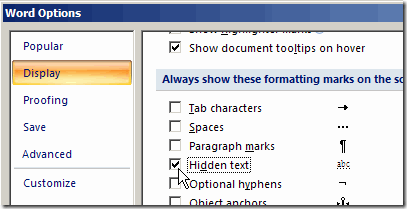
  • Click the Display category, and add a check mark to Hidden text, in the Always show these formatting marks on the screen section.

WordOptionsHidden

Note: In Word 2003 and earlier versions, the Hidden Text check box is found in Tools>Options, View tab.

The characters formatted as Hidden Text will have a dotted underline.

WordHiddenTextUnderline

________________

Data Validation Percentage Retry

Today I heard from someone who was having problems with data validation, in cells that were formatted in Percent Style.

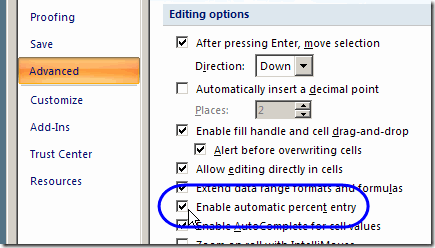
Enable automatic percent entry

In the workbook, Enable automatic percent entry is turned on (Office button, Excel Options, Advanced, Editing options).

Excel Options Enable automatic percent entry

Data Entry Cells

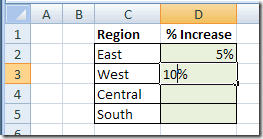
In the cells that are formatted as Percent Style, the percent sign automatically appears as you start typing a number.

NumberPctSign

Data Validation Rule for Decimals

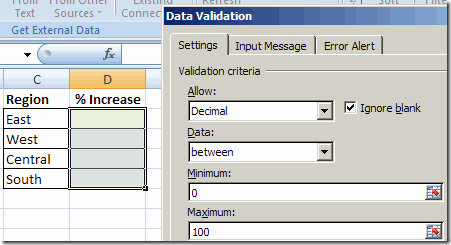
The data validation allows Decimals between zero and 100.

DataValDecimal

Invalid Entries

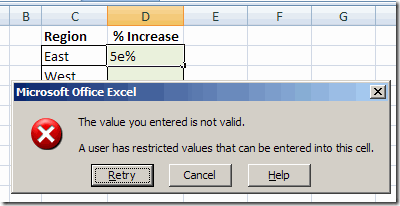
All goes well if you enter a valid number in the formatted cells. However, if you enter text, or an invalid number, the Data Validation error message appears.

DataValError

Data Validation Retry

If you click Cancel, the cell is cleared. You can type another value in the cell, and the percent sign is automatically added.

However, if you click the Retry button, the cell isn’t cleared. The existing entry, including the percent sign, is highlighted.

When you type a new number, it replaces the existing entry, and Excel doesn’t automatically add a percent sign.

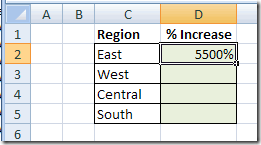
The result is a percentage much higher than what you intended. Here, it’s 5500% instead of 55%

Percentage Sign not added automatically

Retry Percentage Workaround

If you use the Retry button, remember to type the percent sign yourself.

Or, click Cancel, to start a new entry.

As a reminder, you could add those instructions to your Data Validation error message.

Or, turn off the Enable automatic percent entry option, and always add a percent sign if typing a whole number in these cells.

There’s more information on the Enable automatic percent entry option in the Microsoft Knowledgebase.
__________________
How to Change Excel Comment Shape

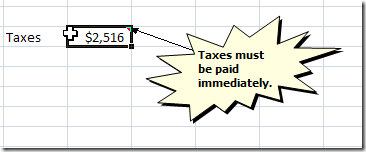
In earlier versions of Excel you could insert a comment on the worksheet, and then use the Drawing toolbar commands to change the comment’s rectangle to a different shape.

It’s not a technique that you’d want to use too often, but it can add impact to a worksheet if used sparingly.

Excel Comment shape changed to Star

Change Shape Command not on Ribbon

In Excel 2007, the Drawing Tools Format tab doesn’t appear on the Ribbon when you select a comment, so the Change Shape command isn’t available.

It’s still possible to change the comment’s shape, but it takes a bit more effort.

There are written steps, and a short video, below

Add Change Shape Command

The first step is to add the Change Shape command to the Quick Access Toolbar (QAT):

  • Right-click the QAT, and click Customize Quick Access Toolbar
  • At the top, in the Choose commands from drop down list, click Drawing Tools | Format Tab
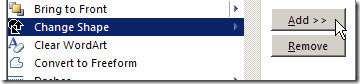
  • Then, in the list of commands, click Change Shape, shown in the screen shot below
  • Next, click the Add button, to put the command on the QAT
  • Finally, click the OK button, to close the Excel Options window
in the list of commands, click Change Shape

Change the Comment Shape

After you’ve added the Change Shape command to the QAT, it’s easy to change a comment shape (or any other shape on the worksheet.

To change a comment’s shape, follow these steps:

  • First, select the cell that contains the comment
  • Next, on the Ribbon, click the Review tab, and click Edit Comment
  • Click the border of the comment, to select the shape.
    • The selected shape should have a thick grey border, like the one in the screen shot below.
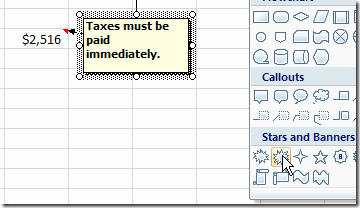
  • Finally, on the QAT. click the Change Shape command, and click on the shape that you want to use.

CommentChangeShape

Watch the Video

To see the steps for adding the Change Shape command, and changing the comment shape, you can watch this short Excel video tutorial.

______________