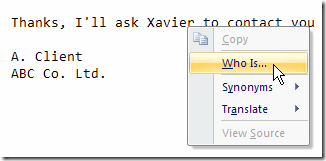
Occasionally you might get an email in which the sender mentions someone else. In the example shown below, the client promises to ask Xavier to contact you.
That name sounds vaguely familiar, but perhaps you can’t remember exactly who Xavier is, or what role he has in the client’s company.
If you’re using Outlook 2007, it can help you remember.
Who Is…
Right-click on a name in the body of an email, to open a shortcut menu.
Click Who Is…, and Outlook will check your contact information, to see if there’s anyone with that name.
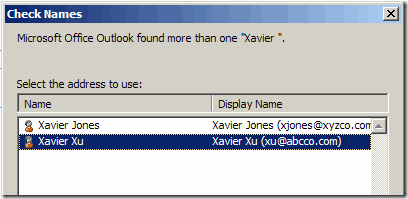
If there’s more than one person with that name, a Check Names dialog box will open, with a list of possible matches.
Click on a name in the list, then click OK, to open that person’s Contact information.
If there’s only one person with the name, their Contact information will open automatically.
________________
It seems simple enough, but sorting data in Excel can go horribly wrong, if you aren’t careful.
For example, you could sort a list of names, but miss the phone numbers in a nearby column. Then, when you’re finished sorting, all the names are associated with the wrong phone number.
Trouble Free Excel Sorting
Here are some tips for trouble free sorting in Excel:
Make a backup copy of your file before you sort the list. If there are problems with the sorted list, you can use a copy of your backup file instead.
Save the file before you sort the list. Then, if the list get scrambled, you can close the list without saving it again.
Before you sort, select all the cells in the list. This is the safest approach to sorting. In most cases, you can select one cell and Excel will correctly detect the rest of the list — but not always. If there are blank rows or columns, some of the data may not be included in the sort, and the list will be scrambled.
Sort Excel Data by One Column
In some lists, you might want to sort by one column. For example, in a list of sales orders, you could sort by Order Number.
Select all the cells in the list. Tip: Use the keyboard shortcut Ctrl + A.
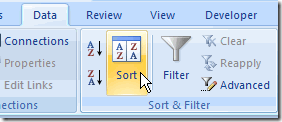
On the Ribbon, click the Data tab, then click Sort.
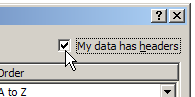
From the Sort by dropdown, select the column you want to sort. Note: If the dropdown is showing Column letters instead of headings, add a check mark to My data has headers.
From the Sort On drop down, select Values.
From the Order drop down, select A to Z, or Z to A.
Click OK
Sort Excel Data by Two or More Columns
Sometimes you need to sort by multiple columns.
For example, in a list of sales orders, you could sort by Customer Name and then by Order Date.
The customers would be sorted alphabetically, and if there are multiple orders for a customer, those orders would be sorted by date.
Follow steps 1 to 5 in the Sort Excel Data by One Column instructions above, to sort by Customer Name.
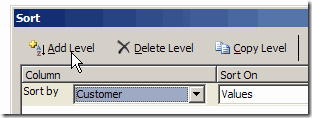
Click Add Level
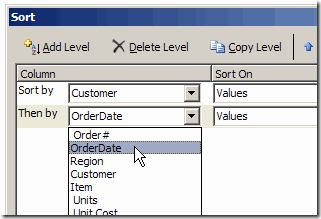
From the Then By drop down, select the second column that you want to sort – Order Date in this example.
You can use Excel’s Data Validation to limit the total amount that users enter in a group of cells.
For example, if budget is $3500, you can prevent entries that will go over that total amount.
Budget Data Entry Sheet Setup
Budget Sheet Setup
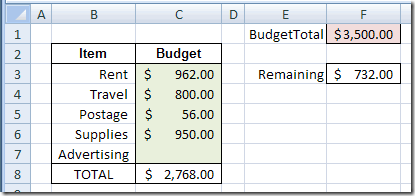
Here’s what is on the Budget data entry sheet:
Cell F1 contains the total amount allowed for the budget, and the cell is named BudgetTotal.
The user can enter budget amounts in cells C3:C7.
Cell C8 sums the amounts entered in cells C3:C7.
Cell F3 shows the amount remaining (BudgetTotal minus total budgeted in C8).
Add the Data Validation
On the Budget Data Entry Sheet, data validation is applied to cells C3:C7, because this is where the data entry occurs.
Select cells C3:C7
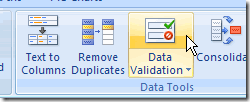
On the Ribbon, click the Data tab, then click Data Validation. (In Excel 2003, choose Data|Data Validation)
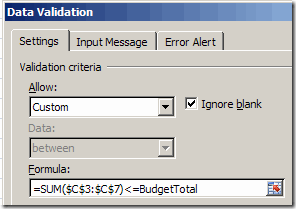
Choose Allow: Custom
For the formula, use SUM to total the values in the range $C$3:$C$7. The result must be less than or equal to the amount in the BudgetTotal cell. =SUM($C$3:$C$7)<=BudgetTotal
Click OK to close the Data Validation dialog box.
Test the Data Validation
After setting up the data validation, you can test it, to make sure that it works as expected.
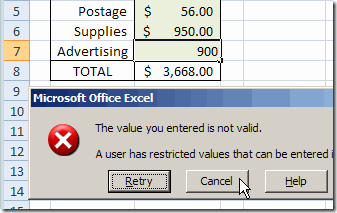
In cell C7, enter $900, which is higher than the amount remaining.
Last week, the UK Excel User Group Conference was held at the Microsoft offices in London.
You can see a few conference photos by Bob Phillips, including shots of speakers Nick Hodge, Simon Murphy and Andy Pope, and a few pictures of the attendees.
UK Excel User Group Conference April 2009
Microsoft Event
The UK Excel User Group Conference was a free event, hosted by Microsoft, and it filled to capacity quickly, after registration opened.
There may be another conference in the fall, and I’ll post the details here if one is announced.
There’s also a list of upcoming Excel Events on my website.
________________________
Today is the publication date for Pro Excel Financial Modeling: Building Models for Technology Startups, by Tom Y. Sawyer.
I was the technical editor for the book, and was impressed by Tom’s knowledge, and his ability to clearly explain the complex financial modeling topics that his book covers.
Author & Expert Tom Sawyer
Drawing from his extensive experience with technology startup companies, Tom explains the business thinking behind financial modeling.
Then, using a step–by–step approach, he shows how to develop financial models in Excel.
The book includes extensive case studies and you can download the Excel templates from the Apress website.
Adapt for Any Version
The templates and screen shots are from Excel 2007, but you could adapt the techniques for any version of Excel.
What you’ll learn:
Business thinking behind successful financial modeling aimed at investors.
How to communicate effectively with investors.
Advanced modeling with Excel, including Cost of Information Technology, Customer ROI, Cost of Sales and Marketing, Cost of Goods Sold, Team and Staffing, Profit and Loss.
Best practices for modeling using Microsoft Excel.
The same feature is available in Excel 2007, using a different technique.
Excel Worksheet List
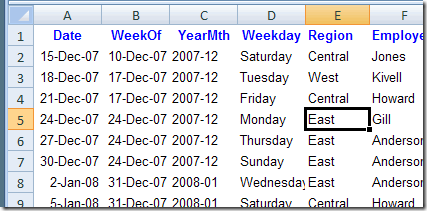
Using the same example as in the previous post, the East region is selected in the table below.
With a couple of clicks, and no programming, you can add an AutoFilter and filter the table to show only the East region orders.
Excel Worksheet List
Apply the AutoFilter
In previous versions of Excel, you had to add a toolbar button to use the filter by selection feature.
In Excel 2007, the feature is available in a shortcut menu.
The table doesn’t need to have an AutoFilter currently applied.
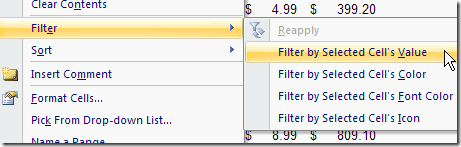
In a table in Excel, right-click a cell that contains the criterion you’d like to use. For example, to filter for the East region records, right-click an East cell in the Region column.
On the shortcut menu, click Filter, then click Filter by Selected Cell’s Value
An AutoFilter is added to the table, if there wasn’t already one in place. The table is filtered, and shows only the East region records.
Remove the Filter
To remove the filter, and show all the records again:
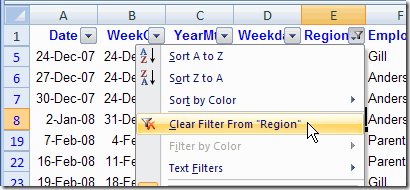
In the Region column heading, click the AutoFilter drop down arrow
Click Clear Filter From “Region”.
Clear an Excel AutoFilter
The filter is removed from the Region column, but the AutoFilter feature is still turned on.
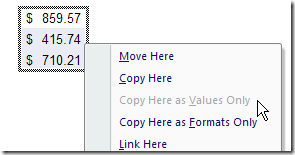
In related news, I recently discovered that the mouse shortcut to copy and paste as values doesn’t work anywhere on a filtered sheet, unless all the records are showing.
Here you can see that it’s not available on the shortcut menu.
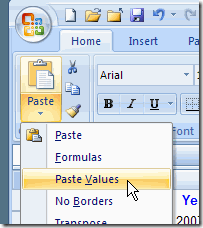
Use Ribbon Command
You can use other methods to copy and paste as values, such as the Ribbon command, but not the shortcut. I wonder why.