
Many moons ago, Dave Peterson created a sample Excel worksheet data entry form and kindly shared it on the Contextures website.
In Dave’s original form, users could add records on the data entry sheet, and click a button to go to the database sheet, where they could review or edit the order records.
I’ve created a couple of versions since then, including an Excel data entry form that allowed users to view, add and update records, while staying on the data entry sheet.
Mark the Required Cells
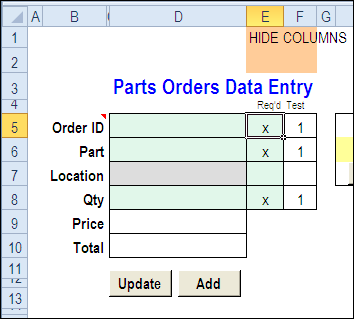
Here’s a screen shot of the latest version of the workbook, with new features that were suggested in the comments for the previous version.
Mark Required Data Entry Cells
The first new feature is the ability to mark which cells are required.
- In column E, add an X beside the cells that are mandatory, and leave the optional rows blank.
- Conditional formatting colours the required cells in green, and the optional cells in grey.
You can hide columns E and F before using the workbook.
Select a Specific Record
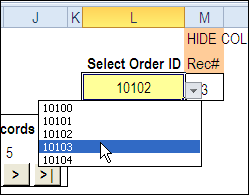
In the new version, you can select a specific record from the drop down list in cell L3, to view or edit that record.
Before using the workbook, hide column M, that has a formula to calculate the record number for the selected order.
Use the Navigation Buttons
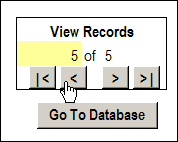
Or, as in previous versions, you can click the navigation buttons to move forward or back through the records, based on the row numbers in the database.
Download the Data Entry Form File
The zipped sample workbook can be downloaded from the Date Entry and Update form page on my Contextures site. On that page, go to the Download section, look for Version 1
After you open the workbook, enable macros, so the buttons and event code will work correctly.
There is an instruction sheet in the workbook, that describes how to navigate, add and update records, and maintain or modify the named ranges.
___________
Hello Debra,
Thank you very much for posting a new version.
I have been looking at all of the things you have done through each of the versions. Great learning material.
As I am the Quartermaster of my local Scout Group, I have been using your work quite extensively and along with the latest version you have created in response to my questions I feel like I should offer you some compensation for your time.
Do you have a link on your website where people who have used your work can provide you a donation as a means of thanking you for all your great work?
Regards,
David
Hi David, thanks, and I’m glad that you’re finding the sample files to be helpful.
There isn’t a donation button on my site, but knowing that you’re using my information to help your group is thanks enough!
Debra
Hello Debra,
Thank you for putting up this great information! I’m learning how to code at this time and used your example to build a small database with a pretty face in excel. One thing I can’t seem to understand is how its copying when pulling up information by the very first line, or OrderID. I put in my new data search and it gives me the information, but only up to a certain point. I can’t extend the column copy to deliver it to the pretty face, (some call it a UI or GUI but I wouldn’t. its too generic) it can update to all columns just fine when using the scroll buttons (left, right, 1st record, last record), but when pulling up data byt the ORDER ID, it only gives me to a certain point. How can I extend when it copies a row when looking up an existing record? I’ve pinned it down to rngDE.Cells.Count, but I can’t seem to figure out where these values are (If that’s where the values are stored and If they are a default value, I just don’t know about it). I know its hard to understand what I wrote, but its hard to explain when I don’t know the proper verbiage to use so you could understand what my crazy head is saying. I’m sorry. I’ve been trying to do this for a solid week now and I’ve look online for additional information, but I’ve had no luck. I need a good book. Can you help at all? Anything will help! Anything! I just need to be put in the right direction. I can figure out the rest. I’m just stuck on this spot!
Hi Tomas,
In the worksheet code, the rngDE is set near the top of the procedure, and it’s based on the named range “OrderEntry”
Set rngDE = inputWks.Range(“OrderEntry”)
If you click the arrow in the Name Box, to the left of the Formula Bar, you can select OrderEntry, and those cells will be selected on the worksheet.
Your new cells are probably not included in that range, so they aren’t being counted.
Go to the Name Manager on the Formula tab, and change the address for OrderEntry, so it includes all your cells.