
Many moons ago, Dave Peterson created a sample Excel worksheet data entry form and kindly shared it on the Contextures website.
In Dave’s original form, users could add records on the data entry sheet, and click a button to go to the database sheet, where they could review or edit the order records.
I’ve created a couple of versions since then, including an Excel data entry form that allowed users to view, add and update records, while staying on the data entry sheet.
Mark the Required Cells
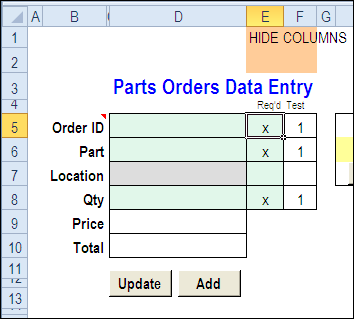
Here’s a screen shot of the latest version of the workbook, with new features that were suggested in the comments for the previous version.
Mark Required Data Entry Cells
The first new feature is the ability to mark which cells are required.
- In column E, add an X beside the cells that are mandatory, and leave the optional rows blank.
- Conditional formatting colours the required cells in green, and the optional cells in grey.
You can hide columns E and F before using the workbook.
Select a Specific Record
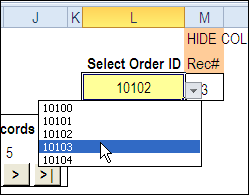
In the new version, you can select a specific record from the drop down list in cell L3, to view or edit that record.
Before using the workbook, hide column M, that has a formula to calculate the record number for the selected order.
Use the Navigation Buttons
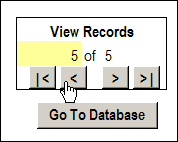
Or, as in previous versions, you can click the navigation buttons to move forward or back through the records, based on the row numbers in the database.
Download the Data Entry Form File
The zipped sample workbook can be downloaded from the Date Entry and Update form page on my Contextures site. On that page, go to the Download section, look for Version 1
After you open the workbook, enable macros, so the buttons and event code will work correctly.
There is an instruction sheet in the workbook, that describes how to navigate, add and update records, and maintain or modify the named ranges.
___________
Great template,
It has helped me reduce hours of design and coding. I like the way it is easily extendable to accommodate more data and the copy, transpose and paste feature, is wow
Thank you
Dear Debra,
Thanks for sharing, I’m glad to find this article. My problem is, I need 1 form, but the output will be in several sheet.
So I have Supplier Data Form, in this form, I need additional command button to which sheet this data will fill in. Let say I have 5 department named A, B, C, D, E but this supplier could only be at dept A, C and E. I have found how to create one form to multiple sheet but not to optional sheet. Many thanks before 🙂
Hai Debra,
When I add new data to partsdata sheet the new data had overwrite the existing data. The problem only occur when Filter is active in Partspart sheet but if I off the filter the new data will add to last row .Could you help me ?. I always use Filter on the sheet.
@sherry, in the code, you could change any lines where the nextRow variable is calculated.
For example, instead of the current line:
Use this line:
nextRow = .AutoFilter.Range.Rows _ (.AutoFilter.Range.Rows.Count).Row + 1Hello Debra,
A truly fantastic resource you have posted.
I have modified this to use an equipment database for my Scout group.
I have added another column to the right of the ‘Total’ column on the data worksheet for a hyperlink called “Link” that will go to a website that has an example of the item listed for that row.
Along with returning the row values to the ‘Input’ worksheet I would like to be able to copy the hyperlink from the data worksheet and paste this still as a hyperlink below the ‘Total’ cell.
That way if the item price is unknown I can click on a link from the ‘Input’ worksheet to a web page that has an example of the item for that row.
Hello All,
Are there any readers of this page that can help me out with copying a hyperlink from the EquipData worksheet to the Input worksheet.
I have successfully added extra rows to the Input worksheet and have made the changes to add this data to the EquipData worksheet.
I have added hyperlinks to the EquipData worksheet in Column U, which I use with hyperlinks to a products webpage my Scout group can use for replacement costs and suppliers.
I would like to have this hyperlink copied from column U of the active row on the EquipData worksheet and pasted into cell D23 on the Input worksheet.
Is there anyone who can help me with this ???
Regards,
David
Hello Debra,
I have worked out how to copy a hyperlink value from Column U (to the right of your ‘Total’ column) in the PartsData worksheet to below the ‘Total’ cell in the ‘Input’ sheet.
What I would like to be able to do now is add a row above the heading of the PartsData worksheet. I like to use this row for SUBTOTAL formulas when filtering the data (I find it easier to apply the filters and see the results above the filters rather than having to scroll to the bottom row).
When a add a new row above the headings of the PartsData worksheet the ‘View Record’ button no longer show the last record.
What parts do I need to edit to enable the insertion of a row above the headings?
Any help appreciated.
Regards,
David
David, I’ve uploaded a new sample file on the Worksheet Data Entry page. It has a setting for the row number where your database headings are located. In the download section, look for file #5.
http://www.contextures.com/exceldataentryupdateform.html#startrow