
Many moons ago, Dave Peterson created a sample Excel worksheet data entry form and kindly shared it on the Contextures website.
In Dave’s original form, users could add records on the data entry sheet, and click a button to go to the database sheet, where they could review or edit the order records.
I’ve created a couple of versions since then, including an Excel data entry form that allowed users to view, add and update records, while staying on the data entry sheet.
Mark the Required Cells
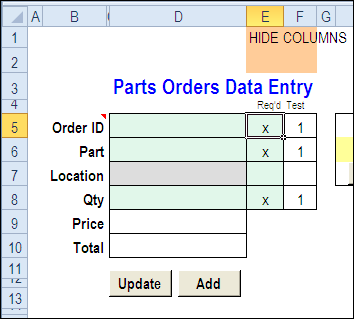
Here’s a screen shot of the latest version of the workbook, with new features that were suggested in the comments for the previous version.
Mark Required Data Entry Cells
The first new feature is the ability to mark which cells are required.
- In column E, add an X beside the cells that are mandatory, and leave the optional rows blank.
- Conditional formatting colours the required cells in green, and the optional cells in grey.
You can hide columns E and F before using the workbook.
Select a Specific Record
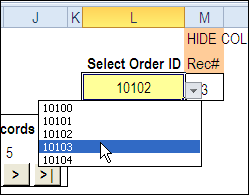
In the new version, you can select a specific record from the drop down list in cell L3, to view or edit that record.
Before using the workbook, hide column M, that has a formula to calculate the record number for the selected order.
Use the Navigation Buttons
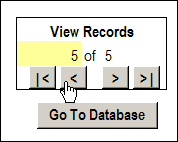
Or, as in previous versions, you can click the navigation buttons to move forward or back through the records, based on the row numbers in the database.
Download the Data Entry Form File
The zipped sample workbook can be downloaded from the Date Entry and Update form page on my Contextures site. On that page, go to the Download section, look for Version 1
After you open the workbook, enable macros, so the buttons and event code will work correctly.
There is an instruction sheet in the workbook, that describes how to navigate, add and update records, and maintain or modify the named ranges.
___________
Love your work! I would like to only display the records that are visible in the filter on the Input page. Any suggestions welcomed. For some reason all the records keep showing. How do I enforce the filtered data to be copied?
Hi Niquea,
I don’t fully understand your requirement. With the existing spreadsheet, only the current OrderID record under “Select Order ID” is displayed either by changing its value to one that is valid or clicking on the navigation icons under “View Records”. Make sure that you enable macros otherwise, these will not update and old data will be displayed.
Hi Michael
Thanks for your reply. I have modified the spreadsheet so that the ‘database’ is in rows across capturing participants details.
The Input form displays the information from the ‘database’ however I would like the ‘database’ to filter. Only the filter information from the database must be displayed in the ‘Input Form’
Currently all the records are displayed
This is a great tool and very handy. Thank you so much!
I have a challenge, when user fills the below info, I want it to be stacked in the Partsdata table and also in individual different worksheets.
For Example, If user selects, 10 door orders and 15 Blank Cap orders it should be stored in PartsData sheet and also in seperate worksheet for Doors and Blank data. So that I can keep a track of ALL the orders and individual parts order as well. And all of these sheets should be updated on its own as soon as user fills the form and hits add.
I’m aware of dynamic table, but were not able to use it! Please HELP!
Hi,
Really like this tool. Is there any way of enabling duplicate IDs? I’m working on a project where I am using the DuplicateID as a primary record, but splitting it with my own secondary record.\\
Many thanks
Chris
This has saved me tons of time. I’m using it for a fairly long data entry process with lots of fields. Because of the length, I’m afraid my users will not click the update button or do something else where the data they’ve entered on the form would be lost. Is there a way or an Excel method to force the form data to update the spreadsheet whenever they move from one field to another?