
Many moons ago, Dave Peterson created a sample Excel worksheet data entry form and kindly shared it on the Contextures website.
In Dave’s original form, users could add records on the data entry sheet, and click a button to go to the database sheet, where they could review or edit the order records.
I’ve created a couple of versions since then, including an Excel data entry form that allowed users to view, add and update records, while staying on the data entry sheet.
Mark the Required Cells
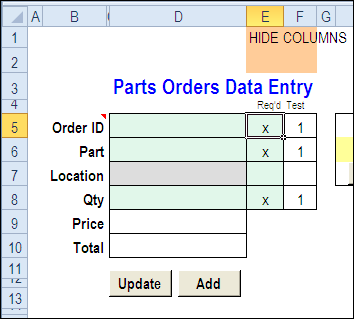
Here’s a screen shot of the latest version of the workbook, with new features that were suggested in the comments for the previous version.
Mark Required Data Entry Cells
The first new feature is the ability to mark which cells are required.
- In column E, add an X beside the cells that are mandatory, and leave the optional rows blank.
- Conditional formatting colours the required cells in green, and the optional cells in grey.
You can hide columns E and F before using the workbook.
Select a Specific Record
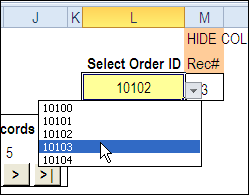
In the new version, you can select a specific record from the drop down list in cell L3, to view or edit that record.
Before using the workbook, hide column M, that has a formula to calculate the record number for the selected order.
Use the Navigation Buttons
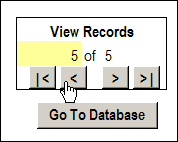
Or, as in previous versions, you can click the navigation buttons to move forward or back through the records, based on the row numbers in the database.
Download the Data Entry Form File
The zipped sample workbook can be downloaded from the Date Entry and Update form page on my Contextures site. On that page, go to the Download section, look for Version 1
After you open the workbook, enable macros, so the buttons and event code will work correctly.
There is an instruction sheet in the workbook, that describes how to navigate, add and update records, and maintain or modify the named ranges.
___________
when i protect the input sheet, the delete button will delete records & clear all fields BUT the clear button will only clear a single cell. i would like the clear button to clear all cells. – all other works fine.
Great. Just what I was looking for!
Thank you so much for this. I’ve taken cleaning up an excel spreedsheet that was in dire condition and this has been a life saver. The one issue is that we need to add more fields (past 60) I tried to look at the instructions to see how to change it so that it references more than 60 fields, but can’t seem to find it. Any help?
Thanks again for this super useful form.
Hi Debra, I am looking to use you form to populate a cient database, hw do you alter the form of Id in the Order ID field to allow me t use a name instead of a number, also is it ok to send you the sheet and let you have a look at wht I am trying to do to see if it is viable?
Cheers
JD
Hi Debra,
I’m facing the same issue as the others above using version 3 of the file and I’ve gone through your guide and the code many many times:
“there are instructions on my website, on this page, in the Update Navigation Code section:
http://www.contextures.com/exceldataentryupdateform.html#navigation
You have to change the Navigation code, and the Worksheet change code on the input sheet.”
Any help would be appreciated – I’ve basically added up to 19 fields altogether but when I try to look back at added records to amend them, only a few fields are populated.. the rest are populated with wrong data from the few fields ..
The actual records in the partsdata page were populated correctly though.
Hi Debra & Others,
I’ve succeeded in adding fields up to 18 since I haven’t tested any others yet. Make sure that the Input sheet and the Data have identical row headings and column headings respectively. Also, go to the top of modViewData and change the Constant that defines the DE extent to two more than the number of data fields. You also need to go into the name manager to ensure that the array covering the input fields does indeed cover what you’ve added. If you add in the middle, it will.
If anyone replies, I’ll paste samples of the code next time.