
Many moons ago, Dave Peterson created a sample Excel worksheet data entry form and kindly shared it on the Contextures website.
In Dave’s original form, users could add records on the data entry sheet, and click a button to go to the database sheet, where they could review or edit the order records.
I’ve created a couple of versions since then, including an Excel data entry form that allowed users to view, add and update records, while staying on the data entry sheet.
Mark the Required Cells
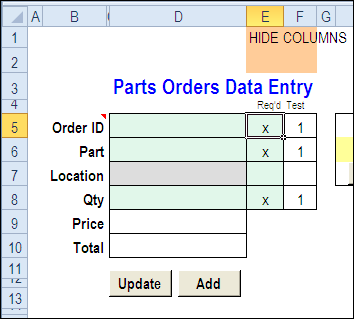
Here’s a screen shot of the latest version of the workbook, with new features that were suggested in the comments for the previous version.
Mark Required Data Entry Cells
The first new feature is the ability to mark which cells are required.
- In column E, add an X beside the cells that are mandatory, and leave the optional rows blank.
- Conditional formatting colours the required cells in green, and the optional cells in grey.
You can hide columns E and F before using the workbook.
Select a Specific Record
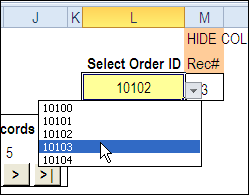
In the new version, you can select a specific record from the drop down list in cell L3, to view or edit that record.
Before using the workbook, hide column M, that has a formula to calculate the record number for the selected order.
Use the Navigation Buttons
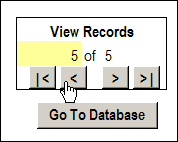
Or, as in previous versions, you can click the navigation buttons to move forward or back through the records, based on the row numbers in the database.
Download the Data Entry Form File
The zipped sample workbook can be downloaded from the Date Entry and Update form page on my Contextures site. On that page, go to the Download section, look for Version 1
After you open the workbook, enable macros, so the buttons and event code will work correctly.
There is an instruction sheet in the workbook, that describes how to navigate, add and update records, and maintain or modify the named ranges.
___________
Debra, thank you so much for your wonderful work. I’m trying to use your latest version for my requirement. I have 13 cells to capture data from. I know a bit of VBA programming, and I’ve been able to make required changes and make the Form work to my requirement.
Here are the changes I’ve made.
a)Module modViewData : Public Const lCellsDE As Long = 13
b)Sub ViewLogFirst(), ViewLogUp(), ViewLogDown(), ViewLogLast() : Changed lCellsDE to lCellsDE+2
(historyWks.Range(historyWks.Cells(lRecRow, lColHist), historyWks.Cells(lRecRow, lCellsDE + 2)).Copy)
c)Object wksPartsDataEntry (Input) : Added 2 to lCellsDE (lCellsDE = rngDE.Cells.Count + 2)
Though I’ve got it to work, I don’t quite understand the rationale behind (b) and (c) above. If I don’t make these changes, then while retrieving data the last two columns from data sheet do not get copied in to the input form. I’d greatly appreciate your help to clarify this.
Thanks
-Ravi GP
This Excel data entry form is absolutely fantastic…thank you Debra for sharing it with the world! My challenge is that all of the input cells for the data entry form appear in the same column (i.e. column D) and I want to create a data entry form that can support input cells across multiple columns (i.e. column D, M, & U). I do not know visual basic but was able to modify the code to support adding new records and clearing the form. I can not however, figure out how to modify the code to support updating/retrieving existing records? Any ideas? Thanks in advance for your help, I sincerely appreciate it.
Thanks for your great work! Without it I would have difficulties finishing my project in time. I have learned allot from studying your work, thanks!
A small question to ask.
I have extended the data entry form with more fields in the Input sheet to input additional data and also have allot of formulas in cells that do calculations based on the users answers. After adding the data and viewing the record, all my formulas are gone. My current understanding is that the formulas are not copied to OrderParts sheet, only the values. How can I add records and preserve the formulas as well?
Forgot to add the detail that the formulas on Input sheet refers to other cells on same sheet, so if doing transpose copy to OrderParts and then back to Input sheet, I think there will be an #REF! error?
Fixed it! Added another line
.Range(“AssetID”).PasteSpecial Paste:=xlPasteValues, Transpose:=True
.Range(“AssetID”).PasteSpecial Paste:=xlPasteFormulas, Transpose:=True
Then used absolute reference on all cells that had formulas. Works great now!
Debra,
Can you help me tweak the code a bit to allow for data to be dropped into multiple, specified worksheets instead in one worksheet? The firm I work at has 4 different offices, and I want to have a database for each office. I have been trying to write code to recognize a new entry field for office in the “Input” tab, then based on what is entered in that field, the data will be dropped in the specified worksheet or database for that specific office. If you have any advice or tutorials on how to accommodate multiple database worksheets, I would greatly appreciate it.
Thanks, Mike