
Many moons ago, Dave Peterson created a sample Excel worksheet data entry form and kindly shared it on the Contextures website.
In Dave’s original form, users could add records on the data entry sheet, and click a button to go to the database sheet, where they could review or edit the order records.
I’ve created a couple of versions since then, including an Excel data entry form that allowed users to view, add and update records, while staying on the data entry sheet.
Mark the Required Cells
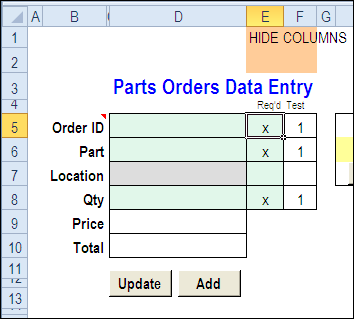
Here’s a screen shot of the latest version of the workbook, with new features that were suggested in the comments for the previous version.
Mark Required Data Entry Cells
The first new feature is the ability to mark which cells are required.
- In column E, add an X beside the cells that are mandatory, and leave the optional rows blank.
- Conditional formatting colours the required cells in green, and the optional cells in grey.
You can hide columns E and F before using the workbook.
Select a Specific Record
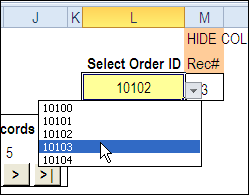
In the new version, you can select a specific record from the drop down list in cell L3, to view or edit that record.
Before using the workbook, hide column M, that has a formula to calculate the record number for the selected order.
Use the Navigation Buttons
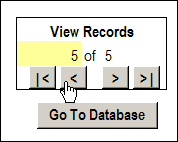
Or, as in previous versions, you can click the navigation buttons to move forward or back through the records, based on the row numbers in the database.
Download the Data Entry Form File
The zipped sample workbook can be downloaded from the Date Entry and Update form page on my Contextures site. On that page, go to the Download section, look for Version 1
After you open the workbook, enable macros, so the buttons and event code will work correctly.
There is an instruction sheet in the workbook, that describes how to navigate, add and update records, and maintain or modify the named ranges.
___________
Debra
Thank you for all the great information you provide for Excel.
How do you decide which format (Forms or Data Entry)to use when creating your spreedsheets? They seem to be similar yet from what little bit I understand I think there are vast differences. Thanks again for the great tips.
Great tool, I have customized it for my needs. Two items I need code for if your so generous are first to prevent adding duplicate ID’s and second add delete button for current displayed record.
how can I add multiple part and location for 1 order ID…
say for example there is 1 order ID with multiple part that is ordered
Hi Debra
I am having the same problem as Moe (see above). I have added additional fields to the form and they feed through perfectly into the worksheet. Also when I used the view records buttons they work fine and pull through the relevant data.
However, when I used the Select Order ID to select an old entry to update it only pulls through the data for the first few fields (i.e. the ones that were there to start with). I can see what the problem is but I can’t find where the code that is carrying out this function is so that I can attempt to correct it.
Please can you help as it is the only thing that is preventing me from putting the amended form to really good use.
Same problem as Moe, Percy and Sam….anyone have the solution???
@Stephanie, there are instructions on my website, on this page, in the Update Navigation Code section:
http://www.contextures.com/exceldataentryupdateform.html#navigation
You have to change the Navigation code, and the Worksheet change code on the input sheet.
Hi Debra. Thanks for this great worksheet example. I am trying to adapt it to a different use. We need a data entry form with combo boxes to assist users who will be entering assessment reports with a lot of columns. They may be entering more than one record for a given assessment subject (person number). Can I adapt the form to do without the uniqueness check? We don’t need the ability to select a particular record.
I also want to change some names, e.g. change PartsData to AssessData. I guess I need to change the VBA in line with the renaming, is that right? I’m not a VBA programmer – I saw your video showing how you can change the data entry simply by editing the form and the column names in the data tab, but I guess it’s not quite that simple when you want more extensive changes.