Use Excel to Plan Your Garden

It’s almost April, and the snow tires are coming off my car today, so spring must be just around the corner. That means it’s time to start planning the garden.

Garden Planning Workbooks

We don’t actually plant anything in southern Ontario until the May 24th weekend, but a bit of planning will make it easier to survive the stampede at the garden centre on planting weekend.

I’ve found a few websites that have Excel garden planning workbooks, that you can download and adjust for your climate zone.

Select Garden Crops

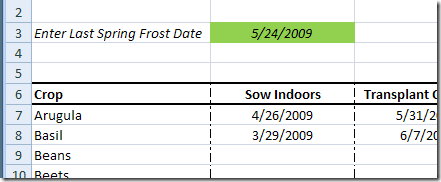
At the Compostings blog, there’s a workbook that lists crops, and when you should plant them indoors, then move them outdoors. Uh-oh, I should have started the basil a couple of days ago.

Excel garden planning workbook - crops
Excel garden planning workbook – crops

Garden Sketch in Excel

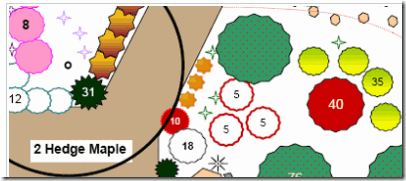
At the Everchanging Garden blog, there are instructions for sketching a garden plan in Excel, using the drawing tools.

Excel garden sketch workbook

Garden Budget in Excel

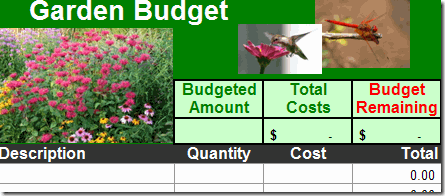
At High Prairie Landscape Design, you can download an Excel Garden Budget, garden charts and a seed start chart.

Excel garden budget workbook

Get Growing!

There are lots more examples out there, or maybe you’ve already created your own garden workbooks in Excel.

Now let’s hope for some good growing weather this summer.
_____________________

YouTube University

Well, you might not get a degree when you complete your courses, but there’s lots of educational material available through YouTube.

It’s organized in a special section of the website: www.youtube.com/edu
which features videos from YouTube’s college and university partners.

YouTubeEdu01

You can search for a specific topic, or view a list of participating universities, and browse through their course offerings.

University of California, Berkeley, is by far the most popular, but many other colleges offer videos, including a few from Canada, and other countries.

Topics range from chocolate at Harvard University, to a Dental Anatomy Introduction from University of Michigan School of Dentistry.
_______________________

Split First and Last Names in Excel

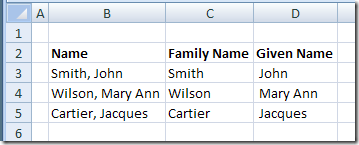
If you have a list of names in Excel, with first and last names separated by a comma, you can use an Excel feature to split first and last names into separate columns.

See more ways to split names, and get an Excel sample workbook, on the Names, Split/Reverse First and Last page on my Contextures site.

Continue reading “Split First and Last Names in Excel”

Show Excel Formulas Instead of Results

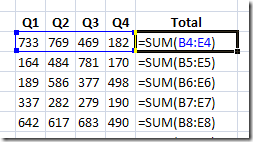
When you’re troubleshooting an Excel worksheet, it may help to see the formulas temporarily, instead of the results. With the formulas visible, you can quickly check that the cell references are correct and the formulas are consistent.

ShowFormulas02

Tip: The keyboard shortcut to show or hide the formulas is Ctrl + ‘ (accent grave, may be above the Tab key on the keyboard).

To view the formulas in Excel 2003:

  1. On the Tools menu, click Options
  2. On the View tab, under Windows Options, add a check mark to Formulas.

To view the formulas in Excel 2007:

  1. On the Ribbon, click the Formulas tab.
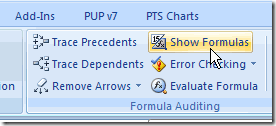
  2. In the Formula Auditing Group, click Show Formulas.

ShowFormulas2007

___________________

Change Google RSS Folders

In the Google Reader, you can see a list of your RSS feeds, and group them into folders.

  • [Update] Sadly, Google Reader is no longer available.

Usually I assign a feed to a folder as soon as I subscribe to it. If I forget, then I can assign it later.

One way is to click the Manage Subscriptions link, at the bottom of the feeds list.

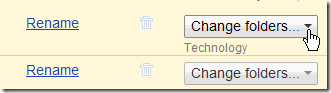
Then, click the feed’s Change folders button, and select a folder. This method works well if you have a few feeds to change.

RSSFolder

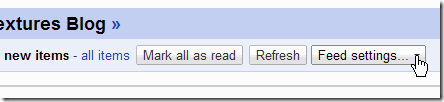
You can also click on a feed name in the feed list, then, click the Feed Settings button.

RSSSettings

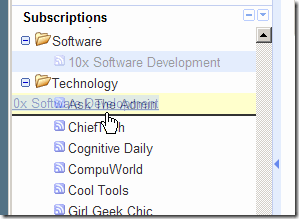
A quick way to assign a folder is to drag the blog name in the feed list. In the screen shot below, I’m moving 10x Software Development from Software to Technology.

drag the blog name in the feed list

_____________________________

Change Signatures in Outlook

I’ve got a few different Signatures set up in Outlook 2007. Most of the time I use my business signature, but occasionally I’d like to use one of the others.

Usually I use the Ribbon commands, but I’ve just discovered a mouse shortcut that makes it much easier. I’ll be using the shortcut from now on.

Use the Ribbon

To insert a different Signature with the Ribbon commands:

  1. Create a new Outlook message
  2. On the Ribbon, click the Insert tab.
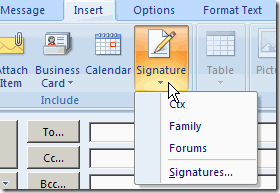
  3. Click Signature, then click a Signature name, or click Signatures, to open the Signatures and Stationery dialog box.

OutlookSig02

Use the Mouse Shortcut

With a mouse shortcut, it’s even easier to change or create a Signature.

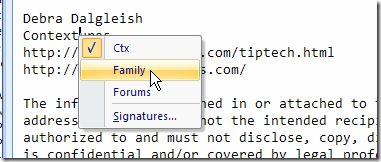
  1. In a Outlook message right-click on the Signature
  2. In the popup menu, click a Signature name, or click Signatures, to open the Signatures and Stationery dialog box.

OutlookSig
___________________________

10 Hours to an Organized Office

Last December, Priacta offered free enrollment in Total Relaxed Organization, their online time management course, so I signed up, and worked on the lessons over the Christmas holidays.

It changed the way I work, and almost three months later, I’m still using the techniques that I learned.

The course is based on Getting Things Done, and helps you clear up your workspace and organize your tasks. You can customize the course for the PDA or smart phone that you use, and your preferred task list. I chose Outlook (Excel wasn’t an option) and Blackberry.

The course is in three parts:

  • Principles and Preparation
  • Collecting and Organizing
  • Processing, Reviewing, Doing

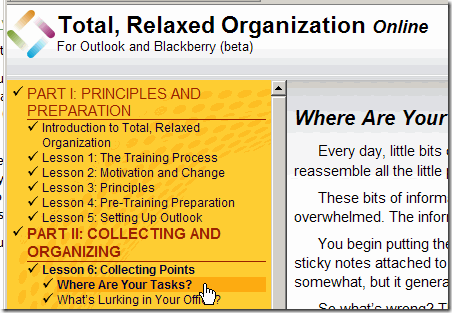
The lessons were well organized, and clearly written, with a navigation pane at the left, and lesson content on the right.
Priacta01

The site records the time you spend on the online course, and it took me about 10 hours complete the lessons.

I spent a few more hours offline, cleaning up my office. Telephone coaching was offered at several points during the course, to speed up the process, but I didn’t opt for that.

I’m sure the coaches are fine people, but I didn’t hit any snags where I felt a personal coach would help.

What I Learned

The object is to collect your tasks in a few specific places, such as email, voice mail and inbox, instead of many scattered places, including your memory.

Then, you process what you’ve collected, and work from a prioritized task list, with supporting documents filed away until you’re ready to use them.

For me, this was the most useful lesson, because I used to keep stacks of folders near my desk, for projects I was working on. Now the papers are filed by client name, and I can’t feel their beady eyes burning into me as I work.

That reduces my stress level, because I’m dealing with one task at a time, not trying to juggle several things.

I didn’t like all of the suggestions for changes to Outlook, so ignored much of that. Also, although I chose Outlook during the setup, I substituted my Excel task list, so didn’t follow all the steps exactly.

I was able to categorize, sort and filter things in Excel, but in a slightly different way than you would in Outlook.

Have You Tried It?

I think the first 8 or 9 lessons are always free, and the complete course (23 lessons) is $99 (the site says it’s currently $69). The course might not suit your work style, but if you want to get organized, look at the free lessons and see if you like it.

Have you already tried the course, or something similar? Did you find it helpful, and stick with it?
_________________

Cannot Shift Objects Off Sheet Excel Error

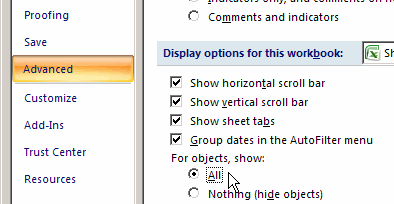
Recently, while working on a small worksheet in Excel, I tried to insert a new row. Up popped an annoying error message, “Cannot shift objects off sheet.” Here’s how I investigated the problem, and fixed it with a simple keyboard shortcut – Ctrl + 6

Continue reading “Cannot Shift Objects Off Sheet Excel Error”