
If you have a list of names in Excel, with first and last names separated by a comma, you can use an Excel feature to split first and last names into separate columns.
See more ways to split names, and get an Excel sample workbook, on the Names, Split/Reverse First and Last page on my Contextures site.
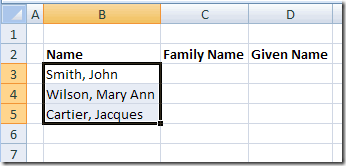
Select the List
To start, select the cells that contain the names.
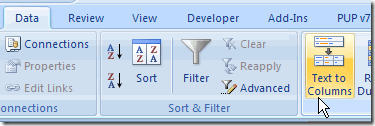
Text to Columns
On the Ribbon in Excel 2007, click the Data tab, then click Text to Columns.
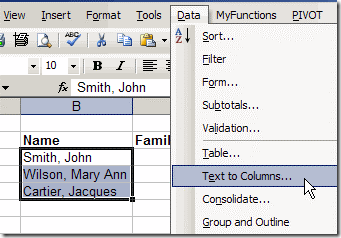
If you’re using an earlier version of Excel, click the Data menu, then click Text to Columns.
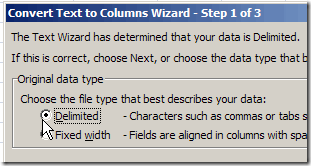
The Convert Text To Columns Wizard
The Convert Text to Columns Wizard opens, and you can select the type of data that you want to convert.
Note: The wizard layout varies slightly in different versions of Excel, but the steps are the same.
- The list in this example uses a comma to separate the names, so select Delimited, then click Next.
- Next, add a check mark to the delimiter that’s used in your text. You can select more than one, but in this example only Comma is required. We only want to split first and last names were the comma is inserted.
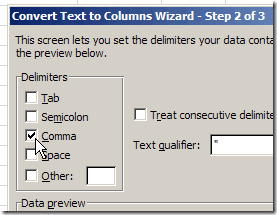
- Click Next, to go to Step 3.
- Select a destination cell, where you want the split text to start. The default setting is to overwrite the existing data, so if you want to keep it, select a different cell as the destination.
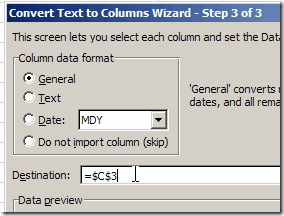
- Click Finish, and the data is split into separate columns.
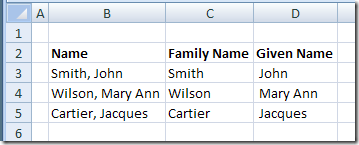
Other Methods For Splitting Data
This method is quick and easy, and perfect for a one time event, such as importing a list of names, and splitting it.
However, if the names will change frequently, you could use a formula to split the names, instead of the Text to Columns feature. Then the first and last name columns will automatically update, if the full name changes.
More Ways to Split Names
See more ways to split names, and get an Excel sample workbook, on the Names, Split/Reverse First and Last page on my Contextures site.
________________________
for each group of names – I have the first and last name in separate columns for the most part. I do see some of the group of names have the first name in the last name column and the last name in the first name column. The worksheet has over 200,000 grouped names – I am looking for a way to highlight the groups of names where the first name is in the last name column.
How to separate full name into 3 cols
I want to separate Sanjay S. Jadhav into three cols
I’m having a similar problem
have a cel that exported from exchange with a bunch of names
like this
lastname,first name ;
want to swap first name with last name but not in the email address
how do I do it?
I have a splitting question. I have a cell that is populated with:
Lastname, Firstname
How can I reverse that so it shows: Firstname Lastname within one cell?
If the name is in cell A2, use this formula in another cell:
=RIGHT(A2,LEN(A2)-FIND(“,”,A2,1)-1)
& ” ” &LEFT(A2,FIND(“,”,A2,1)-1)