
If you have a list of names in Excel, with first and last names separated by a comma, you can use an Excel feature to split first and last names into separate columns.
See more ways to split names, and get an Excel sample workbook, on the Names, Split/Reverse First and Last page on my Contextures site.
Select the List
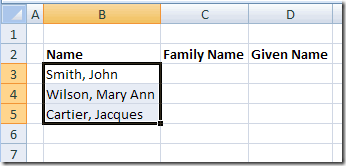
To start, select the cells that contain the names.
Text to Columns
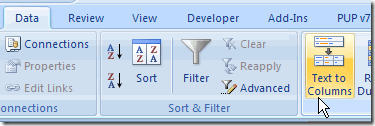
On the Ribbon in Excel 2007, click the Data tab, then click Text to Columns.
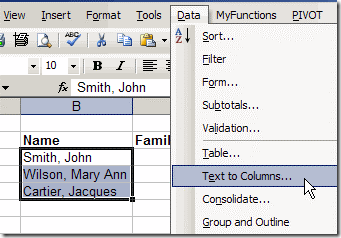
If you’re using an earlier version of Excel, click the Data menu, then click Text to Columns.
The Convert Text To Columns Wizard
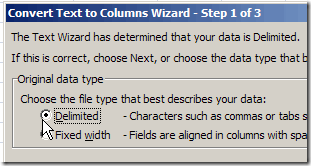
The Convert Text to Columns Wizard opens, and you can select the type of data that you want to convert.
Note: The wizard layout varies slightly in different versions of Excel, but the steps are the same.
- The list in this example uses a comma to separate the names, so select Delimited, then click Next.
- Next, add a check mark to the delimiter that’s used in your text. You can select more than one, but in this example only Comma is required. We only want to split first and last names were the comma is inserted.
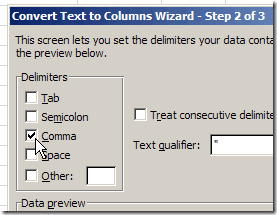
- Click Next, to go to Step 3.
- Select a destination cell, where you want the split text to start. The default setting is to overwrite the existing data, so if you want to keep it, select a different cell as the destination.
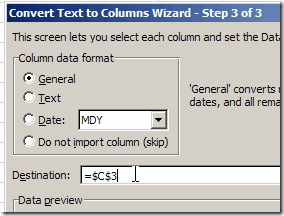
- Click Finish, and the data is split into separate columns.
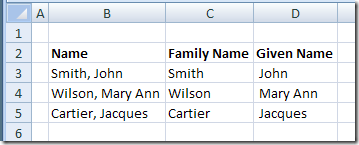
Other Methods For Splitting Data
This method is quick and easy, and perfect for a one time event, such as importing a list of names, and splitting it.
However, if the names will change frequently, you could use a formula to split the names, instead of the Text to Columns feature. Then the first and last name columns will automatically update, if the full name changes.
More Ways to Split Names
See more ways to split names, and get an Excel sample workbook, on the Names, Split/Reverse First and Last page on my Contextures site.
________________________
Thank you! You saved me hours of work.
Ihave a spreadsheet with first and middle name in a cell with no space i.e. AnnaVictoria or JanetMay or DavidAnthony. Does any one know how I can split this into first name and second name in separate cells. I have been trawling for hours and cannot find anything. I need relatively easy steps to follow if possible. Many thanks in advance.
Hi Please tel me the VBA code which will print the part of the sender name exported from outlook to excel
For eg : sender name will be name1,name2 (name3).I want only name 2 to be exported to excel as a output.Kindly help
Hi, “Stuart Krawll” thank you very much for the easy function, it helped alot.
Just to add to your post, i used for the first name split.
=TRIM(LEFT(SUBSTITUTE(A1,” “,REPT(” “,99)),99))
i want to extract last name from string but i am unable kindly help.
ex:
KOSHALYA KAJAL D/O POONAM SUTHAR – i want SUTHAR
KEVARAM PATEL S/O MEGHAJI PATEL – i want PATEL
HOW CAN APPLY FORMULA?