
If you have a list of names in Excel, with first and last names separated by a comma, you can use an Excel feature to split first and last names into separate columns.
See more ways to split names, and get an Excel sample workbook, on the Names, Split/Reverse First and Last page on my Contextures site.
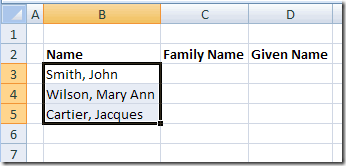
Select the List
To start, select the cells that contain the names.
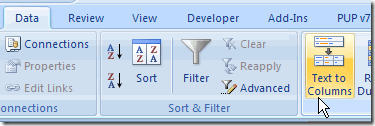
Text to Columns
On the Ribbon in Excel 2007, click the Data tab, then click Text to Columns.
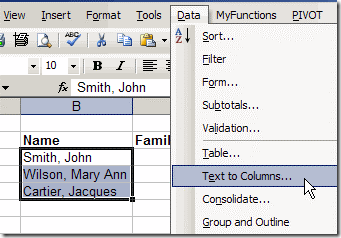
If you’re using an earlier version of Excel, click the Data menu, then click Text to Columns.
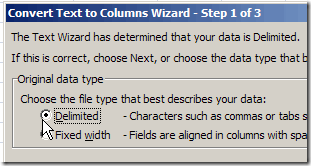
The Convert Text To Columns Wizard
The Convert Text to Columns Wizard opens, and you can select the type of data that you want to convert.
Note: The wizard layout varies slightly in different versions of Excel, but the steps are the same.
- The list in this example uses a comma to separate the names, so select Delimited, then click Next.
- Next, add a check mark to the delimiter that’s used in your text. You can select more than one, but in this example only Comma is required. We only want to split first and last names were the comma is inserted.
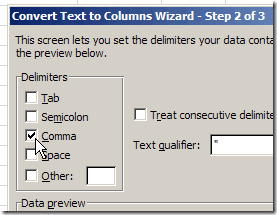
- Click Next, to go to Step 3.
- Select a destination cell, where you want the split text to start. The default setting is to overwrite the existing data, so if you want to keep it, select a different cell as the destination.
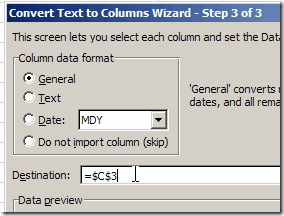
- Click Finish, and the data is split into separate columns.
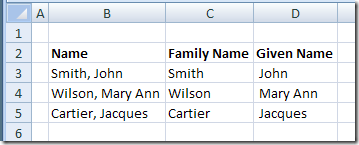
Other Methods For Splitting Data
This method is quick and easy, and perfect for a one time event, such as importing a list of names, and splitting it.
However, if the names will change frequently, you could use a formula to split the names, instead of the Text to Columns feature. Then the first and last name columns will automatically update, if the full name changes.
More Ways to Split Names
See more ways to split names, and get an Excel sample workbook, on the Names, Split/Reverse First and Last page on my Contextures site.
________________________
Thanks Rick,
That helps a lot
Regards/Fuad
This formula will return the last word in a string of text…
=TRIM(RIGHT(SUBSTITUTE(A1,” “,REPT(” “,99)),99))
This works great! Is there any way to actually REMOVE the last name from the data in the cell. In other words, to split Tommy Lee Jones, into Tommy Lee in one field, and Jones in the next.
Thanks, and respond to [email protected]. THANK YOU VERY MUCH
@Stuart Krawl,
First off, IMHO, when you ask a question in a public forum, you should not ask to have the answer emailed to you… people who read your question may want to see the answer also. Now, for your question… no, you cannot modify the data in a cell using a formula… you would need to use a macro like this one…
Sub SeparateLastNameOut()Dim Cell As Range, NameParts() As String
On Error Resume Next
For Each Cell In Selection
NameParts = Split(Cell)
Cell.Offset(0, 1).Value = NameParts(UBound(NameParts))
NameParts(UBound(NameParts)) = “”
Cell.Value = Trim(Join(NameParts))
Next
On Error GoTo 0
End Sub
One note about identifying last names from text containing the full name… there is no foolproof method available to do it. I had a friend in work whose name was Joe Della Rossa… “Della Rossa” was his last name. The code above, the formula I posted previously and pretty much anyone else’s attempt to identify this last name from within text containing his full name will fail.
Thanks Rick, that’s great advice for Stuart. He can also subscribe to the comments for any article, and get an email if a new comment is posted. That’s better than posting your email address publicly.
Chip Pearson’s (CP) formula works just fine for me until I get to the names with 2nd and 3rd names. Any ideas how I can fix names like these?
Doe, John Smith F.
Doe, John Smith Richard F.
Doe, Ma. Jane Dianne F.
Here’s how they currently look like using CP’s formula:
Names are in Column A
Column B/Column C/ Column D
Doe/John/Smith F.
Doe/John/Smith Richard F.
Doe/Ma./Jane Dianne F.
Here’s what it should look like:
Doe/John Smith/F.
Doe/John Smith Richard/F.
Doe/Ma. Jane Dianne/F.
I tried working the formulas out but the complexity of it just boggles my mind.
Any help from you guys? 🙂
Debra your tutorials are awesome! I just need a little more help. I have a sheet in wich I have multiple strings on one cell separated by a coma and other more groups down in the same column B, I need them to be copied to another sheet and I already did all that, I have the code wich splits and copies but there are sometimes cells in blank in the same column. I just need to organize the data so it shows in the other sheet:
Column B | ColumnC | ColumnD | ColumnE | Column F
Group 1 | | Group 2 | | Group 3
my code:
Sub SplitTest()
Dim arrText() As String
Dim varItm As Variant
Dim rngText As Range
Dim rngCl As Range
Dim i As Integer
Dim j As Integer
Set rngText = Sheet8.Range(“B1000:B” & Range(“B” & Rows.count).End(xlUp).row)
j = -4
For Each rngCl In rngText
arrText = Split(rngCl, “,”)
i = 2
For Each varItm In arrText ‘????
Cells(i, j) = varItm
i = i + 1
Next varItm
j = j + 1
Next rngCl
End Sub
Thanks