
If you have a list of names in Excel, with first and last names separated by a comma, you can use an Excel feature to split first and last names into separate columns.
See more ways to split names, and get an Excel sample workbook, on the Names, Split/Reverse First and Last page on my Contextures site.
Select the List
To start, select the cells that contain the names.
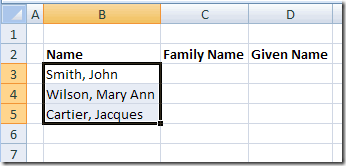
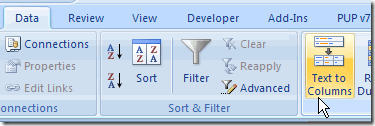
Text to Columns
On the Ribbon in Excel 2007, click the Data tab, then click Text to Columns.
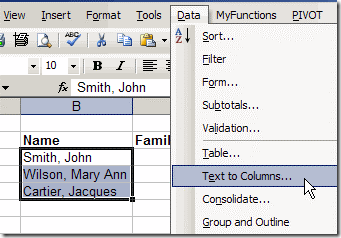
If you’re using an earlier version of Excel, click the Data menu, then click Text to Columns.
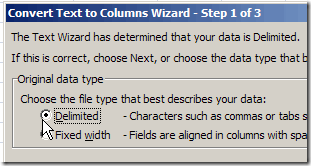
The Convert Text To Columns Wizard
The Convert Text to Columns Wizard opens, and you can select the type of data that you want to convert.
Note: The wizard layout varies slightly in different versions of Excel, but the steps are the same.
- The list in this example uses a comma to separate the names, so select Delimited, then click Next.
- Next, add a check mark to the delimiter that’s used in your text. You can select more than one, but in this example only Comma is required. We only want to split first and last names were the comma is inserted.
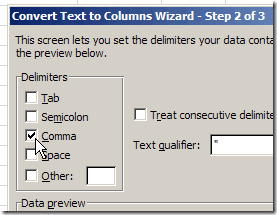
- Click Next, to go to Step 3.
- Select a destination cell, where you want the split text to start. The default setting is to overwrite the existing data, so if you want to keep it, select a different cell as the destination.
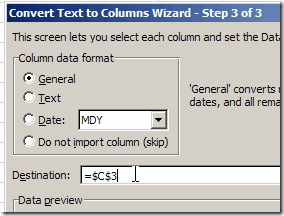
- Click Finish, and the data is split into separate columns.
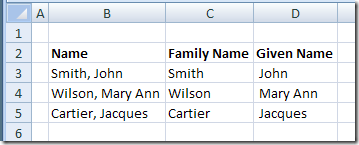
Other Methods For Splitting Data
This method is quick and easy, and perfect for a one time event, such as importing a list of names, and splitting it.
However, if the names will change frequently, you could use a formula to split the names, instead of the Text to Columns feature. Then the first and last name columns will automatically update, if the full name changes.
More Ways to Split Names
See more ways to split names, and get an Excel sample workbook, on the Names, Split/Reverse First and Last page on my Contextures site.
________________________
Hi Debra,
Just wanted to thank you for the help you provided me today. I did a quick search to find how to switch the names and found your blog right away. The job was completed within minutes. You were a life saver!
Zoey, that’s great! Thanks for letting me know that the instructions helped.
hi there to splitDiff, i would like to ask how to use your codes? i cannot call it in excel.
Hi there,
I need to extract the last word in a cell regardless the length of and position of it in a cell.
It is like:
Cell A1: Test Excel Office 2007
Cell A2: Test Excel Office Functions 2007
I want a formula to extract 2007 from both cells.
Can anyone help. Would be grateful if you forward comments to [email protected]
Thanks,
Fuad
@Fuad,
This formula will return the last word in a string of text…
=TRIM(RIGHT(SUBSTITUTE(A1,” “,REPT(” “,99)),99))
Hi Rick
That is an excellent piece of code. I had searched the net for something similar and all I got was complex huge lines of codes. Thanks for that masterpiece, could you also pls explain how Substitute and REPT function are working in this example for me to understand it. Thx
@Fuad,
Sorry, I meant to include the following before I sent my reply…
As structured, the formula works for text of 99 characters or less… if your text can be longer, simply change both occurences of 99 to a number that is larger than your longest string of text.