
If you have a list of names in Excel, with first and last names separated by a comma, you can use an Excel feature to split first and last names into separate columns.
See more ways to split names, and get an Excel sample workbook, on the Names, Split/Reverse First and Last page on my Contextures site.
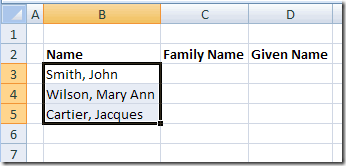
Select the List
To start, select the cells that contain the names.
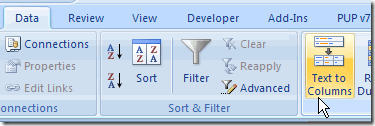
Text to Columns
On the Ribbon in Excel 2007, click the Data tab, then click Text to Columns.
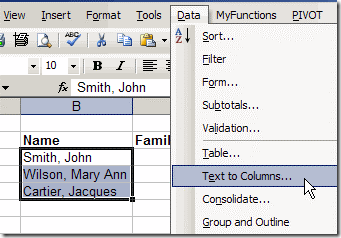
If you’re using an earlier version of Excel, click the Data menu, then click Text to Columns.
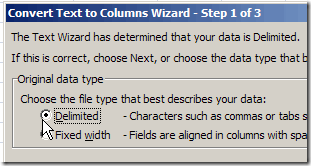
The Convert Text To Columns Wizard
The Convert Text to Columns Wizard opens, and you can select the type of data that you want to convert.
Note: The wizard layout varies slightly in different versions of Excel, but the steps are the same.
- The list in this example uses a comma to separate the names, so select Delimited, then click Next.
- Next, add a check mark to the delimiter that’s used in your text. You can select more than one, but in this example only Comma is required. We only want to split first and last names were the comma is inserted.
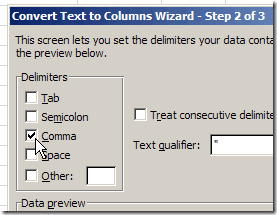
- Click Next, to go to Step 3.
- Select a destination cell, where you want the split text to start. The default setting is to overwrite the existing data, so if you want to keep it, select a different cell as the destination.
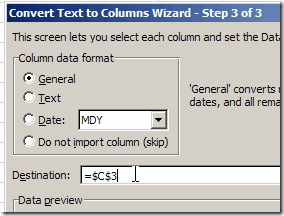
- Click Finish, and the data is split into separate columns.
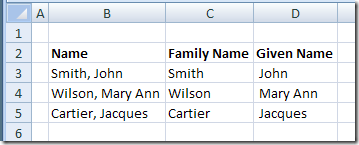
Other Methods For Splitting Data
This method is quick and easy, and perfect for a one time event, such as importing a list of names, and splitting it.
However, if the names will change frequently, you could use a formula to split the names, instead of the Text to Columns feature. Then the first and last name columns will automatically update, if the full name changes.
More Ways to Split Names
See more ways to split names, and get an Excel sample workbook, on the Names, Split/Reverse First and Last page on my Contextures site.
________________________
I cannot tell you how often I have to deal with this. We have an application at work which dumps the names out like this, and when we try and turn them around for a mailing list, it has to be cleaned up.
Just two notes for people that do this, however. One, consider carefully your source: watch out for multiple commas or “Company, Inc.” Two, the space after the comma in the original text will be at the beginning of the cell after the text is separated. Separating the fields is important, but it is not the last step in cleaning up the data for use elsewhere.
Thanks David, that’s good advice. Data cleanup can be a real challenge.
A great service you’re providing here, Debra. Thank you.
I have an EXCEL problem for you. I want to enter one of three channels (A,P,D) in A1 and a ZIP code in B1 and render the appropriate sales rep in C1.
I won’t have 99,999 ZIP rows. Instead, I’ll know who covers ZIP 17100 to 17200 and so on.
Some kind of Pivot table, I imagine. It’s way over my level of expertise … but probably just right for you.
http://twitter.com/joehageonline
Thanks Joe, glad you like the blog.
For your sales reps you could use a VLOOKUP formula, similar to the one shown here:
http://www.contextures.com/xlFunctions02.html#Range
Put the starting zip codes for each range in the first column and rep names in the second column. Then refer to that table in the VLOOKUP formula.
Since we’re talking about splitting, here is a quick little VBA routine I wrote up to split names. It will split on any character, and can return the n’th result from the split.
‘———————————–
Function Split2(SourceString As String, SplitChar As String, Index As Long) As String
Dim x() As String
x = Split(SourceString, SplitChar)
If UBound(x) < Index – 1 Then
Split2 = “”
Else
Split2 = x(Index – 1)
End If
End Function
‘———————————–
Hope it’s helpful.
-John
[…] 2009. Email This article to a Friend Debra Dalgleish at Contextures blog wrote an article Split First and Last Names in Excel. It gave me an idea about creating a formula that split the names and then also sort the names […]