
You can use Excel’s Data Validation to limit the total amount that users enter in a group of cells.
For example, if budget is $3500, you can prevent entries that will go over that total amount.
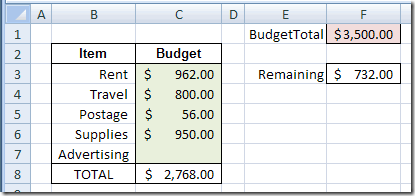
Budget Sheet Setup
Here’s what is on the Budget data entry sheet:
- Cell F1 contains the total amount allowed for the budget, and the cell is named BudgetTotal.
- The user can enter budget amounts in cells C3:C7.
- Cell C8 sums the amounts entered in cells C3:C7.
- Cell F3 shows the amount remaining (BudgetTotal minus total budgeted in C8).
Add the Data Validation
On the Budget Data Entry Sheet, data validation is applied to cells C3:C7, because this is where the data entry occurs.
- Select cells C3:C7
- On the Ribbon, click the Data tab, then click Data Validation. (In Excel 2003, choose Data|Data Validation)
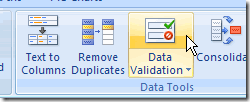
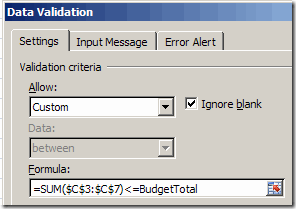
- Choose Allow: Custom
- For the formula, use SUM to total the values in the range $C$3:$C$7. The result must be less than or equal to the amount in the BudgetTotal cell.
=SUM($C$3:$C$7)<=BudgetTotal - Click OK to close the Data Validation dialog box.
Test the Data Validation
After setting up the data validation, you can test it, to make sure that it works as expected.
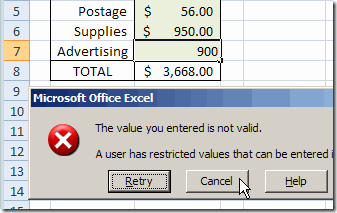
- In cell C7, enter $900, which is higher than the amount remaining.
- Press Enter, and you should see an error message.
- Click Cancel or Retry, and enter a valid amount.
_______________________
Hi, can you do this for two columns or rows in excel?