
When you add field to the Row or Column area of a pivot table, subtotals automatically appear in the outer fields. If you want to turn off some of the subtotals, keep reading!
Pivot Table Subtotals
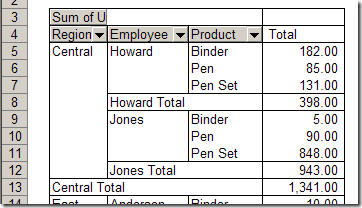
For example, in the following pivot table, Region and Employee are the outer fields, and show subtotals.
In the next section, see how you can turn off pivot table subtotals for some fields.
Remove Subtotals in Excel 2007
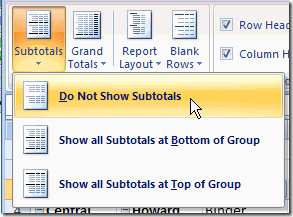
In Excel 2007 you can turn off all subtotals for the active pivot table, and prevent new subtotals from appearing:
- Select a cell in the pivot table
- On the Ribbon, click the Design tab
- In the Layout group, click Subtotals, and click Do Not Show Subtotals.
However, there’s no setting you can change to make this the default behaviour for all pivot tables.
Remove Subtotals in Excel 2003
In earlier versions of Excel, you have to turn off the subtotal for each field individually, either manually or programmatically.
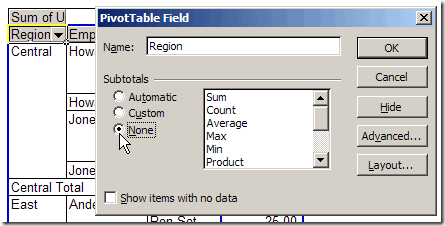
To manually turn off a field’s subtotals:
- Double-click the field button, to open the PivotTable Field dialog box.
- Under Subtotals, click None, then click OK.
More Subtotal Info
For more tips, examples, and videos, go to the Pivot Table Subtotals page on my Contextures site.
______________
VERY HELPFULL