Custom Ribbon Tab for Excel File

Have you created any custom tabs for your Excel files? I avoided that, as long as possible, but have finally started dabbling with the Ribbon code.

And, the good news is that it’s not as dark and scary as I imagined.
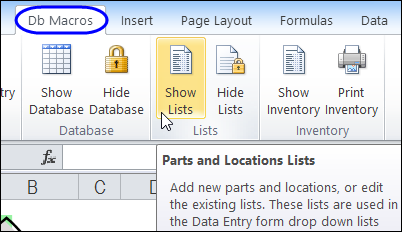
Here is a screen shot of a sample file that I created, as an update to my Parts Database which has a UserForm for data entry.
ribbonpartdb01b2
When the file opens, it adds a custom tab to the Ribbon, with buttons to run the workbook’s macros.

You can download the sample file, and see the written instructions here: Getting Started With Excel Ribbon Custom Tabs

View and Edit Ribbon Code

To see the Ribbon code, without messing with the hidden parts of an Excel file, you can use the free tool – Custom UI Editor. (UPDATE: No longer available)
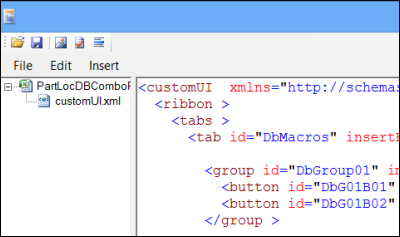
ribboncustomuieditor04b

To get started, use the Custom UI Editor to take a look at a sample file or two. Then, you can copy some of the sample code into your own files, and tweak the labels and macro names, to match your workbook.

Watch the Video

To see the steps for opening and editing the Ribbon code with the Custom UI Editor, you can watch this short video. The sample file and written instructions are here: Excel Ribbon Custom Tabs Intro

__________
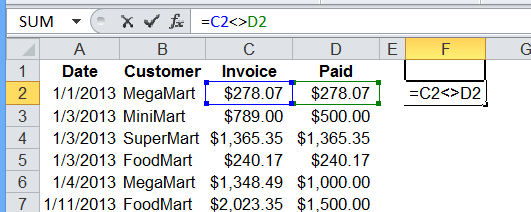
Track Weight and Nutrients With Excel

Happy New Year! I took a couple of weeks off, and I hope that you had some time to relax too. Now, it’s a new year, and time to get back to work.

It’s tough work staring at your computer all day, so maybe you’ve decided to set a couple of health goals for 2013. I’m getting out for a walk every morning, which is a great way to start the day. It’s good exercise, and all that fresh air helps my brain get going too!

If you’re looking for help with keeping track of calories, or weight loss, you can download a couple of free files from my Contextures website, to make things easier.

Calorie Counting

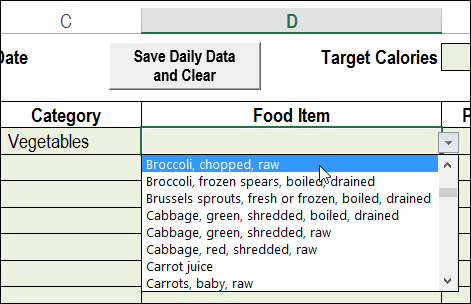
For calorie counting, try my Excel Recipe Nutrients Calculator. It’s on the Excel Sample Files page, in the User Forms section: UF0016 – Excel Calorie Counter With Recipe Calculator.

For instruction on how to use the calculator, see this blog post: Excel Recipe Nutrients Calculator

caloriecounter01

Weight Tracking

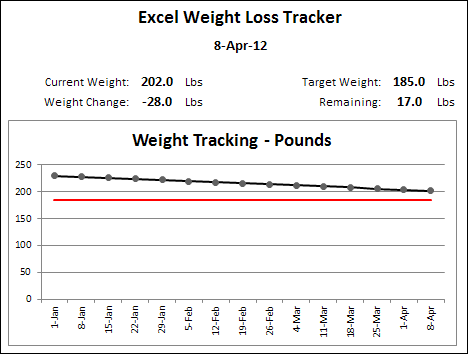
For weight tracking, try my Weight Loss Tracker. You can choose either pounds or kilos as the weight measurement, and enter your targets and daily data.

There is also a version for Stone and pounds, if you prefer that system.

weightlosstracker08

You can see the instructions, and download the sample file here: Excel Weight Loss Tracker

Good luck, and try to get away from your computer a few times a day!

Video: Weight Loss Tracker Demo

This short video shows how to use the Excel Weight Tracker, to record your progress.


_________________

Keep Numbers Aligned When Zooming

Who knew that this would still be a problem in Excel 2013? Almost 4 years ago, I posted about numbers not lining up, when Excel was zoomed to less than 80%

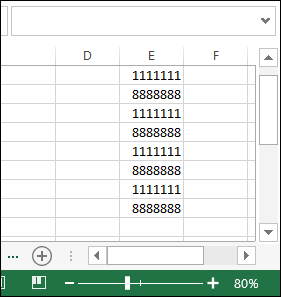
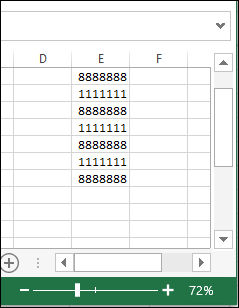
Now I’m working on a new laptop, and realized that the problem is back. In Excel 2013, I’m using the default font – Calibri 11. Here’s a list of numbers, at 80% zoom.

numberfont01

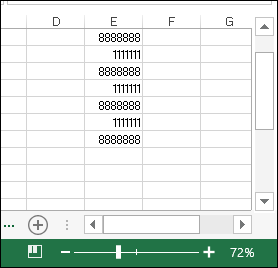
And here is the same list at 72% zoom – the numbers have changed to a proportional font, and the 1111111s are much narrower than the 8888888s.

numberfont02

Change the Registry

To fix the problem, I followed the instructions that I posted in April 2009, when I was setting up my previous laptop. Here they are again, with adjustments for Windows 8 and Office 2013. The original instructions came from this MSKB article:

Euro Currency Character Is Not Displayed Correctly in Excel 2003

This is really a fix for a Euro symbol display problem, but it also fixes the proportional font display.

Steps to Fix Problem

Here’s what I did for Win8 and Excel 15:

  • Make a backup copy of the registry before you tweak any settings
  • Quit any programs that are running.
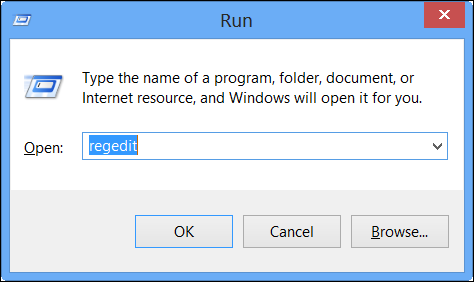
  • Press the Window key and R, to open the Run window.
  • In the Open box, type regedit, and then click OK.

numberfont03

  • Locate, and then click to select the following registry key:
    HKEY_CURRENT_USER/Software/Microsoft/Office/15.0/Excel/Options
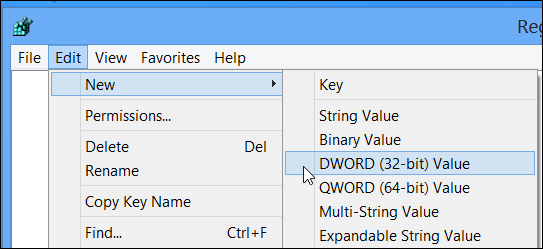
  • With the Options key selected, point to New on the Edit menu, and then click DWORD (32-bit) Value.

numberfornt05

  • Type FontSub, and then press ENTER.
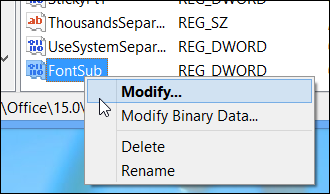
  • Right-click FontSub, and then click Modify.

numberfont06

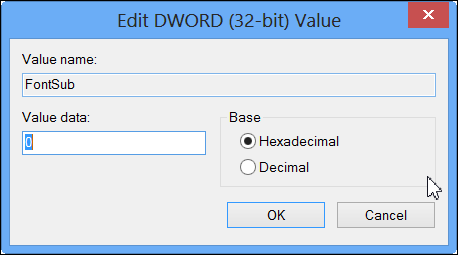
  • In the Value data box, type 0. Since the value is zero, it doesn’t matter which Base you select – I left it on Hexadecimal.

numberfont07

  • Click OK to close the Edit DWORD window
  • On the File menu, click Exit to quit Registry Editor.
  • Start Excel, and the numbers should line up correctly, eve when zoomed.

numberfont08

___________________

Add Picture to Excel Comment

Things have been hectic this week. I got a new laptop, with Window 8, and have spent hours installing software, and getting all my settings the way I like them.

I’ve also installed the latest version of Excel 2013, and am using it for my daily work, so there’s lots of new stuff to play with and learn.
Continue reading “Add Picture to Excel Comment”

Excel Budget Template

Are you still working on your budget for next year? I’ve just updated my budget template, and added a page on my website, to describe how it works.

The old version was created in 2002, so it was definitely time for an update! This is a simple budget layout, but might give you some ideas for working on your own workbook.

The Menu Sheet

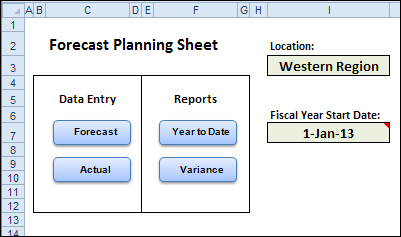
There is a menu sheet at the front of the workbook, with two named cells – Location and Start Date. The information that you enter in those cells is used on the other sheets in the workbook.

There are four navigation buttons, to take you to the data entry sheets and the report sheets. And those sheets have a Menu button, to bring you back to the menu sheet.

budgetvariance01a

Data Entry Sheets

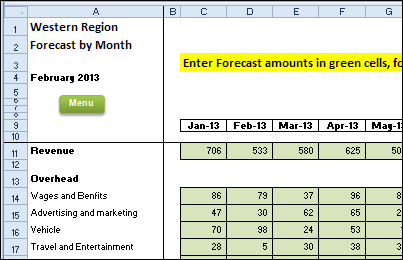
When you’re in the planning phase, you can enter your budget categories and forecasts on the Forecast sheet.

budgetvariance02a

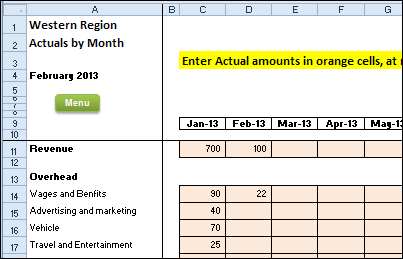
Later, when you have Actual numbers, you can enter those on the Actual worksheet.

budgetvariance03a

Year To Date Reports

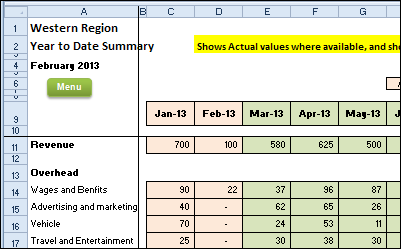
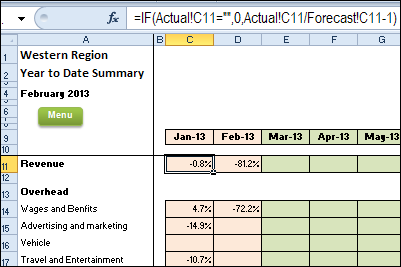
To see how things are going, you can check the Year to Date report, which shows the Actual amounts, up to the current month, and Forecast amounts for the remaining months.

Conditional formatting colours the columns with Actual data, to it’s easy to see where it’s been entered.

budgetvariance04a

Variance Report

The final report shows the variance between the forecast amounts and the actual amounts. Again, conditional formatting colours the columns with Actual data.

budgetvariance05a

Download the Sample File

To see the details, and to download the sample file, please visit the Forecast vs Actual – Variance page on my Contextures website. The file is in Excel xlsm format, and the workbook contains macros.

__________________

Scroll Bar Changes Excel Chart Title

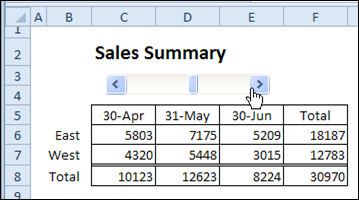
Last week, I shared a tip for using a scroll bar to change the date range in a report. The scroll bar selects the end date for the report, and the columns to the left show the two previous months.

It works very nicely, without programming, and makes it easy to view a different date range.

scroll bar to change date range

Link Chart Title to Worksheet Cell

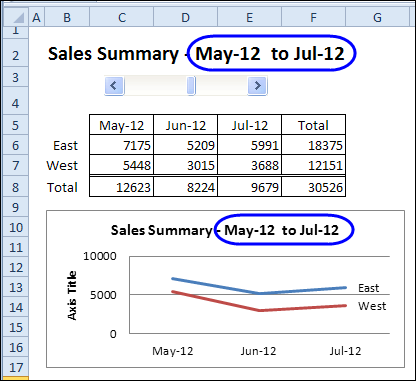
This week, we’ll add a chart that shows the data for the selected date range. Then, we’ll change the worksheet heading to a formula, so it shows the selected dates. Finally, we’ll link the chart title to the heading cells, so it also shows the selected dates.

Oops! You’ll notice that I forgot to change Axis Title, that was added at the left side of the chart. If you use one of the Quick Layout options for charts, watch for those little extras that they might add.

You can see the steps in the video, at the end of this post.

I forgot to change Axis Title at left side

Another Chart Title Example

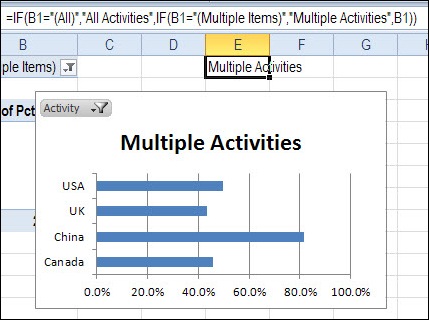
You can see another example of linking a chart title to a worksheet cell in my post on pivot table report filters.

Instead of a simple link, you can use the IF function to affect the result, as in the formula shown below.

chart title formula with IF function

Watch the Chart Title Video

To see the steps for creating the chart, and adding the dynamic title, you can watch this short video tutorial.

_____________________

Choose Report Dates With Excel Scroll Bar

This week, I’ve been working on some dashboards, and want to make it easy for people to select a date range for the report.

I experimented with drop down lists and slicers, and finally settled on a good old-fashioned scroll bar. You can click or drag the scroll bar to select an end date, and see three months of sales data, and the total.

Note: The technique does NOT require programming and is fairly easy to set up.

Choose Report Dates With Excel Scroll Bar

Scroll Bar Select the End Date

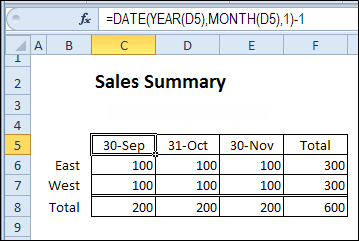
The scroll bar on the Summary sheet is linked to a named cell on another sheet, and that number is used in an INDEX / MATCH formula, to calculate the end date.

The date headings have formulas that show the selected end date, and the two prior months.

date headings have formulas

Get Data From a Pivot Table

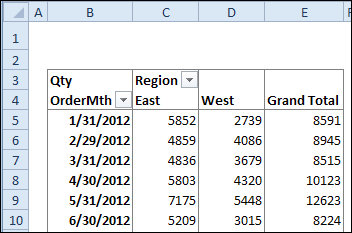
The sales data is summarized in a pivot table, by report month, and region.

sales data is summarized in a pivot table

GetPivotData Formula

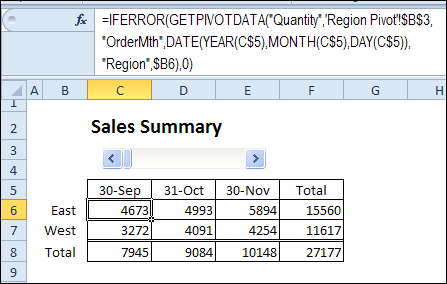
The summary table uses the GETPIVOTDATA function to pull the correct data, based on the region name and the date.

The IFERROR function returns a zero, if the data isn’t found in the pivot table.

GETPIVOTDATA function pulls the correct data

Download the Sample File

To download the sample file, and see the written instructions, please visit my Contextures web site: Select Date with Excel Scroll Bar
__________________