
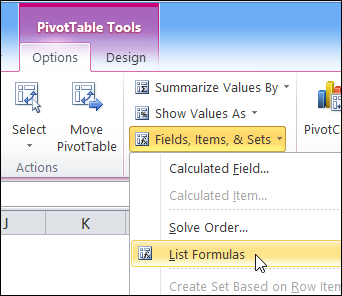
A few months ago, I shared my code for listing all the formulas in an Excel workbook. The code creates a new worksheet, with details on each formula’s worksheet name, cell address, the formula and the formula in R1C1 format.
Author: Debra Dalgleish
Round to a Nickel in Excel
If you’ve been following the Canadian news (and who isn’t?), you know that the penny has been eliminated from circulation. To honour the occasion, Google made a special doodle for google.ca on February 4, 2013.

Rounding Guidelines
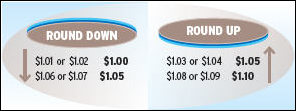
If you’re shopping with cash now, the final amount will be rounded up or down, to the nearest nickel. There are guidelines posted on the Royal Canadian Mint’s website: Eliminating the Penny: Rounding [article no longer available]
Rounding to the Nearest Cent
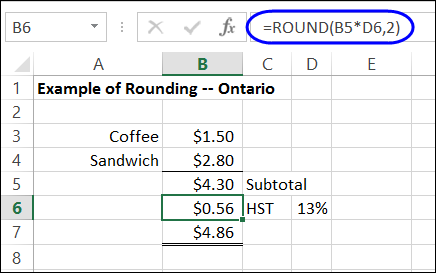
As an example, the Mint’s website shows the purchase of coffee and a sandwich, with tax, for a grand total of $4.86.
The tax department says to round the tax to the nearest cent, so you can use Excel’s ROUND function for to calculate the HST. Just multiply the subtotal by the tax rate, and round to 2 decimal places. Here is the formula in cell B6:
=ROUND(B5*D6,2)
Rounding to the Nearest Nickel
With the HST, the grand total for the lunch is $4.86. We don’t have pennies now, so the cash payment will be rounded to the nearest nickel. Excel’s ROUND function can’t help with that.
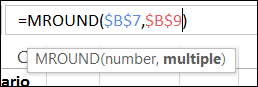
Fortunately, there is another rounding function – MROUND – that can round to a specified amount.
- The MROUND function has two arguments – the number, and the multiple.
In this example, we want to round the grand total, which is in cell B7. We’ll enter the multiple in cell B9, to show how the cash payment was rounded.
Here is the cash payment rounding formula in cell B10:
=MROUND($B$7,$B$9)
- Note: For Excel 2003 and older, the MROUND function is available after you load the Analysis Toolpak add-in.
Test the MROUND Formula
A nickel is worth 5 cents, so what happens if you enter a 5 in cell B9, to use as the multiple?
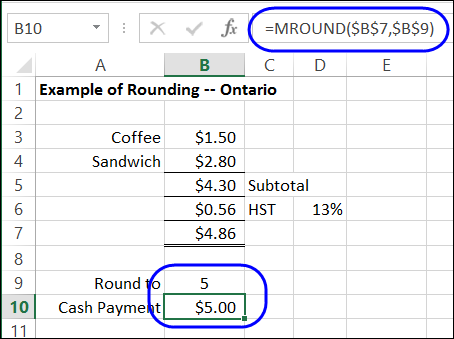
Oops! That rounds the amount to 5 dollars, instead of the nearest nickel.
Change the amount in cell B9 to 0.05, which is the way that you’d enter a nickel amount in a worksheet.
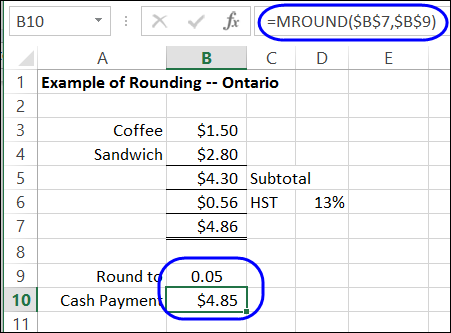
Perfect! With the MROUND function, and a multiple of 0.05, you can round those sales totals to the nearest nickel.
____________________
Round to a Nickel in Excel

________________
Print Invoices With Excel Macro
There is a sample file on my Contextures site, in which you can enter invoice details, then print all the new invoices by clicking a button.
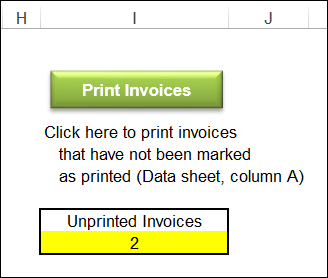
I’ve updated the file, and you can now download the xlsm version, if you’re using Excel 2007 or a later version.
Store Invoice Details in Table
In the new version, the invoice data is stored in a named Excel table, and a named range – Database – is based on that table. The range is dynamic, because it is based on the named table, so it will include new rows as they are added.
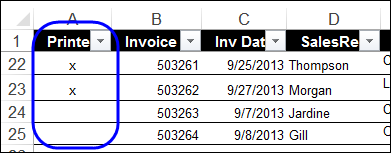
Invoices that have been printed are marked with an X, and the new invoices do not have a mark in column A.
Count Unprinted Invoices
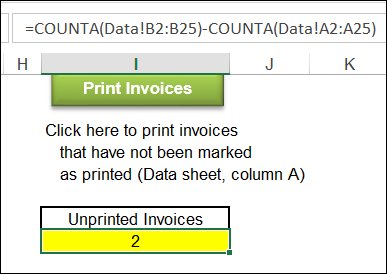
On the Invoice sheet, you can see how many invoices have not been printed. A formula calculates that number by counting invoice numbers and subtracting the count of X marks:
=COUNTA(Data!B2:B25)-COUNTA(Data!A2:A25)
Print the Invoices
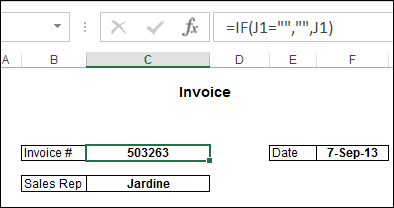
When you click the Print Invoices button, a macro filters the list, to show only the records with a blank cell in column A. This code is quite different from the previous version, because it uses List AutoFilter VBA, which is only available in newer versions of Excel.
Then, for each of those records, the invoice is printed, and then the record is marked with an “X”.
Download the Sample File
To see how the invoice printing macro works, and to view the code, you can download the sample file. On the Sample Spreadsheets page, go to the Functions section, and look for FN0009 – Print Unmarked Invoices
The zipped file is in Excel 2007/2010 format (xlsm), and contains macros.
___________________
Excel Date Picker Tool
If you’d like a quick and easy way to add dates in a worksheet, you can use this handy date picker tool, from Jim Cone.
The Date Picker opens to the current date, and you can scroll through months and years, by using the scrollbars at the top of the date picker form.
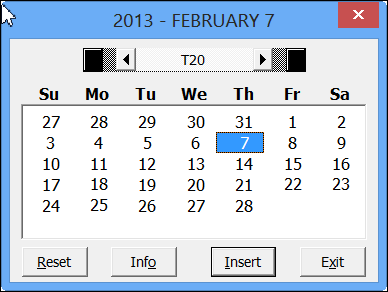
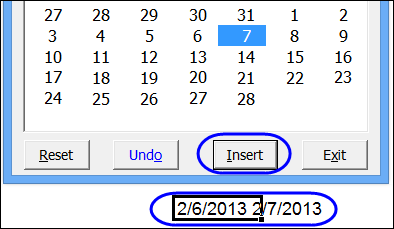
Just select a cell, and click the insert button, to add the date. If you hold the Shift key, and click the Insert button, it will append the date to the cell’s contents.
Create Calendars on a Worksheet
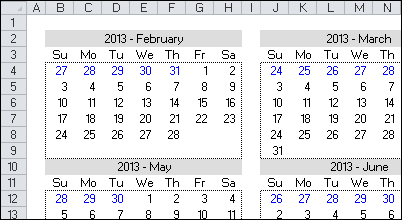
In addition to inserting the date, Jim’s date picker will also add a calendar to the worksheet – either a single month, or a full year.
Download the Date Picker File
To see all the details, and to download the date picker file, please visit my Contextures website: Excel Date Picker
The file is in Excel 2003 format, and contains macros, so enable macros if you want to test the file. The VBA code is unlocked, so you’ll be able to poke around in the code, and see how it works.
Jim hasn’t tested the file in Excel 2013, but a quick test in that version worked fine for me.
__________________
New ISFORMULA Function Excel 2013
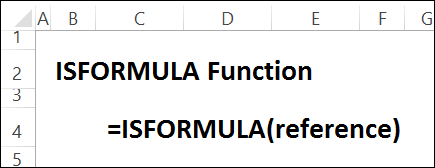
Last week, we took a look at the new FORMULATEXT function in Excel 2013. Another one of the new features in Excel 2013 is the ISFORMULA function.
Finally, there’s a way to identify cells that contain a formula, without creating a User Defined Function to do the job.
TYPE Function Problems
The TYPE function was originally designed to show what a cell contained, such as text or a formula. It returns a number to show the type for a cell’s contents, or a formula’s result.
Here’s the list of results, and the data types:
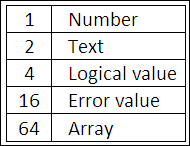
In a few versions of Excel, the Help files incorrectly reported that a formula would return 8 with the TYPE function, but unfortunately, that’s not the case.
Check for a Formula
With the new ISFORMULA function, you can test a cell, to see if it contains a formula.
In the screenshot below, the following formula is entered in cell B4, and copied across to cell D4:
- =ISFORMULA(B2)
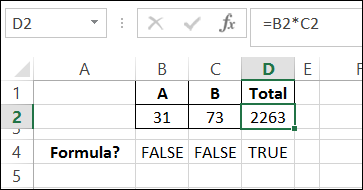
The result in cells B4 and C4 is FALSE, because cells B2 and C2 have numbers typed in them.
The result in D4 is TRUE, because cell D2 contains a formula.
Highlight Cells With Formulas
You can use the ISFORMULA function with conditional formatting, to highlight cells that contain formulas.
In the screen shot below, cells in column C have a formula, and they are shaded grey.
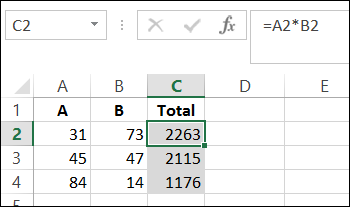
For the details on how to apply this type of conditional formatting, and for more information on the ISFORMULA function, you can visit my Contextures website: Excel ISFORMULA FUNCTION
_____________________
Show Formulas with FORMULATEXT Excel 2013
There is a new function in Excel 2013 – FORMULATEXT – that lets you show the text from a cell’s formula.
In the screen shot below, cell C2 contains the formula:
=FORMULATEXT(B2)
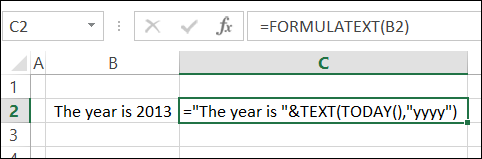
Matches Formula Bar
The FORMULATEXT result shows the formula that’s in cell B2, just as if you had clicked on cell B2 and looked in the formula bar.
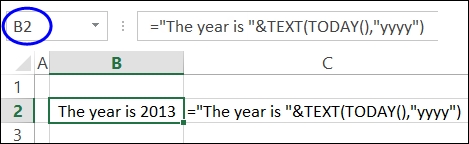
Use FORMULATEXT for Troubleshooting
You can use FORMULATEXT for auditing or troubleshooting a worksheet. For example, combine FORMULATEXT with the INDIRECT function, to check the formula in any cell.
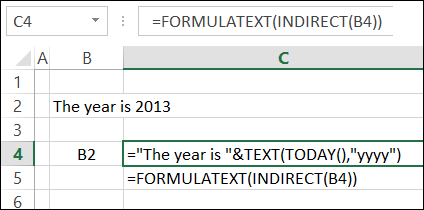
In the screenshot below, a cell address (B2) is entered in cell B4, and the FORMULATEXT result shows the formula from cell B2.
=FORMULATEXT(INDIRECT(B4))
More on FORMULATEXT
For more FORMULATEXT information and examples, please visit my Contextures website. You can read the details there, and download the sample file: Excel FORMULATEXT Function
Video: Excel FORMULATEXT Function
To see the steps for creating a FORMULATEXT function, and a few examples, you can watch this short video tutorial.
______________
Problems With SendKeys in Excel
Yes, I know that it’s a bad idea to use the SendKeys method in Excel, because strange things can happen.
However, it’s handy in a few situations, and I use SendKeys in a few of my Comments macros.
SendKeys Example
For example, in this macro to insert a blank comment, without a user name, the comment opens for editing, at the end of the macro.
Sub CommentAddOrEdit()
  Dim cmt As Comment
  Set cmt = ActiveCell.Comment
  If cmt Is Nothing Then
    ActiveCell.AddComment text:=""
  End If
  SendKeys "+{F2}"
End Sub
Send Keyboard Shortcuts
In that example, the SendKeys line simulates using the keyboard shortcut – Shift + F2 – to edit the comment in the active cell.
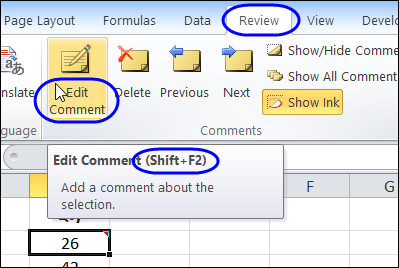
SendKeys Doesn’t Run
While I was updating the Comments VBA page, I wanted to test a few of the macros, to make sure that they still worked in Excel 2010. To make it easier to run a macro, I added a keyboard shortcut for it – Ctrl + Shift + C.
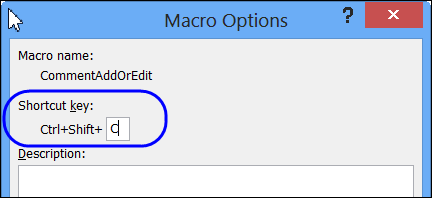
Shortcut Problem
When I tested the macro, using that shortcut, it inserted the comment, but the comment didn’t open for editing. Hmmm…maybe that shortcut code doesn’t work in Excel 2010.
But, when I ran the macro from the Macro window, instead of the shortcut, it worked correctly. So, the problem wasn’t the SendKeys code.
There was something funny happening with the shortcut to run the macro.
Add a Wait Line
Some Googling led me to the Microsoft site, where this problem is in the MSKB: Error Using SendKeys in VB with Shortcut Key Assigned
The problem occurs because this is a very short macro, and I was still pressing the Ctrl + Shift keys when the macro runs the SendKeys statement. And that messes up the SendKeys keystrokes. See – I told you that SendKeys was risky!
Suggested Solution
The suggested solution is to add a Wait line in the macro, just before the SendKeys code. So, I altered the macro, and now it runs correctly when I use the keyboard shortcut.
Sub CommentAddOrEdit()
  Dim cmt As Comment
  Set cmt = ActiveCell.Comment
  If cmt Is Nothing Then
    ActiveCell.AddComment Text:=""
  End If
    Application.Wait (Now() + TimeValue("00:00:01"))
    SendKeys "+{F2}"
End Sub
_________________________
Show File Open Window in Excel 2013
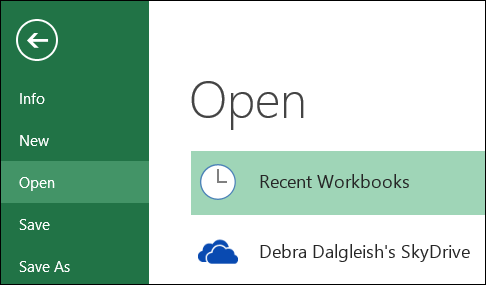
In Excel 2013, if you click the File tab, you go to the Backstage view. The Open command is selected, and you can select a file and open it.
Add Custom Ribbon Tab For Workbook
Last week, you saw how to open and edit the Ribbon code in an Excel file that has a custom tab. This week, you can see how to create a custom tab in an Excel workbook, and add buttons to run your macros.
This example is based on an Order Form workbook, and the buttons run macros to clear the data entry cells, and to view the file before printing.
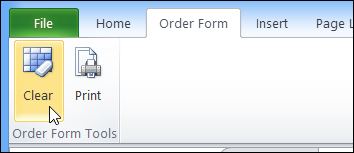
You’ll see how to set the custom tab labels and icons, and change your macros so they run from a click on the Ribbon. Exciting, right?
Watch the Video
To see the steps, please watch this video. It’s a bit longer than the videos that I usually make, but the steps are quite easy, so give it a try!
Download the Sample File
To see the written instructions, and to download the sample file, please visit my Contextures website: Add Custom Ribbon Tab to Workbook
Excel Dashboard Course Re-opens
Custom ribbon tabs can make your workbooks easier to use, and they add a professional touch. If your goal is to build a dashboard, Mynda Treacy from My Online training Hub is opening her Excel Dashboard Course, and if you sign up by January 30th, you can get it for 20% off.
The course is video based, delivered online and is available 24/7. You also receive comprehensive workbooks and sample dashboards to keep. There’s even an option to download the videos.
The previous classes were very successful, and you can read the glowing reviews from the students, who loved all the techniques that they learned in the course, and are using them to impress their colleagues.
Click here to find out details of the course, read the student comments, and watch the ‘behind the scenes’ video that shows you what you’ll receive as a member.

________________
Open Excel 2013 With Blank Template
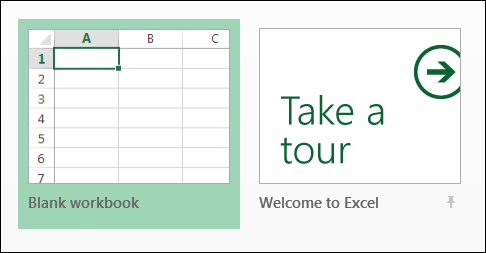
If you’ve been using Excel 2013, you might enjoy seeing the collection of templates when you open Excel. There is a blank template at the top left, and you can even take a tour of Excel.