Quick Navigation in a Word Document

Occasionally I work with long Word documents, and want to get from one section to another as quickly as possible. To do this, I use one of Word’s best hidden features — the Document Map.

It lists all the headings in your document, and to go to a section you just click on its name in the Document Map.
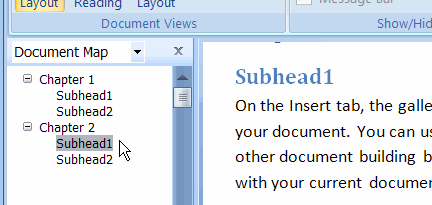
Just like an Excel outline, you can collapse and expand sections by clicking the + and – buttons at the left of the section names.

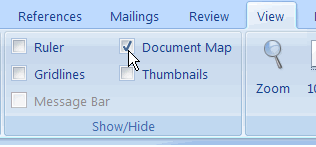
To view the Document Map in Word 2007, click on the View tab, and add a check mark to Document Map.
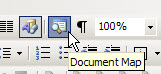
In Word 2003, and earlier versions, click the Document Map button on the Standard Toolbar.
If you like to use the keyboard, you can press the F6 key to move into the Document Map, and arrow up or down. Press Enter to select the highlighted section name.

Note: If you have the Document Map open, you can’t use Word’s Split Window feature.
Print What You Like and Decipher Mysteries

Although the title of today’s blog pretty much describes my meeting notes (what the heck do those scribbles mean?), I’m referring to a couple of utilities I found this week. Both have been very helpful already, so you might find them useful too.

Print What You Like

First is Print What You Like, a web site that lets you select sections on a web page, before you print. This should reduce the amount of paper and ink that you waste, when extra pages are printed.

I’ve spent time copying and pasting web site text into Word, to avoid those extra pages, and this is much easier.

  • To start, copy the URL for the page you want to print.
  • Go to Print What You Like, paste in the URL, and click Start.
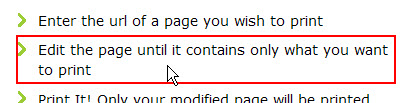
  • Your target page appears, and you can point to a section, word, or paragraph, to frame it.
  • Click on a framed area to select it, and select as many sections as you’d like.

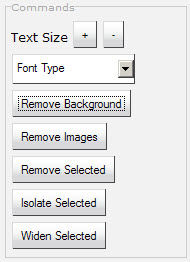
  • Use buttons at the left side of the editor to remove images, remove the background, change the font size and isolate or remove the selections

  • Experiment with the settings for a minute or two, and once the page contains only the elements that you want to print, hit the Print button.

LongURL

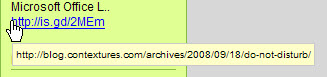
The other utility is LongURL, a FireFox add-on that lets you point to a condensed URL and see the full text for the designation URL. Twitter is full of these short links, and some are useful, but other, not so much.

This might help you avoid sites in which you have no interest, or that might not be suitable for work.

You have to register to download the add-on, and that took a few minutes, but the installation went smoothly, and the add-on works as promised. Occasionally it can’t decipher the URL, but most work fine.

Do Not Disturb

After my Outlook article on Tuesday, Ken Puls sent me a link to the Microsoft Office Labs site, where you can download the Email Prioritizer add-in for Outlook 2007.

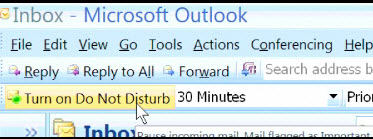
It has a Do Not Disturb setting that you can use to temporarily stop email from arriving. Good for those times when you need to focus for a while, but don’t want to lose touch with the world for the long term.


My mail runs through MailWasher, which flashes in the system tray when a message arrives on the mail server. Sometimes I turn it off accidentally, and don’t notice until a couple of quiet hours have passed.

No alerts, so I get lots of work done, but it might be better to have it off for a shorter, and predetermined, amount of time.

You can also prioritize your email with the Email Prioritizer’s 3-star rating system. I don’t have Exchange Server, so can’t test it, and will have to stick with my coloured flags system in Outlook. (I only use the red flags, since I can’t remember what the other colours mean if I use them.)

Finally, if you’d like to read about a few Outlook (and other) catastrophes at Microsoft, see Brick ONeil’s Microsoft Office Blog article from yesterday, Top 7 Employee Bungles Using Office.

Make Your Vote Count With Doodle

No, this blog hasn’t gone political. I’m talking about polling co-workers, friends or family, to make a decision, or pick a date for an event. That might be easy to do if you’re in a big office, and share an online calendar.

But, if you’re running a small business and trying to get a consensus on a decision among clients or associates, it’s not so easy.

Instead of spending hours on the phone, or sending emails round in circles, you could use the online polling tool, Doodle. Create a poll, then send everyone a web page link where they can vote. No one has to register or log in — they just follow your link, type a name and cast a vote.

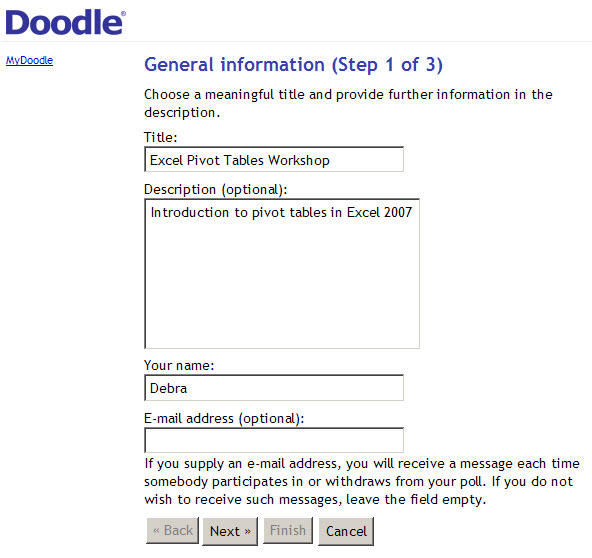
To start, you set up a poll with a choice of dates, or other options. You can opt for email notices, or go to the page and see how the voting is going.

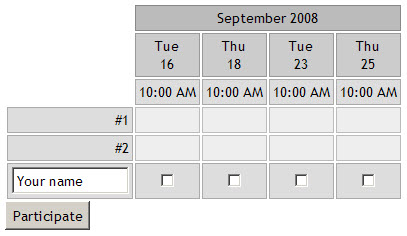
When participants follow your link to the page, they type their name and select one or more of the options.

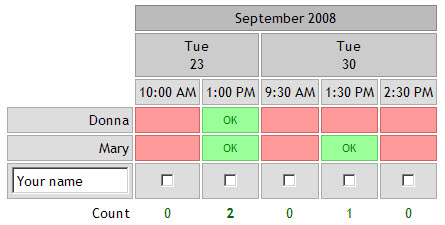
In this poll, participants would add a check mark for any time they’d be available to attend the workshop. They can see the names and selections of previous voters.

While setting up the poll, if you click the PowerDoodle button, you can make the poll a bit more sophisticated.

You can hide the voter names and selections, as shown below, or limit participants to one selection from the options, or only allow one participant to select each option — useful if you’re allocating tasks.

The Doodle tool seems very easy to use, with no inconvenience to participants. You can see the test poll that I set up, and cast your vote if you’d like.

POLL IS NO LONGER AVAILABLE

Delay Sending Outlook Messages

You hit Send, then realize you forgot the attachment. Or you misspelled the recipient’s name. Or you used Reply All, when you only wanted the message to go to one person. None of these things have ever happened to me (well hardly ever), but you might have been less fortunate.

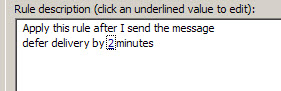
All kinds of tragedies can strike in that ohnosecond, just after you fire off an email. As a bit of insurance, you can change a setting in Outlook, so messages are delayed a set number of minutes.

Then, if you realize you didn’t want to include everyone in the lottery ticket email, you’ll have time to delete a name or two from the Send To list.

There are instructions for changing this setting on the Microsoft website. It will only take you a couple of minutes to make the change, and that investment will pay for itself the first time you can correct an error before an email is sent.

Update (2008-Sep-19): JP has written an article describing how to delay Outlook messages with programming.

Off the Cuff Measurements

These items are definitely productivity related, because you can’t manage what you don’t measure.

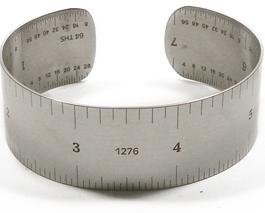
At the Shana Logic site they’re selling some interesting accessories, and I like this stainless steel bracelet with rulers in metric and inches.

They also make compass earrings, a level necklace and a thermometer necklace, so you’ll be able to stay on course and get things done.

I’d make a pun for each item, but will leave that for you to enjoy on your own.

Free Upgrades For Life

Have you ever bought software that came with free upgrades for life?

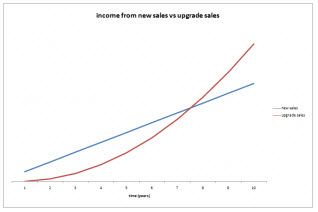
In the Successful Software blog, Andy Brice asks if you should give customers free software upgrades for life.

He created an income model in Excel 2007 that you can download, to test different scenarios.


I can’t imagine why anyone would offer free software upgrades for life. Certainly, if there are minor upgrades or patches to the current version, or a major upgrade is released shortly after a purchase, then I would expect to get those at no charge. Otherwise, if I want to enjoy the new features that a developer has worked hard to create, I’d pay for the upgrade.

The article has an excellent list of things customers should expect in major upgrades, including two points that are key:

  • Any major bugs in version n should be fixed before releasing version n+1.
  • A major upgrade should have significant new features.

But don’t worry, upgrades to this blog will continue to be free, as long as I can afford it!

Find New Sites With All My Faves

I use Google to do web searches, and am pretty efficient at finding things, in my humble opinion. Last week my son sent me a link to All My Faves, which lets you find things, but in a completely different way than Google.

The Home page has rows of web site logos, grouped in categories such as Travel, Sports, Finance and Tech. The top row has weekly favourites.

There’s a Weekly Faves tab, that has archived links from earlier weeks, and there’s a best of 2007 row at the bottom of that page. Also, there are specialized tabs for Travel, Entertainment, Kids and Shopping.

This could be a great starting point if you’re trying to generate ideas, or find new sources of information (or entertainment!)

Instead of starting from a narrow search term, and digging in to different sites, All My Faves lets you start from the forest, and pick a few trees to examine.

Rearrange Your Taskbar Icons (Part 2)

A while ago (in May!), I posted about using Taskbar Shuffle to rearrange the icons in your Windows taskbar. This is handy when I have lots of windows open, and I want a couple of them to be readily available.

If I drag their icons to the far left of the Windows Taskbar, they’re easier for me to find when I need to access those windows.

Yesterday, Lifehacker posted an article about Taskix, which is another tool for rearranging taskbar icons. Apparently it’s much smaller than Taskbar Shuffle, and very similar in functionality.

I’ve installed it, and it’s working very smoothly, with no noticeable difference from Taskbar Shuffle.

You can download Taskix for 32-bit or 64-bit systems, then use it to rearrange or close the windows icons on your taskbar.

Simply drag a Window icon to a different position on the toolbar, and release it to place it in the new spot. Or, point to an icon and click the mouse wheel to close that window.

Get a Workout at Work

I’ve thought about getting a Wii, with a balance board, for a bit of fun and exercise (and to steer the Roomba). Maybe I should get a treadmill for my computer desk instead.

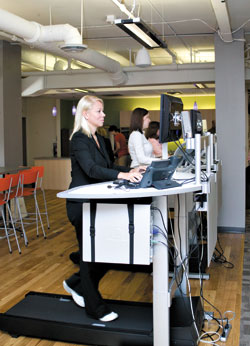
At Salo LLC, a staffing firm in Minneapolis, a dozen desks were outfitted with treadmills and adjustable countertops.

According to an article in Downtown Journal, revenues have gone up and the participating employees have lost weight. I’ll bet the meetings are shorter too.

There are plenty of times during the day that I could walk and work at the same time, and maybe it would help beat that afternoon slump as well.