Efficient Navigation in Excel Workbooks

When I saw the signs in this shop window, I laughed, and snapped this picture.
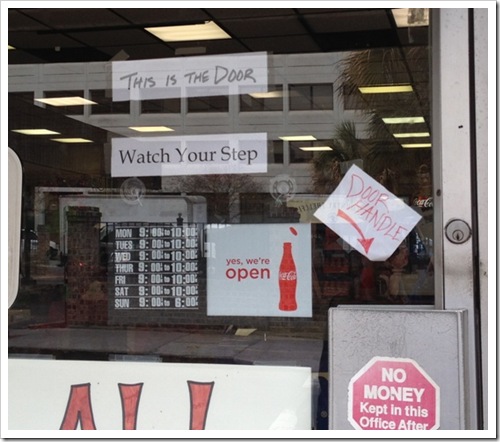
Shop window with sign pointing to door handle

How confused are your customers, if you need a sign that says, “This is the door”, and another sign that points to the door handle?

Design Flaws

Later, I realized that it’s not a customer problem – it’s a design problem. A substantial number of people had trouble finding the handle, which looks more like a box. And I don’t remember exactly what the front of the store looked like, but the door must have been hard to identify too.

How about your Excel workbooks – are they easy to understand and navigate? I’ll admit that some of the spreadsheets I’ve built might have similar navigation problems. I’ve added arrows that point to data entry cells, and text boxes with user instructions. Not much different from that door!

Navigating a Workbook

What can you do to make Excel navigation easier?

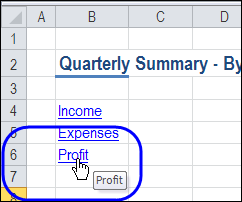
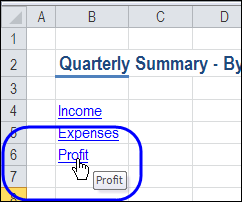
In a large workbook, a menu sheet, with links to other sheets, is helpful. And all the other sheets should have a link back to that menu sheet.
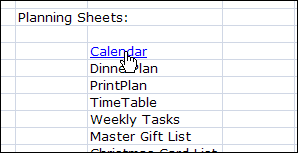
hyperlinkclick

On a large worksheet, you can add a menu at the top of the sheet, linking to the sections below.
tableofcontentssheet05

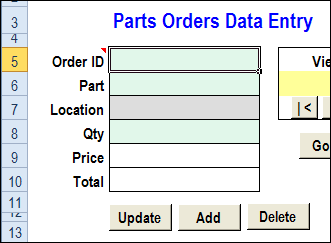
If users can enter data on some sheets, group all the data entry cells in one area, and use colour coding, to make the cells easy to identify.
dataentry15

Worksheet Design Resources

Where do you get your worksheet design ideas? From your own experiments? From sample workbooks that you’ve found online? Somewhere else?

Even though it’s focused on web site design, rather than spreadsheets, I found plenty to think about in Don’t Make Me Think, by Steve Krug.

There are good tips in Professional Excel Development, by Rob Bovey, et al.

What books or other resources would you recommend?

________
Preparing for an Excel Expert Exam

Have you ever written an Excel proficiency exam? Maybe you’ll have some advice or tips for the person who wrote to me this week, asking for help with the Excel Expert 2007 exam.

He’s having trouble with the macros and custom functions that will be part of the test.

It’s been a long time since I wrote the Excel Expert exam, that was part of the old Microsoft Office User Specialist series. The exam has probably changed many times since then, but back then it was a mixture of multiple choice questions and simulated workbooks (if I’m remembering correctly!)

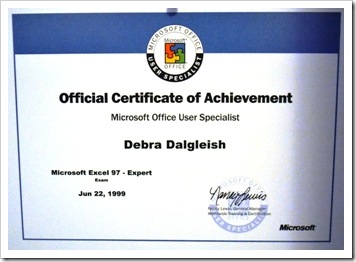
Anyway, I passed, and the certificate is still proudly displayed on my office wall. Well, it’s pinned to the wall, behind the door, but it’s still in good shape! Wow, June 1999 – that was a long time ago.

ExcelExpert01

The Excel Expert Test

The Microsoft website has a list of topics that are covered on the exam, including this section on Managing Macros and User-Defined Functions:

  • Record and edit a macro.
    • This objective may include but is not limited to: recording a macro and editing a macro in Visual Basic for Applications (VBA)
  • Manage existing macros.
    • This objective may include but is not limited to: moving macros between workbooks, assigning a shortcut key to an existing macro, assigning a macro to a button in a worksheet, and configuring macro security levels
  • Create a user-defined function (UDF).

Record and Edit a Macro

There are written instructions and a video on the Contextures website, for recording and testing a macro in Excel. That article briefly discusses macro security levels, and showing the Developer tab.

To see how to edit a recorded macro, you can watch the video on this blog post: Excel VBA Edit Your Recorded Macro. There are written instructions there too, in case you’d prefer to read about it.

Manage Existing Macros

If you need to copy macros into a workbook, or from one workbook to another, there are instructions here: Adding Code to a Workbook

For details on assigning a macro to a worksheet button, take a look at this page: Excel VBA Worksheet Macro Buttons. To see the code and buttons, you can download the sample workbook from that page.

image

______________

Change Excel Comment Shape

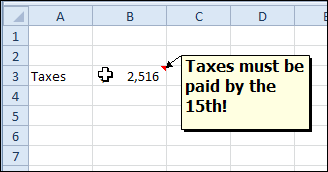
When you insert a comment in Excel, a rather boring yellow rectangle appears, where you can add your text.

commentshapechange00

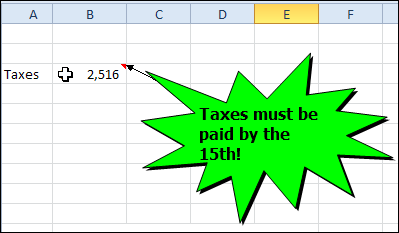
That’s all very proper and dignified, but sometimes you want something a bit more attention-getting.

commentshapechange01

In the good old days of Excel 2003, it was easy to change the comment shape, with a simple right-click. In Excel 2007 and Excel 2010, you need to add a command to the QAT, so you can change the comment shape.

Add the Change Shape Command to the QAT

  • At the right end of the QAT, click the drop down arrow
  • Click More Commands
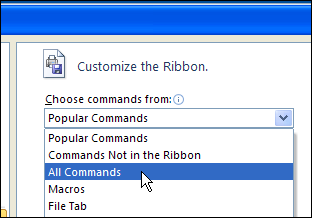
  • In the Choose Commands From drop down, click All Commands

commentshapechange02

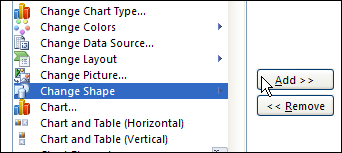
  • In the list of commands, click Change Shape, and click Add, to move it to the Quick Access Toolbar

commentshapechange03

  • Close the Excel Options window.

Change the Comment Shape

  • Right-click the cell which contains the comment.
  • Choose Edit Comment
  • Click on the border of the comment, to select it.

commentshapechange04

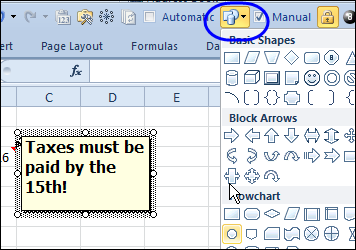
  • On the QAT, click the Change Shape command, and click on a shape to select it.

commentshapechange05

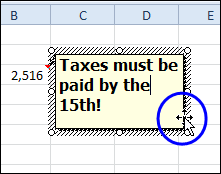
  • If necessary, drag the corner handle of the comment, to adjust its size, to fit the text.
  • When finished, click outside the comment.

Watch the Video

To see the steps for adding the Change Shape command to the QAT and changing the comment shape in Excel 2010 or Excel 2007, you can watch this short Excel video tutorial.

_____________________

Customize Excel Right-Click Menus

iconmenurighterDo you ever right-click on something in Excel, and the command that you wanted to use isn’t on that pop-up menu?
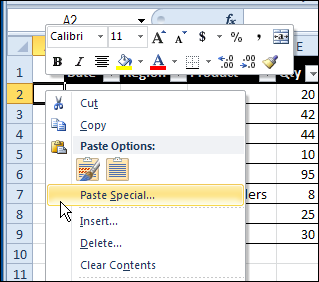
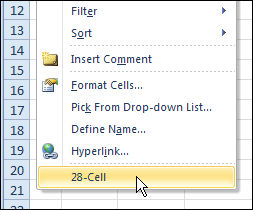
For example, if right-click on a cell, there is no command to turn off the gridlines.

menurighter01

If you can’t find the command on the right-click menu, you have to go to the Excel Ribbon or Quick Access Toolbar (QAT) instead, and try to find the command on one of the tabs there.

What commands would you add to a right-click menu? Are there commands that you added to the QAT, that would be even better in a popup menu?

Customize the Right-Click Menus

Fortunately, Doug Glancy has created a solution to the right-click menu problem, with his MenuRighter Add-in. With Doug’s free add-in, you can add commands to the pop-up menus, so the items that you need are easy to find.

The add-in is not for sissies! You need to know where the commands were on the old Excel 2003 menus – or be willing to poke around and find them.

Then, you select the right-click menu where you want to add the command, and click the buttons to add the command, and save the changes.

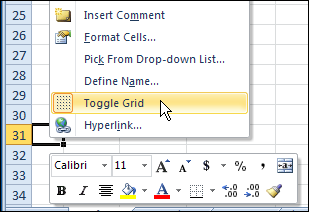
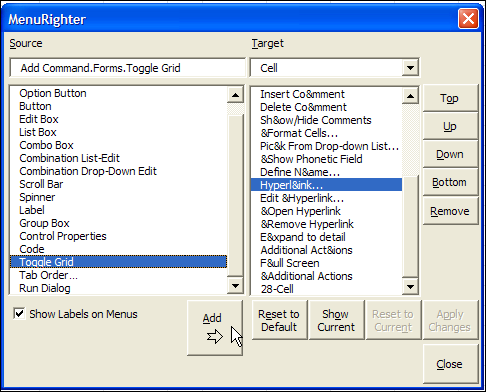
In the screen shot below, I have selected the ToggleGrid command from the Forms toolbar, and am adding it to the Cell popup menu, just above the Hyperlink command.

menurighter02

Find the Right Right Menu

There is a large collection of Targets, so it can be tricky to select the correct one. There are two Cell targets, so how can you decide which right menu is the right one?

While the MenuRighter is open, you can check the box for Show Labels on Menus. At the bottom of the list at the right, you can see the identity for the selected Cell target – 28-Cell.

If I right-click on cell A2, the popup menu also shows 28-Cell, so that confirms that I selected the Cell target that I want.

menurighter03

Use the Modified Right-Click Menus

After I added the Toggle Grid command to the Cell menu, I clicked Apply Changes, and closed the MenuRighter window.

Then, I can right-click on a cell, and turn the gridlines on or off.

menurighter04

It’s a command that I use frequently, so it’s very convenient to have it in the right-click menu. Thanks Doug, you made life in Excel a little easier!

Download the MenuRighter Add-in

For more instructions, and to download the MenuRighter add-in, you can visit Doug Glancy’s website: MenuRighter Add-in.

Watch the MenuRighter Video

To see the steps for adding a command to a right-click menu, by using the free MenuRighter add-in, you can watch this short Excel video tutorial.

___________________

Spreadsheet Day 2011 Review

SpreadsheetDay82 Monday, October 17th, was Spreadsheet Day, and I hope you’ve recovered from all the festivities.
Thanks to everyone who tweeted about Spreadsheet Day, and a special thanks to those who made a Spreadsheet Day post on their blog. In case you missed any of the posts, here’s a list. If I omitted yours, please let me know.

Plan and Track Student Spending

Pivot tables summarize the key information in this student budget workbook, from Bob Ryan, of Simply Learning Excel.

Student Time Tracker

Keep tabs on class times and assignment workload, with my Student Time Tracker. Then, when you become a Microsoft Office consultant, you can use the same technique to track meetings and project work.

Happy Spreadsheet Day

A lesson in the perils of gambling, from Mike Alexander, of Bacon Bits blog. Using a spreadsheet to track your gambling losses doesn’t lessen the pain.

Automating Class Creation

Students attend classes, so Dick Kusleika, from Daily Dose of Excel, shows his technique for automating class creation in Excel VBA. The video demo is silent, so you can play the music of your choice, or add your own voice over.

Experiment With Excel

You don’t need extravagant plans to celebrate Spreadsheet Day. To quote The Science Goddess, “So, my advice for today is simply to go forth and double-click. Open Excel and play around.”

Celebrate Responsibly

Finally, wise words from Excel guru, and party pooper, John Walkenbach – celebrate Spreadsheet Day responsibly.
_______________

Excel Student Time Tracker: Spreadsheet Day 2011

SpreadsheetDay82 Happy Spreadsheet Day! I hope you’re making time to cell-ebrate this special day. October 17th was selected as Spreadsheet Day, because that is the date that VisiCalc was first shipped.
Student Spreadsheets

The theme for this year’s Spreadsheet Day is Student Spreadsheets. If you have uploaded a free, useful template or add-in for students, or posted a spreadsheet tip, please send me the link so that I can share it.

Or, post your links/tips on Twitter, using the hashtag — #spreadsheetday – so we can find them.

Student Time Tracker

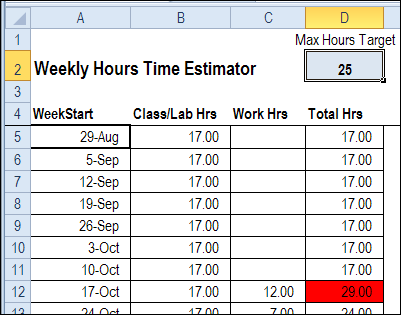
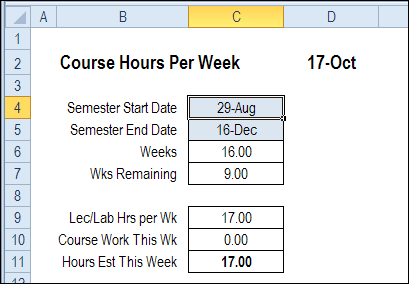
My contribution for Spreadsheet Day 2011 is a Student Time Tracker. You can keep track of your lecture hours, and course work hours, to see what the weekly totals are.

To start, you’ll enter the Semester start and end dates, in the blue cells.

studenttimetracker01

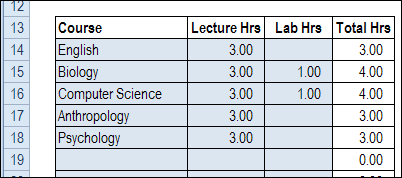
Next, enter your courses, and the scheduled lecture and lab hours per week.

studenttimetracker02

Add Your Assignments

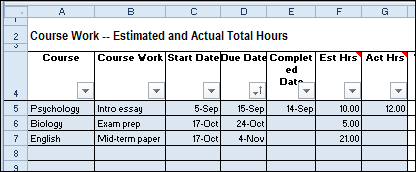
As the semester progresses, enter any assignments that you get, and other tasks, like preparing for tests and exams. As you finish your assignments, enter the completed date and actual task time. This will help you improve your time estimating skills.

studenttimetracker03

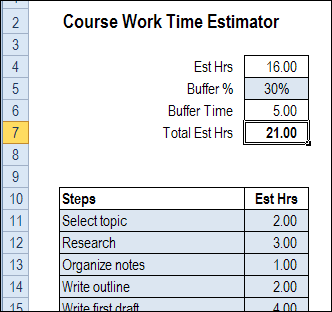
For large assignments, you can use the Course Work Time Estimator sheet, to enter all the steps, and the time each step should take. Then, add a buffer percentage, to include extra time in the estimate. This will cover all those little things that can go wrong along the way.

studenttimetracker04

Check the Weekly Hours

On the Weekly Hours Time Estimator sheet, you can see the total hours for each week in the semester. The Work Hours are calculated by using the SUMIF function to get the hours for each week.

At the top of the sheet, enter your target hours for each week – the maximum number of hours that you want to spend on classes and assignments.

In the screen shot below, the target is 25 hours (that’s pretty low!), and there is conditional formatting to highlight weeks that exceed that target.
If you see a heavy week coming up, you might be able to complete some assignments early, to ease the workload.

studenttimetracker05

Download the Student Time Tracker

Update 8/11/2025: For an updated Student Time Tracker, go to the Student Spreadsheets page on my Contextures site.

• To see how the time tracker works, you can download the Student Time Tracker template. Go to my Sample Files page, and in the Functions section, look for FN0037 Student Time Tracker

The file is in Excel 2007/2010 format, and zipped. There are no macros in the file.
___________________

Spreadsheet Day 2011 Preparations

SpreadsheetDay82Are you ready for Spreadsheet Day on Monday (October 17th)? I’m just back from a week of vacation, and will be working on my “Help a Student” template this weekend.

Yes, I crossed the border this week, and spent time shopping and relaxing in Rochester NY. I toured the home of George Eastman, founder of the Kodak company, and will post some photos next week.

He wasn’t a spreadsheet guy, but some of his ideas can be applied to spreadsheets.

Spreadsheet Day

I hope you’ll cell-ebrate Spreadsheet Day on Monday, and post a link to your free template, add-in or spreadsheet tip, that will help a student succeed.

The Science Goddess, on the Excel for Educators blog, has asked teachers to suggest spreadsheets that would be useful to their students. As she says to her readers, “if you don’t talk to your kids about spreadsheets…who will?”

If you need inspiration for the Spreadsheet Day challenge, wander over to the Science Goddess’ blog, and see if there are any template suggestions.

Spreadsheets Everywhere

Even on my vacation, I saw spreadsheet everywhere, like this table in the hotel. Maybe it’s just me, but those tiles look like the cells in a spreadsheet.

I’m sure that the Margaritas didn’t affect my interpretation of the table pattern. 😉

tablecells

Please Contribute

Please take a few minutes on Monday to contribute to the Spreadsheet Day cell-ebrations.

  • Post a spreadsheet tip on Twitter, with the #spreadsheetday hashtag.
  • Write an article with a spreadsheet tip for students
  • Create a student-themed spreadsheet template or add-in and post it on the internet

Remember to let me know about your post, so I can link to it on the Spreadsheet Day blog

I’m looking forward to seeing your contributions!
_______________