
How can you quickly move around an Excel worksheet? In a long sheet, there’s no built-in way to go to a specific part of the Excel worksheet. Even though the sheet might print on several pages, Excel doesn’t have “page” navigation.
Go To Specific Page in Excel
Here’s what Andrea asked in a recent comment:
- How do I “go to” a specific page of my worksheet. I have 23 pages and do not want to keep scrolling. I cannot find how to do this as on Word.
Of course, Andrea is correct, and there is no built-in page navigation for Excel, like Word has. What would you recommend for Andrea? Here are a couple of my favourite techniques, and please add your suggestions in the comments.
Navigating in Microsoft Word
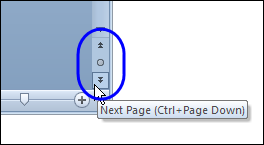
In Word, you can click the buttons at the bottom right, to quickly go to the next or or previous page.
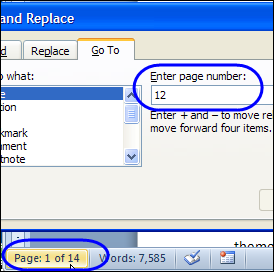
You can also double-click on the page count section of the status bar, type a page number, and press Enter, to go to a specific page.
Worksheet Pages in Excel
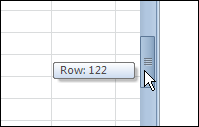
In Excel, we don’t have those handy page navigation features. You can scroll down through the rows, with no hint as to what page you’re on, if the worksheet has multiple printed pages.
Or, add the page number to the header or footer, and scroll in Page Layout view, where you can see those numbers.

Create a Table of Contents
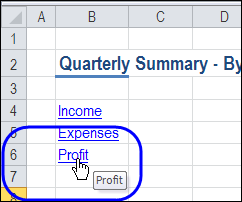
If you’d like a structured way to move around the worksheet, you can create a worksheet table of contents.
With this technique, you add section headings, with hyperlinks to those headings, at the top of the worksheet.
Then, click a hyperlink, to go to that section.
Create Named Ranges
For a quicker and easier method, you can skip the hyperlinks, and simply go with named ranges.
If you’re the only person using the workbook, you could use this simple navigation system.
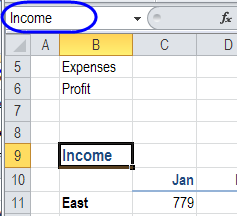
In a long worksheet, you would most likely have heading cells, which you can name. In this screenshot, cell B9 is named as Income.
Go to Named Range
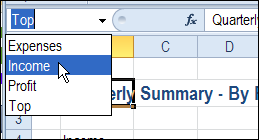
Then, go to any named range, by selecting its name from the Name Box drop down list.
Other Ways to Navigate
Excel isn’t set up to deal with page navigation, but one of these suggestions might help Andrea work around this limitation. Do you have other techniques that you use in large worksheets?
_____________
I am actually suprised that no one suggested command buttons located around the worksheet that, once depressed, would take you to other locations within the sheet.
This is what I was looking for, but guess I need to look somewhere else. I do however like the idea of how to use hyperlinks and named ranges, but was suprised that there wasn’t any step by step instructions available on this main page as I have seen on other excel websites.
Ty
Another thing that is very cool with the GoTo (F5) function is holding the SHIFT key when you hit Enter. You could click on cell A40, for example, and then press F5 and type “V40” in the dialog box. Hold down the SHIFT key when you press Enter and Excel SELECTS all the cells in the range A40:V40. I find this a very handy way to select cells when I’m working with similar chunks of data for copying, formatting, whatever. It ensures that you don’t overshoot when selecting cells.