Create an Excel Scenario Summary

Last week I updated the Excel Scenario page, and now I have added a video for the Excel Scenario Summary page. It shows the steps for creating an summary table ad a summary pivot table.

Static Reports

Unfortunately, both types of Scenario summary report are static, and they don’t update if the Scenario data changes.

Tip: If you create a Scenario Summary, be sure to date stamp it, or delete it before saving the workbook. You don’t want to keep potentially misleading data in your files.

Scenario Summary Formatting

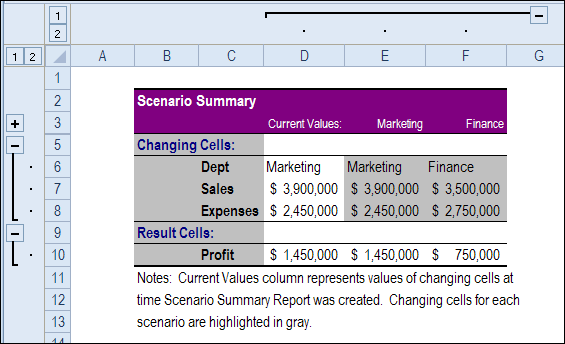
And the Scenario Summary formatting is about as ugly as Excel gets – purple and grey.

Maybe they’ll improve that in the next version! But don’t hold your breath — I doubt that it will ever be changed.

scenarios12b

Watch the Video

To see the steps for creating Scenario Summary, please watch this short video tutorial.

This video includes a tip for adding the Scenario command in the Excel 2010 Ribbon, so it is easy to switch between Scenarios.

More Tutorials

Here are links to 3 more Scenario tutorials, on my Contextures site:

Create and Show Scenarios – With Scenarios in Excel, you can store multiple versions of data, in the same cells

Automatically Show Scenarios – see how to use a macro to automatically show a Scenario, when you select its name from a drop down list on the worksheet

Scenarios Programming – Use these macros to create a list all the scenarios, or create new scenarios, or update the values for existing scenarios, from a list on the worksheet

______________________

Store Multiple Values With Excel Scenarios

If you’re working on the office budget, you might be collecting data from different departments.

Or maybe you’re planning your back to school spending.

  • If you get bonus at the end of your summer job, you can use some higher budget numbers.
  • If the bonus falls through, you’ll need your low budget estimates.

Store Data With Scenarios

With Excel Scenarios, you can store different sets of values (in up to 32 cells) in a workbook. Then, without any programming, you can switch between the saved values.

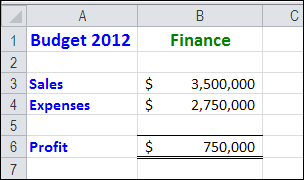
In this example, we store budget projections for two departments. View and print one department’s budget, and then switch to the other department, all in the same cells.

scenarios05a

Download the Sample File

To see the written instructions for creating scenarios, please visit the Excel Scenarios page on the Contextures website.

There is a sample file that you can download, to see how the Scenarios work.

Watch the Excel Scenarios Video

To see the steps for creating and showing scenarios, you can watch this short video tutorial. I also share tips for quickly naming cells, and automatically adding those names to your formulas.

sure to date stamp it, or delete it before saving the workbook. You don’t want to keep potentially misleading data in your files.

Scenario Summary Formatting

And the Scenario Summary formatting is about as ugly as Excel gets – purple and grey.

Maybe they’ll improve that in the next version! But don’t hold your breath — I doubt that it will ever be changed.

scenarios12b

Watch the Video

To see the steps for creating Scenario Summary, please watch this short video tutorial.

This video includes a tip for adding the Scenario command in the Excel 2010 Ribbon, so it is easy to switch between Scenarios.

More Scenario Tutorials

Here are links to 3 Scenario tutorials, on my Contextures site:

Create and Show Scenarios – With Scenarios in Excel, you can store multiple versions of data, in the same cells

Create Scenario Summaries – After you create 2 or more different Scenarios in Excel, use a Scenario Summary to show an overview of the data. This is a static report that is designed to show the Scenario data at a moment in time.

Automatically Show Scenarios – see how to use a macro to automatically show a Scenario, when you select its name from a drop down list on the worksheet

Scenarios Programming – Use these macros to create a list all the scenarios, or create new scenarios, or update the values for existing scenarios, from a list on the worksheet

____________________

How to Collect Excel Tips in Pinterest

Unless you’ve been living in a cubicle, buried under a pile of budgeting worksheets, for the past year, you’ve heard about the Pinterest website.

Some people think that it’s a site for the ladies only, where you can plan a wedding, drool over food photos and learn crafty things.

Well, those people are wrong! Weddings, food and crafts make up less than 97% of the Pinterest content. 😉

Ignore the Fluff

The good news is that you can ignore all the cute, fluffy stuff, and use Pinterest to visually organize your own interests – like Excel tips.

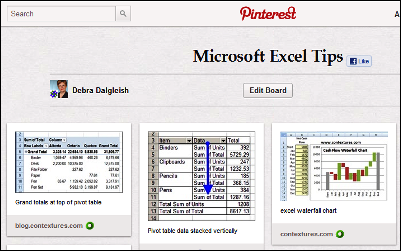
Then, when you want to find a tip later, you can scan your Pinterest board, to find the tip’s screen shot. Click on it, to go to the original Excel tip article.

pinterestexcel01

New Way to Bookmark

In the old days, you could bookmark a website in your browser, then try to find it again, by looking through a long list of web browser bookmarks. And that only worked if you remembered the name of the site that you were looking for.

I find it much easier to spot an image in Pinterest, than the name of an obscure blog post in my Firefox bookmarks.

How to Get Started in Pinterest

You’ll have to request an invitation to join Pinterest, but it shouldn’t take long to get the confirmation email. And they obviously aren’t too picky about who joins, because they let me in!

Once you have your invitation, register at the site, and check out their Getting Started page, for the basic instructions.

Set Up Your Excel Tip Boards

When you join Pinterest, there are some default categories that you can use to group your pinned items. It’s strange, but there aren’t any default Excel categories, so you’ll have to create your own.

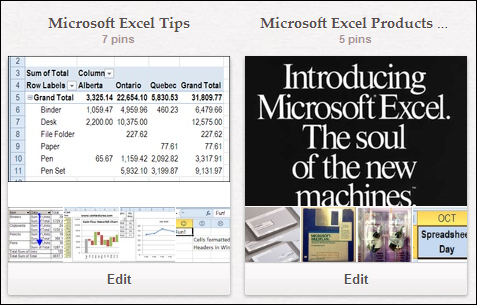
You can group everything in one category, such as “Excel Tips” or break them into narrower groups, like “Excel Charts” and “Awesome Pivot Tables”.

pinterestexcel02

Pin Items to Your Excel Boards

Once you have your Pinterest boards set up, you can start adding items to them. I use the Pinterest bookmarklet, which makes pinning easy.

To get it, go to the Pinterest Goodies page, and scroll to the top. Drag the Pin It button to the bookmark toolbar in your web browser. I use Firefox, so the steps might be different in another browser.

iPhone App

You can also get a Pinterest app for your iPhone, and pin items that catch your eye while you’re out and about.

Then, when you find an Excel tip that you want to pin, click the Pin It bookmarklet.

  • If you aren’t logged in, you’ll see the Pinterest login screen first.
  • Then it will show all the images from the current page, and you can click on the image that you want to pin.

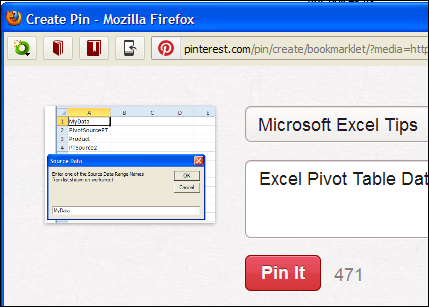
pinterestexcel04

  • Select a category, enter a description, and click the Pin button.
  • You’ll see the pinned item in the board that you selected, the next time you check.

pinterestexcel05

Follow Other Excel Tip Boards

Part of the fun of Pinterest is seeing what other people have pinned. You can follow a person, and see all their pins, or follow specific boards that you’re interested in.

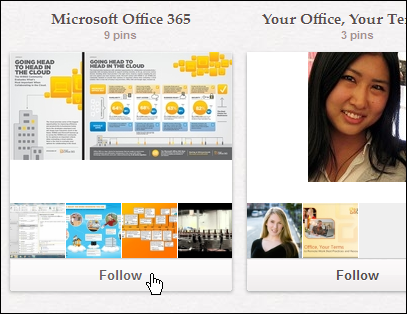
For example, if I search for Microsoft, in the People category, the Microsoft Cloud Services board comes up. I’m not interested in all their postings, but I’ll click “Follow” for the Office 365 board.

pinterestexcel03

Contextures on Pinterest

I’ve set up a Contextures page on Pinterest, where I’ve got boards with different types of Excel tips.

You can follow my Contextures account, or just pick a few of the boards to follow, such as Excel Charts or Pivot Table Tips.

And if you start an Excel board, please let me know.

pinterestexcel02
______________

Your Excel Spreadsheet Smells

Do your spreadsheets smell? This week, a tweet from Felienne Hermans caught my eye.

  • “Our @icse2012 paper on spreadsheet smells already has a citation before publication”

Spreadsheet smells? I’ve seen some stinky spreadsheets, but have never read a conference paper on spreadsheet smells.

It sounded intriguing, so I followed the link to Felienne’s paper – Detecting and Visualizing Inter-worksheet Smells in Spreadsheets.

Code Smells

The starting point for the paper is the code smell metaphor introduced in Martin Fowler’s book, Refactoring: Improving the Design of Existing Code.

I don’t have that book, so I visited Wikipedia, to see what it knew about code smells.

Wikipedia Code Smells

Fortunately, Wikipedia had a helpful summary of common code smells, and I’ve listed a few of them below. Can you see how these code smells relate to Excel, whether you’re building worksheets, or creating Excel VBA code?

  • Duplicated code: identical or very similar code exists in more than one location.
  • Long method: a method, function, or procedure that has grown too large.
  • Contrived complexity: forced usage of overly complicated design patterns where simpler design would suffice.
  • Excessive use of literals: these should be coded as named constants, to improve readability and to avoid programming errors.

Hmmm…replace “code” with formulas, and you’ve probably seen (or created) workbooks that had those code smells.

I’ve been guilty of creating some of those smells, and have seen workbooks start small, and slowly grow out of control.

Spreadsheet Smells

Among the most frequent spreadsheet smells that Felienne and her colleagues found were:

  • Inappropriate Intimacy – a worksheet that is overly related to a second worksheet.
  • Feature Envy – if there is a formula that is more interested in cells from another worksheet, it would be better to move the formula to that worksheet
  • Shotgun Surgery – a formula F that is referred to by many different formulas in different worksheets…chances are high that many of the formulas that refer to F will have to be changed if F is changed.

Read More About It

If you’d like to learn more about spreadsheet code smells, take a look at the Spreadsheet Smells paper written by Felienne and her colleagues, to see how their research was done, and what their conclusions were.

You can also read other papers that Felienne has written on this topic, if you’d like to learn more: Felienne Hermans Publications

Have you read anything similar, or heard about code smells before?
_______________

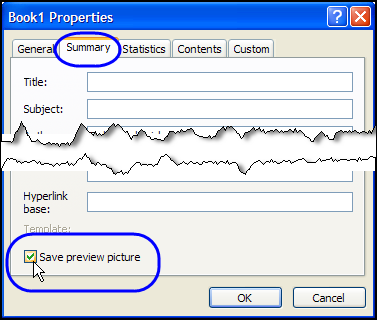
How to Show Excel Preview Picture When Opening Files

When you’re opening files in Excel, you can see the file Details, or the icons, or select another way to look at the list, such as Preview.

That Preview option sounds promising, but instead of a picture of the file’s contents, you usually see this message instead – Preview Not Available.

And that’s not much help. Here’s how to show Excel preview picture when opening files

Continue reading “How to Show Excel Preview Picture When Opening Files”

Data Entry Shortcuts for Dates and Numbers

Are you working hard this week? Instead of doing all the work yourself, let Excel do some of the data entry for you. These quick tips show you how to enter a date or number series, with a minimum of effort.

Enter a Series of Numbers

With this shortcut, you can quickly create a series of numbers on an Excel worksheet, such as a series of even numbers or odd numbers.

  1. To start the series, type the first two numbers in adjacent cells.
  2. Then, drag the Fill Handle to continue the series on the worksheet, as far as you need it to go.

This Excel Quick Tips video shows you how to fill the series, and there are many more Excel Data Entry tips on the Contextures web site.

Enter a Series of Dates

With the next shortcut, you can create a series of dates on an Excel worksheet, incremented from your starting date.

  1. To start the series, type the first date in a cell.
  2. Then, drag the Fill Handle to continue the date series on the worksheet, as far as you need it to go.

This Excel Quick Tips video shows you how to fill the date series.

Create Excel List of Dates by Week

With the final shortcut, you can create a series of dates, by week, on an Excel worksheet, incremented from your starting date.

  1. To start the series, type the first date in a cell.
  2. Then, press the right mouse button while you drag the Fill Handle to continue the weekly date series on the worksheet, as far as you need it to go.
  3. Release the mouse button and click Series in the popup menu.
  4. Type a 7 as the Step value, and click OK.

This Excel Quick Tips video shows you how to fill the date series.

__________________

How to Spot the Old Excel File

imageI’m going cross-eyed this week, working with an Excel workbook that is full of rating tables.

Last week, I converted the rating manual from PDF format to an Excel file.

Setting Up Formulas

Now I’m setting up the formulas, to pull the correct rating data for the selected criteria.

Many of the tables have changed in structure from the previous version, so there are lots of adjustments required in the workbook.

While I work on the new version of the Excel file, occasionally I need to check the previous version, to see how things were set up there.

Don’t Edit the Wrong File

The danger in having multiple copies of an Excel file open is that you might accidentally make changes to the old file, instead of the new one. Of course, that’s never happened to me, but a close friend had that problem once. 😉

But seriously, as you flip between files, and click on different sheets in those files, it is easy to forget where you are.

You change a few formulas, add items to a list, and save your work. And that’s when you realize the you spent time editing the old file. Sigh.

Spot the Old File

Today, while working with the old file and the new one, I wanted a foolproof way to know which file was active. First, I thought about adding fill colour to the first few rows of each worksheet in the old file.

That wouldn’t work too well though, because there was colour coding in some of those cells already.

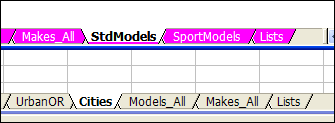
Then it dawned on me – I could colour all the sheet tabs in the old file. The file didn’t use tab colouring, so that would make it easy to tell the files apart.

Change Tab Colour

To add the tab colour in the old Excel file, I did the following:

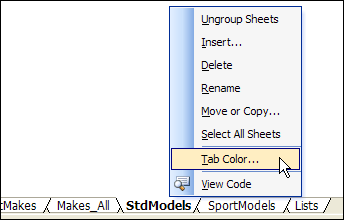
  • Right-click on any sheet tab, and click Select All Sheets
  • Right-click on one of the tabs, and click Tab Color.

TabColourOld00

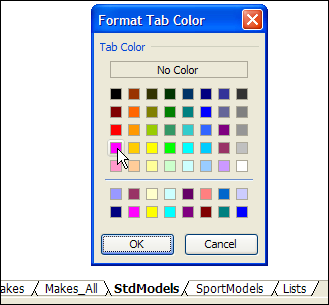
  • Click on the colour that you’d like to use for your old file – I picked bright pink – then click OK.

TabColourOld01

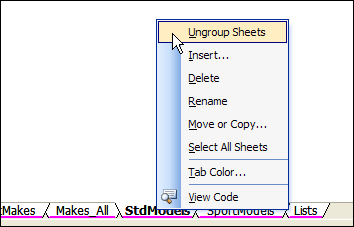
  • Right-click on one of the sheet tabs, and click Ungroup Sheets.

TabColourOld02

Now, it’s certainly easy to see which file is the old one. Don’t make any changes in the file with the pink tabs!

TabColourOld03

__________

Convert PDF File to Excel

pdftoexcelconverter00 When I got back to my office after a recent vacation, there was an email from Una, about a PDF to Excel conversion service, that she asked me to try.

There was also a big pile of emails from family, friends and clients, with more urgent requests. So, Una’s email got dropped into the Follow Up folder, with little chance of being looked at again.

Until today. And I’m very glad that I read that email – it saved me a few hours of work, and that will save my client some money!

Avoiding Data Entry

Today I met with a client who needs an insurance quote calculator updated. In the new version, we need to add a long list of motorcycle makes and models.

They gave me a printed copy of the manual, and it has several pages of lists that we need to add in the update. I asked if they could get an Excel or Word version of the manual, so we could copy the data from there, into our calculator file.

Even a PDF file would be better than nothing, so I asked for that, as a third option. I figured that I could use Adobe Acrobat to extract the text somehow, if a PDF file was all that we could get.

And, of course, a PDF file was the only option available.

Convert a PDF File

When my client sent the PDF file, I remembered Una’s email, and dug it out of the Follow Up pile. Here’s what she said about the PDF to Excel conversion service that she is promoting.

It is a free online PDF to Excel conversion service – http://www.pdftoexcelconverter.net  .

There are only few similar tools around and this tool has following advantages over them:

  1. It has no significant file size limitations (documents of up to 30MB can be converted)
  2. It’s web based and it requires no installation on the computer
  3. The table data in the PDF will be accurately represented
  4. As stated in our Privacy Policy user documents and email addresses are 100% safe.

Hmmm…Free…and safe…and free.

So, I clicked the link to the website, and uploaded the motorcycle manual. For some reason, I had to click the Browse button twice, before it worked.

pdftoexcelconverter01

In Step 2, I entered my email address, and click the Send button.

pdftoexcelconverter05

The file was about 3 MB and uploaded in about one minute.

pdftoexcelconverter02

Less than a minute later, there was an email from the website, with a link where I could download my converted file.

Data Converted to Excel from a PDF File

The email told me to click on the link below, and I did.

pdftoexcelconverter04

However, I didn’t notice that the first link was within the “Advertisement” section, and it took me to a product page for Investintech. They showed some of their fine paid products, like Able2Extract Pro, which I have used in the past, to convert PDF files to Excel. I didn’t want to buy anything though – I wanted to download my file.

I went back to the email, and scrolled down a bit further. There was the download link, for my converted Excel file. Clicking that took me to a page with a download link.

The instructions say to click the link, but it should tell you to click the button – that link isn’t clickable.

pdftoexcelconverter03

The file downloaded quickly, and when it opened, I was very impressed with the results. The tables were in good shape, and the lists will be easy to copy and paste into our Motorcycle Calculator file. I won’t have to spend a few hours typing those lists in the Excel file, or trying to convince someone else to do it!

Desktop PDF to Excel Converter

The http://www.pdftoexcelconverter.net website states that your privacy will be protected, but if you’re trying to convert confidential documents, you can use a desktop PDF converter instead. You’ll sleep better at night, knowing that all your files are securely locked up, with no possibility of accidentally going astray.

As I mentioned, I’ve used Able2Extract Pro, and found it easy to use, with excellent conversion results. Unfortunately, I didn’t have a copy available today, but this file wasn’t confidential, so the online version was fine for this conversion.
Able2Extract Pro

Convert PDF to Word Failure

As a side note, I also tried converting the PDF file to Word, to see if the lists would be easier to copy and paste. I used the PDF to Word site, operated by Nitro, and the upload went well.

pdftoexcelconverter06

About 6 hours later, I got an email that said, “Sorry, an unexpected conversion failure occurred when converting your file.” Good thing that I wasn’t depending on that site for a quick solution to my problem!

_____________