
Last week, a client sent me a workbook that I created for them a couple of years ago. They were having problems with it, even though things had been going smoothly since we first installed it.
To see what was happening, I went into the Visual Basic Explorer, and clicked on the workbook name. Instead of prompting me for the VBE password, this error message appeared: Project Locked — Project is Unviewable.
Well, that’s not good news. It’s hard to troubleshoot the code, if you can’t get in to see it.
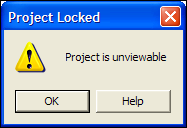
Project is Unviewable
My first guess was that the workbook was corrupted, but I checked the Microsoft site to see if there was any other explanation for this terse message.
I found this article: XL2000: “Project Is Unviewable” Error Message When You Try to View Project
Solve the Problem
Even though the article was written for Excel 2000, it solved my problem in Excel 2010. The project was unviewable because someone had saved the file as a shared workbook.
Of course, nobody knows how or when that happened, but we can make the file work properly again, by turning off the shared workbook setting.
To turn off Shared Workbook in Excel 2010:
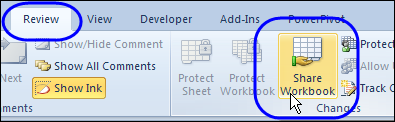
- On the Excel Ribbon, click the Review tab, and click Share Workbook
- On the Editing tab, remove the check mark from “Allow changes by more than one user…”
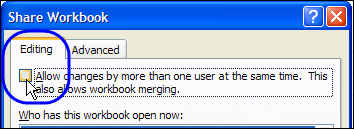
- Click OK, to close the dialog box.
- Click Yes, to confirm the change.
After making that change, everything worked smoothly again, and business went back to normal.
Shared Workbook Limitations
A few years ago, I wrote about the limitations and problems that come with using shared workbooks in Excel 2003. There were lots of comments, with most people agreeing that shared workbooks cause trouble.
A few people were in favour of them though, and were willing to trade the limitations for the shared features.
It’s a couple of versions later, and there are still limitations and problems with shared workbooks in Excel 2010.
Nothing seems to have disappeared from the list of unavailable features, but I noticed that the following new limitations have been added:
In a shared workbook in Excel 2010 you cannot:
- Create or apply slicers
- Create or modify sparklines
- Sort or filter by formatting
The previous restriction on creating lists was changed to a restriction on creating Excel tables. You can’t add them to a shared workbook, and you can’t share a workbook if it contains tables.
To see the full list you can visit the Microsoft page on shared workbooks, and read the list of Features That Are Not Supported.
Still Avoiding Shared Workbooks
So, even though Excel continues to get new features, nothing new is available in shared workbooks. I’ll continue to avoid them. How about you?
________
Namaskaram
I have used for shared excel files. sometimes these excel reopened , this shared option is removed. how to stop this regards
I have created a share&protected W/B and developed support project in VBA (VB6). It has been working for past two years while shared for about 40 users at the same department.
By using ‘Protect Shared Workbook’ in excel Review ribbon and then use appropriate folder/file share and security featurs introduced for advanced sharing in Windows file manager interface, the problems can be controled. Note that makeing a back up file at “BeforeSave” event is mandatory, so as such back up file musy be led programatically to be stored in a separate sahred folder. In contrary to the folder of main shared file,the folder containg back up file must be shared so that the ‘file/folder delete’ is marked as ‘Deny’ed.
All actions needed to be performed in main shared workbook, shall be made possible for protected&shared workbook regarding limitations outlined by Microdoft. This is also possible by appropriate use of sheet protect allowance choices together with cell protection Locked/Unlocked switch.