
Last week, a client sent me a workbook that I created for them a couple of years ago. They were having problems with it, even though things had been going smoothly since we first installed it.
To see what was happening, I went into the Visual Basic Explorer, and clicked on the workbook name. Instead of prompting me for the VBE password, this error message appeared: Project Locked — Project is Unviewable.
Well, that’s not good news. It’s hard to troubleshoot the code, if you can’t get in to see it.
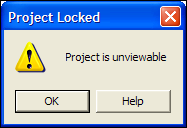
Project is Unviewable
My first guess was that the workbook was corrupted, but I checked the Microsoft site to see if there was any other explanation for this terse message.
I found this article: XL2000: “Project Is Unviewable” Error Message When You Try to View Project
Solve the Problem
Even though the article was written for Excel 2000, it solved my problem in Excel 2010. The project was unviewable because someone had saved the file as a shared workbook.
Of course, nobody knows how or when that happened, but we can make the file work properly again, by turning off the shared workbook setting.
To turn off Shared Workbook in Excel 2010:
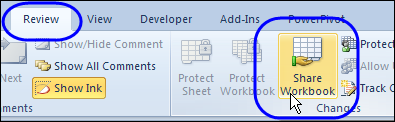
- On the Excel Ribbon, click the Review tab, and click Share Workbook
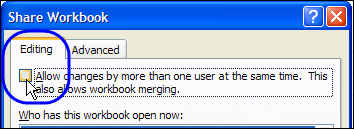
- On the Editing tab, remove the check mark from “Allow changes by more than one user…”
- Click OK, to close the dialog box.
- Click Yes, to confirm the change.
After making that change, everything worked smoothly again, and business went back to normal.
Shared Workbook Limitations
A few years ago, I wrote about the limitations and problems that come with using shared workbooks in Excel 2003. There were lots of comments, with most people agreeing that shared workbooks cause trouble.
A few people were in favour of them though, and were willing to trade the limitations for the shared features.
It’s a couple of versions later, and there are still limitations and problems with shared workbooks in Excel 2010.
Nothing seems to have disappeared from the list of unavailable features, but I noticed that the following new limitations have been added:
In a shared workbook in Excel 2010 you cannot:
- Create or apply slicers
- Create or modify sparklines
- Sort or filter by formatting
The previous restriction on creating lists was changed to a restriction on creating Excel tables. You can’t add them to a shared workbook, and you can’t share a workbook if it contains tables.
To see the full list you can visit the Microsoft page on shared workbooks, and read the list of Features That Are Not Supported.
Still Avoiding Shared Workbooks
So, even though Excel continues to get new features, nothing new is available in shared workbooks. I’ll continue to avoid them. How about you?
________
15 years ago I was involved with a shared file that kept corrupting. We fixed the problem by cleaning up some history feature in MS Excel. We agreed we would have to do this once a month. I can’t remember what we did, but it worked. I am thinking, I will make a new spreadsheet with the data, if I can’t find that feature.
I have been trying to merge workbooks using Excel 2010, but every time I do that I get a warning saying:
Workbooks to be merged must be copies made from the same shared workbook, and must maintain the change history for sufficient amount of time.
Of course, I’m sharing copies of the main workbook and I made sure that the time is long enough.
Anyone knows how to fix this?
Your response is greatly appreciated.
WE are using a shared excel worksheet that we keep on a driver so about 4 people can make updates to information.
We all have 2010 Microsoft Version 14.7149.5000
We all save as we go, but in the Am next day- updates made are not there.
Thank goodness the lady make the majority of changes also saves it on her desktop. Could that be the problem.
we all save as we go so the spreadsheet has the most updated information.
With a shared workbook the file contains the current versions of all those working on it (so each users view of the file). If one user saves a copy to their desktop, that creates a single user snapshot of the file (so severs the other versions away).
You’ll see this in the file size, the version on the desktop will be smaller than the shared network version because it doesn’t contain each users view of the file.
If she then (presumably) opens her desktop version and saves that over the top of the shared version then of course changes will be lost.
Ive come here not because I have share problems but because I am aghast that I cant do so many things in a shared workbook (with myself on a different device).
I am struggling to contain my indignation that a company the size and history of Microsoft have so poorly implemented this feature in 2015. What a joke indeed, let alone the unfriendly navigation of windows 8. Well let me ask you what is the alternative? to email myself the spreadsheet?
I work in a regulated enviroment (21CFR) and an audit trail is required on electronic files. Therefore, I use Excel’s “Share and track changes” to maintain an audit trail. Unless I go out and buy third party software (and validate it), I do not see an alternative.
VBA code AUtofilter does not work in a shared workbook. Dammed!