
Last week, a client sent me a workbook that I created for them a couple of years ago. They were having problems with it, even though things had been going smoothly since we first installed it.
To see what was happening, I went into the Visual Basic Explorer, and clicked on the workbook name. Instead of prompting me for the VBE password, this error message appeared: Project Locked — Project is Unviewable.
Well, that’s not good news. It’s hard to troubleshoot the code, if you can’t get in to see it.
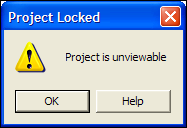
Project is Unviewable
My first guess was that the workbook was corrupted, but I checked the Microsoft site to see if there was any other explanation for this terse message.
I found this article: XL2000: “Project Is Unviewable” Error Message When You Try to View Project
Solve the Problem
Even though the article was written for Excel 2000, it solved my problem in Excel 2010. The project was unviewable because someone had saved the file as a shared workbook.
Of course, nobody knows how or when that happened, but we can make the file work properly again, by turning off the shared workbook setting.
To turn off Shared Workbook in Excel 2010:
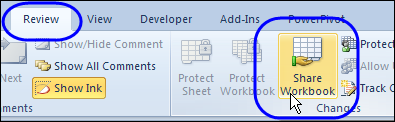
- On the Excel Ribbon, click the Review tab, and click Share Workbook
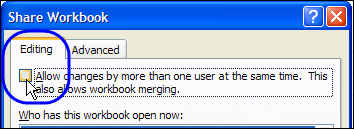
- On the Editing tab, remove the check mark from “Allow changes by more than one user…”
- Click OK, to close the dialog box.
- Click Yes, to confirm the change.
After making that change, everything worked smoothly again, and business went back to normal.
Shared Workbook Limitations
A few years ago, I wrote about the limitations and problems that come with using shared workbooks in Excel 2003. There were lots of comments, with most people agreeing that shared workbooks cause trouble.
A few people were in favour of them though, and were willing to trade the limitations for the shared features.
It’s a couple of versions later, and there are still limitations and problems with shared workbooks in Excel 2010.
Nothing seems to have disappeared from the list of unavailable features, but I noticed that the following new limitations have been added:
In a shared workbook in Excel 2010 you cannot:
- Create or apply slicers
- Create or modify sparklines
- Sort or filter by formatting
The previous restriction on creating lists was changed to a restriction on creating Excel tables. You can’t add them to a shared workbook, and you can’t share a workbook if it contains tables.
To see the full list you can visit the Microsoft page on shared workbooks, and read the list of Features That Are Not Supported.
Still Avoiding Shared Workbooks
So, even though Excel continues to get new features, nothing new is available in shared workbooks. I’ll continue to avoid them. How about you?
________
I discourage the use of shared workbooks whenever possible. But unfortunately sometimes it is the only way. We (my company and department) has approximately 60 staffers and 3 managers spanning states for staff and 3 states for managers. Since we are not all in the same location, often times a shared workbook was the only way. However after having to reconstruct corrupted files from scratch I have finally been able to convinve management that making daily backups of each shared file is worth the time… a hassel, but worth it compared to recreating a massive file from scratch!
Hi,
do you know if its possible to share an excel file for multiple users so that they can only see, create, delete &modify the data they own. In other words, only that information that they fill in. But the master data could be seen by the Admin (=one person). Any hints how to execute a project like this? Thanks for any possible tips!
With the shared workbook/file locking issue – we’ve found that if every user using that workbook opens it from within Excel (using file…open or file…recent) then we don’t get any locking problems. If one person opens it from Windows Explorer (either navigating to it or using a shortcut icon) then it’s just a matter of time before the file gets locked for everybody in it.
The Windows Explorer Preview Pane might be the underlying reason for this, it seems the file preview is considered an ‘open’.
Is there any way to lock certain cells/ranges of a worksheet within a shared workbook? I’m responsible for the numbers (multiple columns) while folks are responsible for the explanations (one column). I’d like to lock the numbers so folks can’t accidentally change numbers if they didn’t refresh the links to the backup data I supply. Any suggestions? Is this why the file keeps getting “locked” or “read only” when folks try to access it?
We are having trouble with a shared workbook, when we set the updated to “automatically every 5 minutes even though we have “ok” it defaults back to 15 mins ?
We just converted Excel files from 2003 to 2010 and are having trouble with shared workbooks. There are 3-4 users in the same file at a given time. When one person makes a change to the file, we should be able to see those changes when the other users save. We can see some of the changes, but other changes are only visible to the user who made them. It seems very sporadic. Has anyone else run into this or have a solution? We have no choice but to use a shared workbook for now, so not sharing them is not an option. Any help would be appreciated!