
Last week, a client sent me a workbook that I created for them a couple of years ago. They were having problems with it, even though things had been going smoothly since we first installed it.
To see what was happening, I went into the Visual Basic Explorer, and clicked on the workbook name. Instead of prompting me for the VBE password, this error message appeared: Project Locked — Project is Unviewable.
Well, that’s not good news. It’s hard to troubleshoot the code, if you can’t get in to see it.
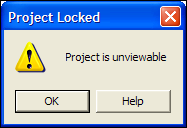
Project is Unviewable
My first guess was that the workbook was corrupted, but I checked the Microsoft site to see if there was any other explanation for this terse message.
I found this article: XL2000: “Project Is Unviewable” Error Message When You Try to View Project
Solve the Problem
Even though the article was written for Excel 2000, it solved my problem in Excel 2010. The project was unviewable because someone had saved the file as a shared workbook.
Of course, nobody knows how or when that happened, but we can make the file work properly again, by turning off the shared workbook setting.
To turn off Shared Workbook in Excel 2010:
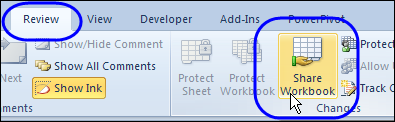
- On the Excel Ribbon, click the Review tab, and click Share Workbook
- On the Editing tab, remove the check mark from “Allow changes by more than one user…”
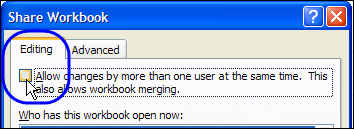
- Click OK, to close the dialog box.
- Click Yes, to confirm the change.
After making that change, everything worked smoothly again, and business went back to normal.
Shared Workbook Limitations
A few years ago, I wrote about the limitations and problems that come with using shared workbooks in Excel 2003. There were lots of comments, with most people agreeing that shared workbooks cause trouble.
A few people were in favour of them though, and were willing to trade the limitations for the shared features.
It’s a couple of versions later, and there are still limitations and problems with shared workbooks in Excel 2010.
Nothing seems to have disappeared from the list of unavailable features, but I noticed that the following new limitations have been added:
In a shared workbook in Excel 2010 you cannot:
- Create or apply slicers
- Create or modify sparklines
- Sort or filter by formatting
The previous restriction on creating lists was changed to a restriction on creating Excel tables. You can’t add them to a shared workbook, and you can’t share a workbook if it contains tables.
To see the full list you can visit the Microsoft page on shared workbooks, and read the list of Features That Are Not Supported.
Still Avoiding Shared Workbooks
So, even though Excel continues to get new features, nothing new is available in shared workbooks. I’ll continue to avoid them. How about you?
________
I am trying to allow 50 people access to a shared workbook but they keep getting a shared violation error. This spreadsheet has just been moved from version2003 to 2010 could this be the problem. I really need this to work properly people are starting to lose faith in this. Help!
Hi Andy.
50 users for one shared workbook? Are you kidding?
I think this is a case for something better designed for this situation, like MS Access.
Taking this to the next step.. any ideas on improvements to Shared Workbooks in Excel 2013. We have six staff that need to work on one workbook with conditional formating. We had so many share violations with Excel 2010 we had to drop back to Excel 2003. It would be wonderful to upgrade to the functionality of 2013 if we can avoid the conditional formating problems..
I have an issue regarding shared workbooks. Sometimes if a user updates the file and save the file become locked and if the same user closes and try to open the same file, it would only work as read only and then I would have to do a save as for others to have access to it.
Note the user does not go and lock the file, I am trying to figure out why it is occuring. I don’t believe it is a dro.p in the network beacuse we have a stable infrastructure. Also the system administrater verified that the file is not opened by anyone on the network nad it is still lock by that user
Try, when no one else needs to use the file, openining and taking off sharing (which saves file in process) and then reapplying shared status (file gets resaved) – easy to set up some on-sheet buttons to do this.
Also have you looped through ActiveWorkbook.UserStatus to check what the file thinks it is being shared with or still opened under ? This does not always equate to the computers the file is physically currently open on. If you want some coded examples, email me on [email protected]
Within a shared worksheet, only 1 person within the report can open, close, or save the report at a time. If anyone else tries to perform one of these actions while one of these actions are being performed; it results in the “file is locked” typed dialog box.
Hi All,
It seems that sharing a Workbook works better with pre-formatted files such as one with a worksheet that has a list of staff in one column while the rest of the other columns are left for editors(Time and attendants records). This will reduce the chances of more than once person editing the same row element at a time(often the problem). Editing the same row at the same time creates conflict and accepts the latest editor’s input – thereby over-writing other’s input.
As mention in one post by David Ruben, It is best for users to work on separate sheet on a shared workbook, as that will avoid the save conflict. Sam
One suggestion that I have tried and it assisted with a similar issue was to delete all the temporary files from a users computer. She had previously received a sharing violation error, and the system tried to recover the document, but the file it was trying to use had become corrupted. Each attempt after (including shutting down and pulling the power from the PC) to open the file resulted in her “no longer sharing” the document. I proceeded to delete all temp files and rebooted the system. This resolved the issues! For some reason, the corrupted file in the temp folder was the link that Excel used to open the shared document, once it was removed, she could access the “real” file from the server again.
Environment: All users on Windows 7 in a formal network (Windows SBS 2011) using Active directory and logins. We have Office 2010.
Debra,
Your solution is fine, but I have an extra addition to it that I can’t seem to solve…
I have an event that disables saving: BeforeSave() where I have set Cancel = True.
This prevents the Unsharing from saving… Recap:
1. I can’t see the vba code to remove the “Cancel = True” from the Before Save event, because the workbook is shared!
2. I can’t Unshare because the “Cancel = True” in the Before Save event is preventing it…
I am getting a little frustrated here… 🙂
Regards,
Frode Tveit