
Last week, a client sent me a workbook that I created for them a couple of years ago. They were having problems with it, even though things had been going smoothly since we first installed it.
To see what was happening, I went into the Visual Basic Explorer, and clicked on the workbook name. Instead of prompting me for the VBE password, this error message appeared: Project Locked — Project is Unviewable.
Well, that’s not good news. It’s hard to troubleshoot the code, if you can’t get in to see it.
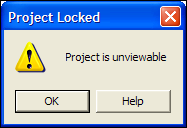
Project is Unviewable
My first guess was that the workbook was corrupted, but I checked the Microsoft site to see if there was any other explanation for this terse message.
I found this article: XL2000: “Project Is Unviewable” Error Message When You Try to View Project
Solve the Problem
Even though the article was written for Excel 2000, it solved my problem in Excel 2010. The project was unviewable because someone had saved the file as a shared workbook.
Of course, nobody knows how or when that happened, but we can make the file work properly again, by turning off the shared workbook setting.
To turn off Shared Workbook in Excel 2010:
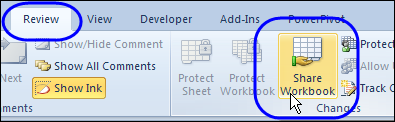
- On the Excel Ribbon, click the Review tab, and click Share Workbook
- On the Editing tab, remove the check mark from “Allow changes by more than one user…”
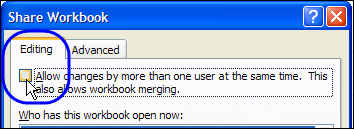
- Click OK, to close the dialog box.
- Click Yes, to confirm the change.
After making that change, everything worked smoothly again, and business went back to normal.
Shared Workbook Limitations
A few years ago, I wrote about the limitations and problems that come with using shared workbooks in Excel 2003. There were lots of comments, with most people agreeing that shared workbooks cause trouble.
A few people were in favour of them though, and were willing to trade the limitations for the shared features.
It’s a couple of versions later, and there are still limitations and problems with shared workbooks in Excel 2010.
Nothing seems to have disappeared from the list of unavailable features, but I noticed that the following new limitations have been added:
In a shared workbook in Excel 2010 you cannot:
- Create or apply slicers
- Create or modify sparklines
- Sort or filter by formatting
The previous restriction on creating lists was changed to a restriction on creating Excel tables. You can’t add them to a shared workbook, and you can’t share a workbook if it contains tables.
To see the full list you can visit the Microsoft page on shared workbooks, and read the list of Features That Are Not Supported.
Still Avoiding Shared Workbooks
So, even though Excel continues to get new features, nothing new is available in shared workbooks. I’ll continue to avoid them. How about you?
________
Whenever possible, I discourage use of shared workbooks. Luckily, it doesn’t come up often.
@JP, that’s a good decision!
Debra – I’m still a fan of shared workbooks, although my use is very specific. We have a group of folks who need to update the status on items they are responsible for. They never add or delete items, and there is only one person assigned to each item. Works like a charm!
I’m wary of shared workbooks too. Got called in to “fix” one, rebuidling the spreadsheet from scratch was the only option.
While I appreciate they may be okay in some scenarios, a problem is some users start using them, and recommending them to others, without being aware of the pitfalls when they go bad.
I can still see the same problem after doing all the steps as described above.
Regards
Anoop
The project is unviewable and the workbook is not shared also. What could be the problem?
Hi – I had exactly the same problem. Fixed by Sharing the workbook then Unsharing as described above.
We use shared workbooks in two flavours:
a) The safe approach where each user updates details on their own worksheet about the serially-numbered prescription sheets used. This works as each user is responsible for different areas, and there is never any editing conflict.
b) All the internet advice is to not allow editing by multiple users in the same area, and if still considering to think again! However we needed system for several clinicians requesting a test, staff arranging the tests and nurses interpreting the results. The solution I have adopted is that everyone starts with view-only rights, and a small table on a control worksheet sets out which users have been granted permission to edit certain parts of the data.
A front userform menu is used to request permission for a task (eg add a new patient, or process an existing patient entry) which causes the worksheet to save itself so updating itself. If the relevant permission table entry is empty, this is filled with details on the computer and windows user plus a time stamp, and the workbook immediately resaved to lock-out anyone else who tries to obtain the same permission. The requested update is achieved by specific userforms, and when these are completed the spreadsheet is amended, and the workbook resaved with the edit permission cleared – so releasing the workbook for other users. With a relative small number of users, the occasional block for a couple minutes is not a problem for us.
Obviously for a larger number of editors this would become unweldy and a database program such as Access would be easier, yet standard Office suite does no include this and we have but Excel as an option.