Spreadsheet Day 2011 Challenge

spreadsheet dayIt’s hard to believe that a year has passed already, and it’s only a week until Spreadsheet Day — Monday, October 17th.

Don’t panic though, there’s still time to organize an office party, and order a spreadsheet cake.

If you have thousands of dollars in your celebration budget, you could buy a special bottle of Scotch, that is the “Excel” of the whisky world. That’s out of my league though – I’ll have a glass of Canadian wine instead.

And please keep reading, to see how you can contribute to the celebrations.

Before the Spreadsheet

Back in the old days, when I went to university, there were no laptops, or spreadsheet programs. Sad, I know. Fortunately, paper had been invented by then, so I was able to take notes, without a rock and chisel.

There was even a computer assignment in my Statistics class. No tapping on an iPad though – we ventured into the dark and dusty dungeons below the Science building, where we submitted punch cards, to run a program. Good times!

The Spreadsheet Day Challenge

Even now, with fancy gadgets and Google searches, it’s tough to manage things as a student. By mid-October, the new school year enthusiasm has worn off, and brutal reality has set in.

Students are running out of money, are tired of eating macaroni and cheese, and can’t find any clean socks. A spreadsheet can’t solve all their problems, but might help them keep organized, and stay on a budget.

Many students have Microsoft Excel, or Google Documents, or another spreadsheet, so let’s help them make good use of those tools.

To celebrate Spreadsheet Day 2011, could you create a free template or add-in, to help a student? What spreadsheet tools could a struggling student use?

  • Monthly student budget tracker
  • Course assignment checklist
  • Mark needed to pass this course calculator
  • Low cost meal planner
  • ???

If you don’t have time to make a template, you can drop by this blog next Monday, and leave a spreadsheet tip in the comments.

  • Share one of your favourite formulas
  • Post a time-saving shortcut
  • ???

Post Your Contributions

Next Monday, October 17th, post your Spreadsheet Day contribution on your blog, or Facebook, or Twitter (use hashtag #spreadsheetday), or create a public Google spreadsheet.

If you send me a link to your free and useful Spreadsheet Day tool, I’ll post it on the Spreadsheet Day Blog, to help students find your work.
Thanks! Looking forward to seeing your contributions. Will you join in?
_____________
Excel 2010 Print Preview Problems

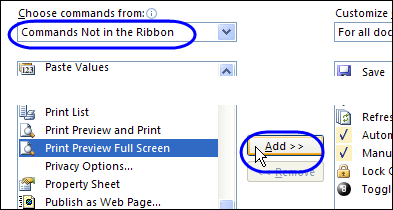
Last week, you saw my macro for adding worksheet data to the Excel footer, and formatting a date in the Excel footer. In that example, you had to run the macro by going to the View tab, and clicking the Macro command.

To make the process easier, I decided to add event code to the workbook, so the macro would run automatically.

Continue reading “Excel 2010 Print Preview Problems”

Excel Worksheet Buttons Cause Problem

Last week someone sent me an Excel file that was having problems – it wouldn’t save properly, and there were a few other strange behaviours. The file had been working well for a few years, but recently started acting up.

The file was used in a factory, where the technicians filled in data, and printed the file, a few times each day. To print, they clicked a button on the data entry sheet. A macro printed the data entry sheet, copied the latest data to a storage sheet, and cleared the data entry cells.

Danger!

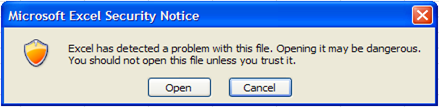
When I tried to open the file, Excel 2010 warned me that the file could be dangerous – not a good sign!

I ran the file through my virus scanner, and nothing malicious was found, so I opened the file in Excel 2003. No complaints from that version.

Excel Security Notice

What’s Hiding Under There?

When I switched to the storage sheet, there was some mysterious flickering, 2 buttons, and a partially covered button. I moved all 3 buttons, to see what was under them. Surprise! There were more buttons, and below those, more buttons.

With a bit of code, I did a quick count of the buttons on that worksheet.
Debug.Print ActiveSheet.Shapes.Count

Under the 3 visible buttons, there were almost 7000 buttons. Yikes!

Every time the original data was copied and pasted onto this sheet, the 2 original buttons were being copied and pasted on top of the previous buttons. No wonder the workbook was having problems!

Fix the Problem

To clean up the storage sheet, I deleted all of the buttons, except one copy of each.

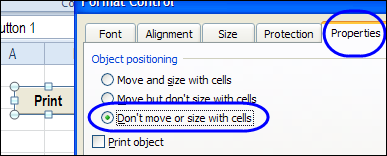
Then on the data entry sheet, I changed the button settings, so they don’t move or size with the cells.

  1. Right-click on the button (these are buttons from the Form Control toolbox)
  2. Click Format Control
  3. On the Properties tab, select ‘Don’t Move or Size with Cells’, and click OK

buttonmovesize

Now, if the data entry sheet is copied and pasted, the buttons won’t be included.

If you’re copying and pasting cells, day after day, remember to check the settings for any buttons, or other shapes, that are on those cells. Don’t get buried under a mountain of buttons!
__________

Quickly Save Excel Files from Outlook

This might be more of an Outlook tip, but I get a lot of Excel attachments in my Outlook email messages. Most of those files have to be saved, and it seems to take forever for the Save As window to open. Okay, my stopwatch says it’s about 9 seconds – but it seems like forever!

When I’m working, I usually have Windows Explorer open, so I can open and copy the files from there.

I finally discovered that I can drag an attachment directly from an Outlook email into a folder in Windows Explorer.

Drag and Drop to Save Time

For example, here’s a very important Fall TV schedule file that my daughter sent to me.

  • In Outlook, I point to the attachment’s file name,
  • Drag the file onto the Window Explorer window
  • Drop it into the folder where I want to save it.
drag and drop Excel file

If there are multiple attachments, right-click on one, and click Select All. Then drag all the files to Windows Explorer.

Now, instead of 9 seconds, saving an Excel attachment takes 2 seconds. Not much, perhaps, but it adds up, over the course of a week.

And I’m sure this tip works for other types of files too, but who cares about those? 😉
___________

Excel Custom Views Tricks

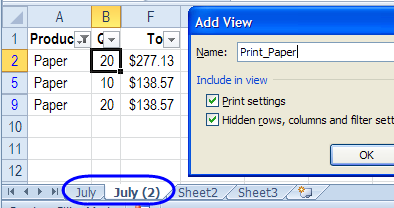
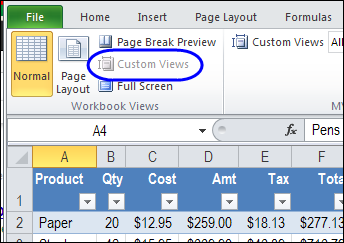
iconcustomviews We took a look at Excel Custom Views last week, and used them to filter data, and hide or show columns. The Custom Views make it easier to print weekly reports, with different layouts for each version – all in a single file, with no macros.

Here are a few Custom Views tricks that you can use. But remember, Custom Views don’t work if there are named Excel Tables in the workbook

Continue reading “Excel Custom Views Tricks”

Quick Reports With Excel Custom Views

In an Excel file, you might need to change the layout, before you print a report. For example,

  • in a customer report, the pricing columns are hidden.
  • for a supplier report, you filter for a specific product, and hide some columns.
  • for your internal reports, all the columns and rows are visible.

Continue reading “Quick Reports With Excel Custom Views”

Excel Fortune Cookies: Friday Fun

image Have you done this? After lunch in a Chinese restaurant, everyone grabs a fortune cookie, and reads their fortune aloud.
And, at the end of the printed fortune, you add, “in bed.” Maybe it’s just the groups that I hang out with, but we find this hilarious.

Fortune Cooke Game

This week, when typing, I added “in Excel” at the end of the line. That reminded me of the fortune cookie game, and it seemed like a great new version for the office crowd.

So, the next time you’re reading those fortune cookies, end with “in Excel” instead of “in bed”. Your co-workers will think that you’re a comedic genius (probably)!

Sample Fortunes

Here are a few sample fortune cookie fortunes, to get you started – in Excel.

  • A pleasant surprise is waiting for you.
  • Accept something that you cannot change, and you will feel better.
  • Practice makes perfect.
  • Stop searching forever, happiness is just next to you.
  • The smart thing to do is to begin trusting your intuitions.
  • You are admired by everyone for your talent and ability.
  • Your infinite capacity for patience will be rewarded sooner or later.

And if you have any other Excel enhanced fortunes, please add them in the comments.
___________

Table of Contents for Long Excel Sheet

In the comments for my post on creating a table of contents in Excel, Eden asked: “Can I create a content page within one worksheet? I have one worksheet and it is very long.” Good idea! A short table of contents at the top of a worksheet would make it easy to find specific sections on a long worksheet. Here are the steps for setting that up.

Continue reading “Table of Contents for Long Excel Sheet”

Excel Economic Data Add-in: FRED

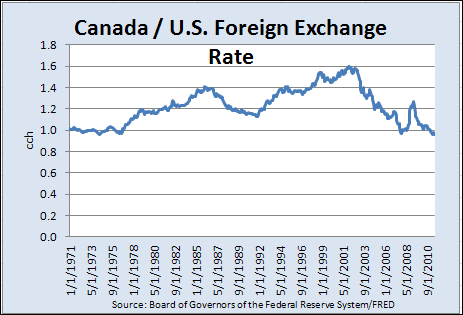
image How bad is the economy? With FRED, the free Excel add-in from the St. Louis Federal Reserve, you can easily download and and analyze economic data.
Install the Add-In

Just download and install the FRED Excel Add-in, then select and download data. Then, start your analysis:

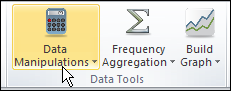
  • choose a data manipulation (i.e., growth rate)
  • specify a date range (i.e., 1960:Q1 to 2010:Q4)
  • aggregate data to lower frequency (i.e., weekly to monthly)
  • search for data, and
  • browse the most popular data series.

Getting Started

If you’re not familiar with the FRED website, take a quick look at the FRED Add-in’s user guide, to help get started.

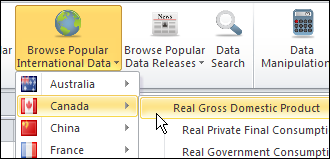
The key to pulling data is to enter a series name, so if you don’t have those memorized, select one of the Popular Data options, to get its Series ID.

FRED03

Or, use the Data Search button to find the series that you need. For example, I clicked the button, then typed Canada as the search term. This took me to the FRED website, showing a list of economic data series.

I found one that looked interesting, and pasted its ID into cell A1 on the worksheet.

Pull the Data

After you’ve entered a Series ID in cell A1, you can enter a Data Manipulation code in B1 and Frequency Aggregation code in cell C1. Or, leave those cells blank.

FRED04

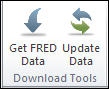
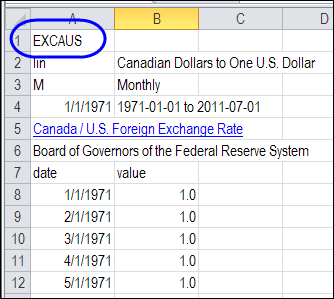
Click the Get FRED Data button, and the data downloads onto the worksheet – ready to analyze.

FRED01

Make a Chart

The FRED Add-in makes quick charts too – just click the Build Graph button, after you download the data.

FRED02

Have You Tried FRED?

Have you used the FRED Add-in for Excel? Did you like it? Wish it had more features? The FRED website talks about adding more features in future versions, so if you have some ideas, let the FRED people know!

______________