
In an Excel file with lots of worksheets, how do you help users navigate through the workbook?
Here are a few of the methods I’ve used. and I’d be interested in hearing about them. I’m sure you’ve found your own creative ways to deal with the Excel workbook navigation problem.
Add Drop Down List of Sheets
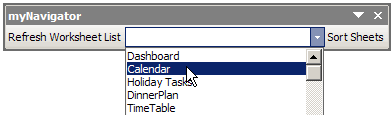
One workbook navigation solution is to install an add-in that lists all the sheets in the active workbook, in a toolbar drop-down list.
For example, Dave Peterson created a Navigation Toolbar for Excel 2003, that you can download from my Contextures site
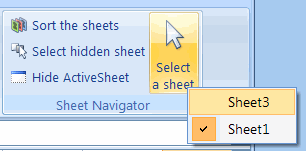
Excel Ribbon Version
Later, Ron de Bruin adapted Dave’s VBA code, to create a Navigation Command for Excel 2007.
Go to that link to download Ron’s sample file, from my Contextures site.
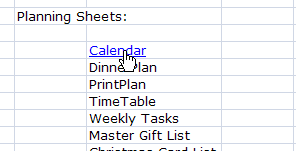
Create List of Hyperlinks
A non-programming option is to create a list of sheets on a worksheet, then change each sheet name into a hyperlink.
Create the Hyperlinks
To create your own list of worksheet hyperlinks, follow these step:
- Click on a cell that contains a sheet name.
- On Excel’s Ribbon, click the Insert tab (In Excel 2003, click the Insert Menu.)
- Click Hyperlink, to open the Insert Hyperlink dialog box.
- In the Link To list, click on Place in This Document
- In the list of places in the document, click on a sheet name, then click OK.
It will take you a few minutes to set up all the hyperlinks in a large Excel workbook, but they’ll make it easy to navigate through the sheets.
Get the Hyperlink Workbook
Based on sample code from Sam and Andrew in the reader comments below, I’ve posted an Excel Table of Contents workbook in which you can create a popup list or or a list with sheet hyperlinks.
Go to the Excel Sample Files page on my Contextures site, and in the UserForms & VBA section, look for UF0007 – Create a Table of Contents
More Hyperlinks Info
To see more hyperlink tips, videos, and macros, go to the Hyperlinks and Hyperlink Function page on my Contextures site.
There are hyperlink tips, videos, and macros, and sample files to download.
______________________
I would like to know how to create a TOC where I can link to the Heading2 styles in another sheet in the same workbook.
To explain this better, I have 500 subtopics that I have given the style Heading2 to. I need to be able navigate to each of the subtopics via the TOC.
Alternatively, if a TOC is not possible, I need to know how to include the name of the Heading in the Header.
Thanks for all assistance…
A simple solution is to deselect “Allow editing directly in cells”. Then, when you double-click on any cell that contains a formula that refers to one or more other cells, you are taken to the first such reference. In my ToC, each such formula consists of just an equals sign and the address of a cell that contains a string that identifies the target area, but the formula may include text, and the reference may be to an empty cell. Deselecting that option is a good idea for another reason: when one is entering a formula, the option makes it impossible to click a neighboring cell.