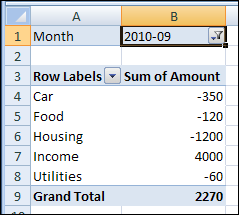
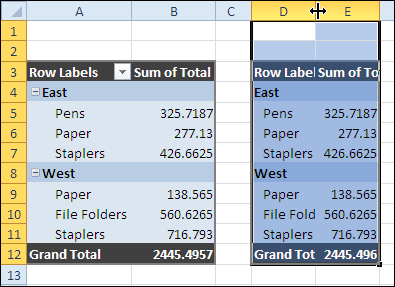
To keep your data details confidential, you might want to send someone a copy of a pivot table, without the link back to its source data. It’s easy to copy a pivot table, and paste it as values,but it is difficult to copy pivot table format and values.
Split Prize Money for Tied RANK in Excel
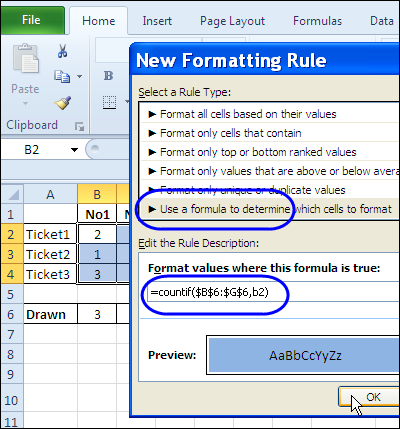
If you’re hosting a golf tournament, with cash prizes for the top ten players, what happens if two or more players are tied in rank?
Maybe if the top two players are tied, you’d have a playoff, but if two players are tied at 3rd, you wouldn’t try to break the tie that way.
Add Navigation Buttons to Excel Worksheet
Last July, I posted sample Excel VBA code to navigate to the next or previous worksheet.
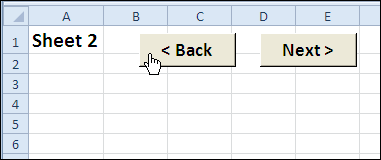
- If you’re on the second sheet, you can click the Next button to go to the third sheet.
- Or, click the Back button to go to the first sheet.

Check for Hidden Sheets
In the comments for that blog post, Ron de Bruin suggested modifying the two navigation macros, so they test if the target sheet is hidden, before selecting it.
Finally, only 14 months later, the revised code is ready. As you know, quality work takes time! 😉
Excel Worksheet Navigation Code
Here’s the Excel VBA code for the two macros — GoSheetBack and GoSheetNext.
- If the next sheet is hidden, the code keeps going until it finds the next visible sheet.
- If the macro code reaches the end of the sheet tabs in either direction, it jumps to the other end, and continues from there.
'==========================
Sub GoSheetNext()
Dim wb As Workbook
Dim lSheets As Long
Dim lSheet As Long
Dim lMove As Long
Dim lNext As Long
Set wb = ActiveWorkbook
lSheets = wb.Sheets.Count
lSheet = ActiveSheet.Index
lMove = 1
With wb
For lMove = 1 To lSheets - 1
lNext = lSheet + lMove
If lNext > lSheets Then
lMove = 0
lNext = 1
lSheet = 1
End If
If .Sheets(lNext).Visible = True Then
.Sheets(lNext).Select
Exit For
End If
Next lMove
End With
End Sub
'==========================
Sub GoSheetBack()
Dim wb As Workbook
Dim lSheets As Long
Dim lSheet As Long
Dim lMove As Long
Dim lNext As Long
Set wb = ActiveWorkbook
lSheets = wb.Sheets.Count
lSheet = ActiveSheet.Index
lMove = 1
With wb
For lMove = 1 To lSheets - 1
lNext = lSheet - lMove
If lNext < 1 Then
lMove = 0
lNext = lSheets
lSheet = lSheets
End If
If .Sheets(lNext).Visible = True Then
.Sheets(lNext).Select
Exit For
End If
Next lMove
End With
End Sub
'==========================
Download the Sample File
To see the detailed instructions, and to download the sample Navigation code workbook, please go to the Excel VBA Worksheet Macro Buttons page on the Contextures website.
Watch the Excel Video
To see the steps for creating the navigation macro buttons, you can watch this Excel video.
____________
Plan Weekly Meals in Excel
There’s an Excel holiday dinner planner on the Contextures website, and I’ll need that in about a month, when Thanksgiving arrives. In the meantime though, there are lots of daily meals to plan.
Data Validation Combo Box in Excel Table
There are instructions on my Contextures website for using a combo box with data validation cells. Click on a cell that contains a data validation list, and the combo box appears.
Allow Only Specific User to Change Excel List
Way back in April, I wrote about the Excel VBA code to automatically add new items to a Data Validation drop down. It’s an easy way to update a list as you work, so the latest items are always available for users.
Last week, someone wrote and asked how to modify that code, so only a specific user could add new items. Everyone else should see a message that says they aren’t permitted to add items.
This technique isn’t foolproof, and anyone who’s determined to circumvent it would be able to. But, it’s a good way to remind people that they can’t update the list without permission.
Identify the User
One way to find out who’s trying to add a new item, is to check the user name that’s entered in the Microsoft Office application.
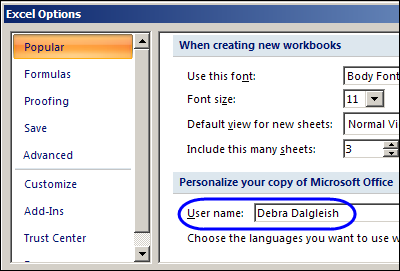
After you install Office, you can personalize it in Excel Options, in the Popular category, by entering your name in the User Name box.

In Excel VBA, you can create variables to capture that user name, and the name of the authorized user:
Dim strAuth As String
Dim strUser As String
strAuth = "Debra Dalgleish"
strUser = Application.UserName
Block Non-Authorized Users
After you figure out who the user is, you can block them from doing something. In this workbook, we want to block all but one user from adding new items.
If strUser <> strAuth Then
MsgBox "You do not have authority to add Work Order numbers. " _
& vbCrLf _
& vbCrLf _
& "Please check with Administrator before continuing."
GoTo exitHandler
Remove the Added Item
The above code will block people from adding the new item to the data validation drop down, but doesn’t prevent them from typing the new item in the data validation cell. With another line of code, you can undo the invalid entry that they made.
Application.Undo
GoTo exitHandler
Disable Events
Because the code might make a change on the worksheet, you’ll have to turn off the EnableEvents property. That will prevent the Worksheet_Change code from running again, while it’s in the middle of running the first time.
At the top of the procedure, add the line to turn off the EnableEvents property.
Application.EnableEvents = False
In the exitHandler, remember to turn EnableEvents back on.
Application.EnableEvents = True
Full Code and Sample File
If you’re interested in seeing the full code, or downloading the sample file, please visit the Contextures website, and read Excel Data Validation – Add New Items – Specific User.
___________
Remove Pivot Table Calculated Field With Excel VBA
Yesterday, I started out with the best of intentions, planning to get some work done, and find a couple of topics for upcoming blog posts.
Then, while sipping my morning coffee and reading the RSS feeds, I clicked on an article about pivot tables.
Continue reading “Remove Pivot Table Calculated Field With Excel VBA”
PowerPivot from Identical Excel Files
You can use the PowerPivot add-in for Excel 2010 to create a report from multiple Excel workbooks or worksheets, by joining the tables using the Primary and the Foreign key, such as ‘ProductID’ in a Sales table and a Pricing table.
Conditional Formatting From Different Sheet
A nice new feature in Excel 2010 is the ability to refer to a different worksheet when creating conditional formatting and data validation. Let’s take a look at how the conditional formatting from different sheet feature works, and create a workaround for older Excel versions.
Continue reading “Conditional Formatting From Different Sheet”
Combine Data From Two Excel Files in Pivot Table
On Monday, Excel MVP Kirill Lapin (aka KL) shared his macro to create a standard pivot table from multiple workbooks (as opposed to worksheets in the same workbook).
I promised you a second pivot table macro, and here it is. In today’s example, Kirill combines data from a sales list and price list, stored in separate workbooks.
The macro combines the data and calculates the selling price for each item, then creates a pivot table from the results.
Continue reading “Combine Data From Two Excel Files in Pivot Table”