
Did you know that you can create waterfalls in Excel — Waterfall Charts? We have a very famous waterfall here in Canada, which you can see in the photo below from our fall vacation, a couple of years ago.
Excel Error – Selection Is Too Large
To fill blank cells, or delete rows with blanks cells, you can use Excel’s Go To Special feature.
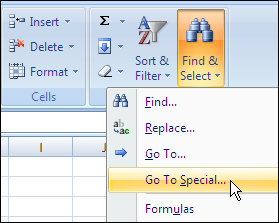
For example, in the worksheet shown below, you might want to fill in all the blanks in column B, by copying the value from the row above.
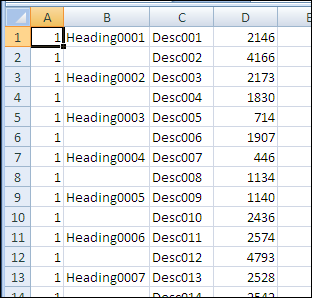
There are instructions on the Contextures website to fill blank cells, by using Go To Special to select the blanks.
You can do this manually, and there’s sample code to make the job easier.
Selection Is Too Large Error
This technique works very well, unless you’re trying to fill blank cells in a long list. In that case, you might see the error message, “Selection is too large.”
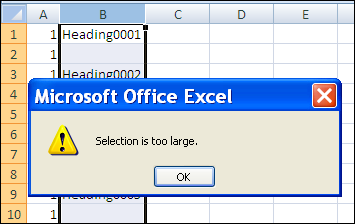
This happens in Excel 2007, and earlier versions, because there is a limit of 8192 separate areas that the special cells feature can handle. (This problem has been fixed in Excel 2010.)
There are details on Ron de Bruin’s website: SpecialCells Limit Problem.
Work in Smaller Chunks
If you run into this error, you can work with smaller chunks of data instead.
- If you’re making the changes manually, select a few thousand rows, instead of the full column.
- If you’re using a macro, you can loop through the cells in large chunks, e.g. 8000 rows, instead of trying to change the entire column.
On the Contextures website, Fill Blank Cells Macro – Example 3 checks for the number of areas, using Ron’s sample code, and uses a loop if necessary.
The code is shown below, and it shows a message box if the range is over the special cells limit. You can remove that line — it’s just there for information.
Sub FillColBlanks()
'https://www.contextures.com/xlDataEntry02.html
'by Dave Peterson  2004-01-06
'fill blank cells in column with value above
'2010-10-12 incorporated Ron de Bruin's test for special cells limit
'https://www.rondebruin.nl/specialcells.htm
Dim wks As Worksheet
Dim rng As Range
Dim rng2 As Range
Dim LastRow As Long
Dim col As Long
Dim lRows As Long
Dim lLimit As Long
Dim lCount As Long
On Error Resume Next
lRows = 2 'starting row
lLimit = 8000
Set wks = ActiveSheet
With wks
   col = ActiveCell.Column
     'try to reset the lastcell
   Set rng = .UsedRange
   LastRow = .Cells. _
     SpecialCells(xlCellTypeLastCell).Row
   Set rng = Nothing
    lCount = .Columns(col) _
            .SpecialCells(xlCellTypeBlanks) _
            .Areas(1).Cells.Count
    If lCount = 0 Then
        MsgBox "No blanks found in selected column"
        Exit Sub
    ElseIf lCount = .Columns(col).Cells.Count Then
		   'this line can be deleted
        MsgBox "Over the Special Cells Limit"
        Do While lRows < LastRow
            Set rng = .Range(.Cells(lRows, col),  _
            .Cells(lRows + lLimit, col)) _
             .Cells.SpecialCells(xlCellTypeBlanks)
            rng.FormulaR1C1 = "=R[-1]C"
            lRows = lRows + lLimit
        Loop
    Else
        Set rng = .Range(.Cells(2, col),  _
            .Cells(LastRow, col)) _
            .Cells.SpecialCells(xlCellTypeBlanks)
        rng.FormulaR1C1 = "=R[-1]C"
    End If
   'replace formulas with values
   With .Cells(1, col).EntireColumn
       .Value = .Value
   End With
End With
End Sub
_______________
Spreadsheet Day 2010 — Top 5 Excel Tips
Remember, Sunday October 17th is Spreadsheet Day, so you’d better start planning your celebrations. You could start the day with a big bowl of Chex cereal — each bite looks like a little spreadsheet. For dessert at the end of the day, have some pie, or bars, while you dream about charts.
Excel VBA – Macro Runs When Worksheet Changed
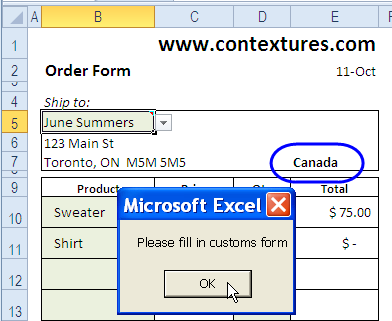
Are you ready for Spreadsheet Day on October 17th?
Maybe you can add a Spreadsheet Day message to all your workbooks, using the technique described in this blog post.
It’s a macro that runs every time the worksheet changed. I’m sure your co-workers would enjoy that!
Continue reading “Excel VBA – Macro Runs When Worksheet Changed”
Excel Conditional Data Validation
Happy Canadian Thanksgiving! You probably have your own spreadsheet to organize the meal, but you can download my Excel Holiday Dinner Planner, if you don’t have one of your own.
FLOOR Function – Round Down in Excel
Earlier this week, you read about the Top 100 Canadian Singles, and saw the pivot table that summarized the top songs by decade.
In the comments, Martin mentioned the FLOOR function, that I used to calculate each song’s decade, based on its release year.
File Downloads Fixed
Martin also pointed out that the files weren’t downloading, and I finally managed to fix that — sorry about the inconvenience.
Take my advice, and don’t work on your blog while travelling, if you can avoid it! Things that work perfectly at home, refuse to cooperate when you’re on the road.
FLOOR It
The Excel FLOOR function rounds numbers down, toward zero, based on the multiple of significance that you specify. In the Canadian Music file, the decade is being calculated, so 10 is used as the multiple.
- =FLOOR(A2,10)
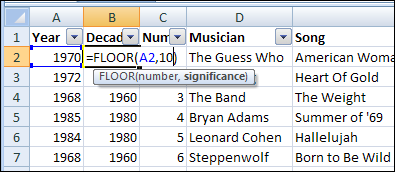
In column B, you can see the result of the FLOOR function, rounding down the year for each song, to show the song’s decade.
Trouble on the FLOOR
In the FLOOR function, if the number and multiple have different signs, the result is the #NUM! error. The FLOOR function works well in the music example, because the song’s year is always a positive number.
If you’re working with a list that contains both positive and negative numbers, you could use the SIGN function to calculate the number’s sign, and change the multiple to match it.
=FLOOR(A2,SIGN(A2)*10)
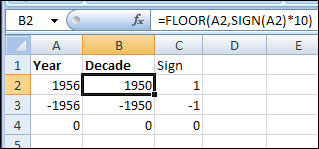
The Excel SIGN function result is 1 for positive number, -1 for negative numbers, and 0 for zero.
Heart of Gold
And finally, for your Friday listening pleasure, here is the second song on the Top 100 Canadian Singles list — Neil Young playing Heart of Gold.
____________
Pivot Table Count Per Decade
 If you’re looking for love, move along — the “Canadian Singles” in the article title refers to hit songs, not eligible bachelors.
Last week, a new book was published with a list of top 100 Canadian singles, based on a poll of music professionals and fans.
In his J-Walk blog, John Walkenbach posted a link to the Canada’s Top 100 Singles list, and there was a lively discussion in the comments section.
Top 100 Canadian Singles List
No discussion is complete without a spreadsheet, so I copied the list into Excel, and cleaned it up.
To make it more interesting, I found the release date for each hit song, and split them into decades, using the Excel FLOOR function.
Make a Pivot Table
From that data, I created a pivot table, showing the count of songs from each decade, listed by rank.
Was most of the best music released in the 1970s, or were most of the voters from that era?
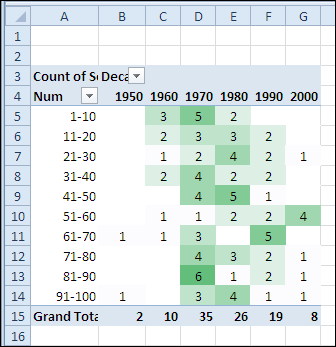
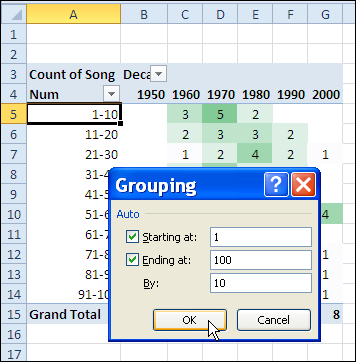
Pivot Table Group Numbers by 10
In column A, the top 100 songs are grouped by 10s, to summarize the data.
For example, row 5 shows the decade counts for the songs ranked from one to ten in the top 100 list.
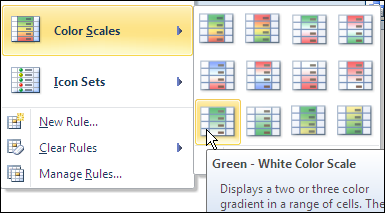
Highlight with Color Scale
Next, I added conditional formatting to highlight the decades with the largest number of songs.
Repeat Pivot Table Item Labels
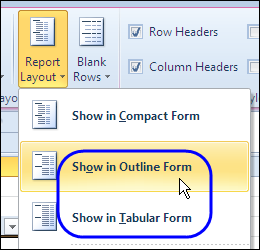
A new feature in Excel 2010 pivot tables is the ability to repeat the field item labels.
In another copy of the pivot table, I put the decade in the row label area, and changed the pivot table report layout to Outline Form.
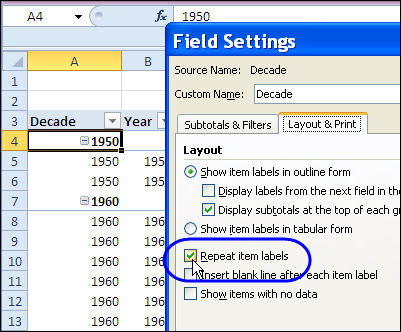
Change Pivot Field Setting
Then, I right-clicked on the Decade field, and clicked Field Settings. On the Layout & Print tab, I added a check mark to Repeat Item Labels, and clicked OK.
After changing that setting, the decade is repeated in each row, instead of showing just once, at the top of the section.
Download the Top 100 Canadian Single File
To see the list, and create your own pivot table, you can download one of my sample files.
- There’s a Top 100 Canadian Singles list in Excel 2007/2010 format
- For earlier versions of Excel, download the Top 100 Canadian Singles list in Excel 2003 format.
_______________
Count Unique Items in Excel Filtered List
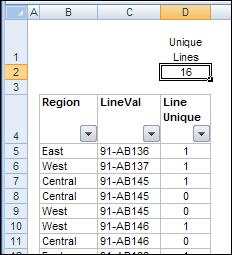
You can use the SUBTOTAL function to count visible items in a filtered list. In today’s example, AlexJ shows how to count the unique visible items in a filtered list. So, if an item appears more than once in the filtered results, it would only be counted once. Thanks, AlexJ!
Continue reading “Count Unique Items in Excel Filtered List”
New Improved Excel Data Entry Form
Many moons ago, Dave Peterson created a sample Excel worksheet data entry form and kindly shared it on the Contextures website.
In Dave’s original form, users could add records on the data entry sheet, and click a button to go to the database sheet, where they could review or edit the order records.
Excel Box Plot Chart-Airport Security Times
 Earlier this month, I had the pleasure of flying out of Chicago’s O’Hare airport. I was checking in at the ungodly hour of 6 AM on a Sunday, and hoped that would be a quiet time at the airport.
Continue reading “Excel Box Plot Chart-Airport Security Times”