
If you want to create a pivot table from data on different worksheets, you can use a Multiple Consolidation Ranges pivot table. However, that creates a pivot table with limited features and functionality.
Last year, Excel MVP Kirill Lapin (aka KL) shared his brilliant code to create a Union query and build a fully functional pivot table from data on different worksheets.
More Pivot Table Macros
Now, Kirill is back to share two more pivot table macros, and I’m sure you’ll be impressed by both of them. In today’s example, he’s written a macro to create a pivot table from multiple Excel files.
This is based on a solution that Kirill posted in one of Russian-speaking Excel forums for generating a standard pivot table from multiple workbooks (as opposed to worksheets in the same workbook).
The Report Workbook
The main file is named Report.xls, and it contains Kirill’s pivot table code, and a button that runs the macro. When you open the file, enable the macros, then click the Create Pivot button.
The Data Files
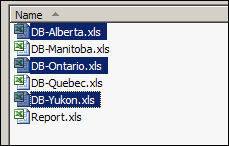
When you run Kirill’s macro, it prompts you to select one or more data files, all stored in the same folder. In this example, the files for Alberta, Ontrio and Yukon are selected.
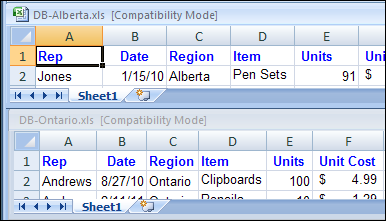
All of the data files must have the same structure, and the macro works with the data stored on Sheet1 in each file. In the screen shot below you can see Sheet1 in the Alberta and Ontario files, which have identical column headings.
The Pivot Table
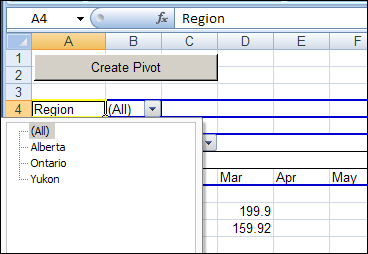
After you select the files and click Open, the macro creates a pivot table based on the data from Sheet1 in each of the selected files. Because the pivot table is based on a Union query, and not built from Multiple Consolidation Ranges, it’s a fully functioning pivot table, and you can pivot, group and filter the data, as usual.
You can also refresh the pivot table, to show the latest data in the source files, as long as those files stay in their original location.
The Union Query
Kirill’s macro creates a Union query to combine the data from all the selected files. If you open Microsoft Query, you can see the SQL string for the Union query, and all the data from the selected workbooks.
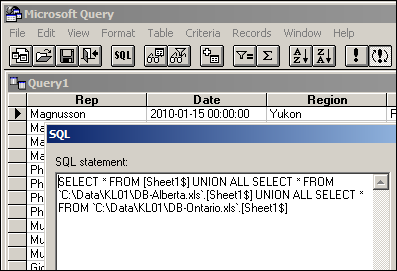
Download the Sample File
To see Kirill’s pivot table code, you can download the Pivot Workbooks example. The zipped folder that contains the Report.xls file, and the five sample data files.
Unzip the folder, and keep all the files in the same folder. When you open the Report.xls file, enable macros to run the code.
Pivot Table Macro #2
Come back on Wednesday to see Kirill’s second pivot table macro. It’s another creative twist on creating a pivot table from data in different workbooks.
______________
Hi,
I have data files that are generated by SAP and sometimes there is 1 sheet and sometimes 2 sheets. I was hoping there would be a way to modify your code so that:
1. The pivot table is created in a new workbook (This could be accomplished by copying the PT after created.)
2. The code is in a workbook by itself and not in the workbook with the data.
I would appreciate any assistance.
Thank you
Many thanks for this work – most helpful. I do,however, have a query. Can I use named ranges in the macro, specifically at this line (say Range 1, Range 2, Range 3) and how do I express them? I have other data on the sheets that I do not wish to be used in the pivot table report and are outside the named ranges:
arrSheets = Array(“sheet1”, “sheet2”, “sheet3”)
Regards and thank you.
Your code and solution is great; I just a simple question your source data has Date field and no Year field but in your pivot table you have Year in Columns and also Data… how you came with the Year column? If you can please send me the response to my email. Thank you so much in advance.
Jaime