
If you’ve added comments to an Excel worksheet, you have a couple of built-in options for printing the comments.
- Show the comments on the worksheet, and print them as displayed.
- Print the list of comments at the end of the worksheet, on a separate printed page.
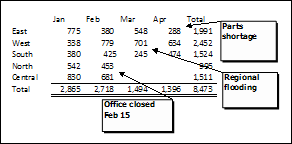
Printing Comments Shown on Sheet
Printing the comments on the worksheet is okay if there are only a couple of comments, and you can arrange them so they don’t cover the data.
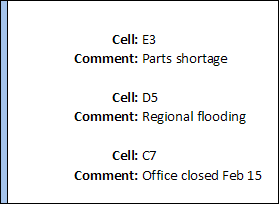
Print List of Comments
For more than a couple of comments, the list at the end of the worksheet is a better choice.
However, with the built-in list printing option, you just get the cell address and comment, printed in a long, single column.
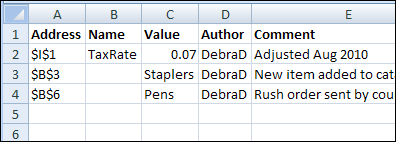
Create Your Own List of Comments
Instead of using the built-in list of printed comments, you can use a macro to create your own list of comments on a separate worksheet, and print that list.
It’s also a great way to review all the comments on a worksheet, and use sorting or filtering to focus on specific comments.
See the Comment Printing VBA Code
Shown below is the Excel VBA code to create a list of comments from the active sheet, written by Dave Peterson.
For more comment programming examples, including Dave’s code to list all the comments in the entire workbook, see Excel Comments VBA.
The Comment List Code
The ShowComments macro adds a new sheet to the workbook, and lists all the comments, the comment author name, and the comment cell’s value, address and name (if any).
At the end of the macro, the first row is formatted in bold font, and the column widths are autofit.
Sub ShowComments()
'posted by Dave Peterson
    Application.ScreenUpdating = False
Dim commrange As Range
Dim mycell As Range
Dim curwks As Worksheet
Dim newwks As Worksheet
Dim i As Long
Set curwks = ActiveSheet
On Error Resume Next
Set commrange = curwks.Cells _
.SpecialCells(xlCellTypeComments)
On Error GoTo 0
If commrange Is Nothing Then
MsgBox "no comments found"
Exit Sub
End If
Set newwks = Worksheets.Add
newwks.Range("A1:E1").Value = _
Array("Address", "Name", "Value", "Author", "Comment")
i = 1
For Each mycell In commrange
With newwks
i = i + 1
On Error Resume Next
.Cells(i, 1).Value = mycell.Address
.Cells(i, 2).Value = mycell.Name.Name
.Cells(i, 3).Value = mycell.Value
.Cells(i, 4).Value = mycell.Comment.Author
.Cells(i, 5).Value = mycell.Comment.Text
End With
Next mycell
With newwks
.Rows(1).Font.Bold = True
.Cells.EntireColumn.AutoFit
End With
Application.ScreenUpdating = True
End Sub
_____________
Is there a way to utilize showcomments VBA by Dave Peterson to pull just part of the comment over to the new worksheet? I have coding in place (snippet below) to create a cell comment. I want to leave the cell comment in place; however, would like to use Dave’s coding to copy everything including & after “Staff 90 day Plan” to the new worksheet.
cmtText = Format(Now, “mm/dd/yy hh:mm:ss ampm”) & “-” & Application.UserName & “-” & staffText & ” ” & goalText & ” ” & vbCrLf & “STAFF 90 day Plan:” & ” ” & cmtText & Chr(10).
Thanks
Jason, you could use this code :
.Cells(i, 5).Value = _
  Right(mycell.Comment.Text, _
   Len(mycell.Comment.Text) - _
     InStr(1, mycell.Comment.Text, _
     "STAFF 90 day Plan") + 1)