
If you want to create a pivot table from data on different worksheets, you can use a Multiple Consolidation Ranges pivot table. However, that creates a pivot table with limited features and functionality.
Last year, Excel MVP Kirill Lapin (aka KL) shared his brilliant code to create a Union query and build a fully functional pivot table from data on different worksheets.
More Pivot Table Macros
Now, Kirill is back to share two more pivot table macros, and I’m sure you’ll be impressed by both of them. In today’s example, he’s written a macro to create a pivot table from multiple Excel files.
This is based on a solution that Kirill posted in one of Russian-speaking Excel forums for generating a standard pivot table from multiple workbooks (as opposed to worksheets in the same workbook).
The Report Workbook
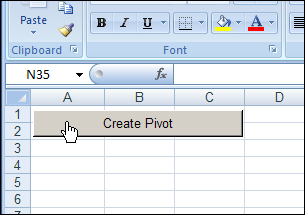
The main file is named Report.xls, and it contains Kirill’s pivot table code, and a button that runs the macro. When you open the file, enable the macros, then click the Create Pivot button.
The Data Files
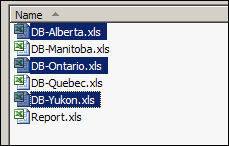
When you run Kirill’s macro, it prompts you to select one or more data files, all stored in the same folder. In this example, the files for Alberta, Ontrio and Yukon are selected.
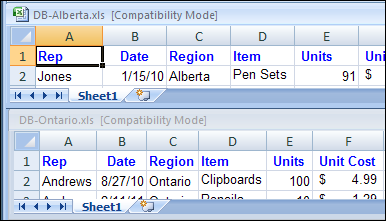
All of the data files must have the same structure, and the macro works with the data stored on Sheet1 in each file. In the screen shot below you can see Sheet1 in the Alberta and Ontario files, which have identical column headings.
The Pivot Table
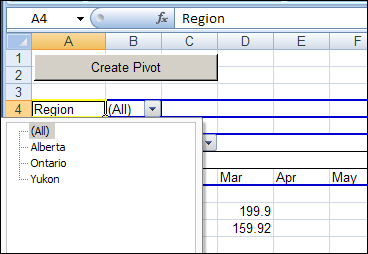
After you select the files and click Open, the macro creates a pivot table based on the data from Sheet1 in each of the selected files. Because the pivot table is based on a Union query, and not built from Multiple Consolidation Ranges, it’s a fully functioning pivot table, and you can pivot, group and filter the data, as usual.
You can also refresh the pivot table, to show the latest data in the source files, as long as those files stay in their original location.
The Union Query
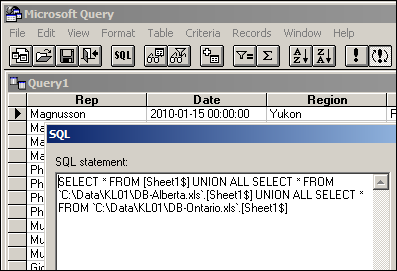
Kirill’s macro creates a Union query to combine the data from all the selected files. If you open Microsoft Query, you can see the SQL string for the Union query, and all the data from the selected workbooks.
Download the Sample File
To see Kirill’s pivot table code, you can download the Pivot Workbooks example. The zipped folder that contains the Report.xls file, and the five sample data files.
Unzip the folder, and keep all the files in the same folder. When you open the Report.xls file, enable macros to run the code.
Pivot Table Macro #2
Come back on Wednesday to see Kirill’s second pivot table macro. It’s another creative twist on creating a pivot table from data in different workbooks.
______________
The workbooks I want to use contain macros so they are saved as .xlsm. Although I changed the macro to *.xl* it errors. How can I make this compatible with .xlsm workbooks… The error message I receive is “External table is not in the expected format.” Thanks.
I have same error as Harmut. Whenever I try to use worksheet with more than 6 columns, I am getting ODBC error. Any suggestion?
i merged three different excel files into a single file using pivot table.in that file i got pivot table with records.but the Payment name column contains only numbers instead of name.i dont know why?Please assist me
Plz snd me the answer to my mail id
I’m having problems to run it in excel 2013 (win8-64)!!! it’s something about kernel32 dll. Can anyone help me??? tks!
Try this 😉
Replace
Declare Function SetCurrentDirectoryA Lib “kernel32” (ByVal Path As String) As Long
by
#If VBA7 Then
Declare PtrSafe Function SetCurrentDirectoryA Lib “kernel32” (ByVal Path As String) As LongPtr
#Else
Declare Function SetCurrentDirectoryA Lib “kernel32” (ByVal Path As String) As Long
#End If