Last week, Jon Wittwer, from Vertex42, provided 4 copies of his awesome Gantt Chart Template Pro, for project tracking. The lucky winners, in my random Excel draw, are:
Congratulations! I’ll email you later today, to arrange sending you a copy of the template kit. And thanks Jon, for providing the prizes!
Dashboard Building
A couple of weeks ago, during the hot days of August, we had a giveaway for an Excel Reports & Dashboards book, by Mike Alexander and John Walkenbach. You made great comments on that topic, and mentioned that you’re trying to find ways to build better dashboards.
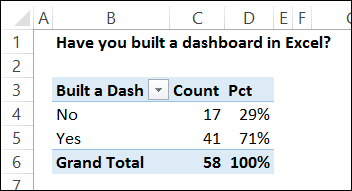
There were 58 entries, with 17 people saying “No”, they haven’t built a dashboard in Excel, and 41 “Yes” votes.
Dashboard Layout Problems
From your comments, I broke down the problems into broad categories, and layout was by far the biggest source of problems. Among the “Yes” votes, there were 25 mentions of layout issues – 61% of those votes.
I’ve uploaded my summary file to the SkyDrive, and you can open it there, and download it to your computer if you want to play with the results. The interactive view is below, and you can go from there to the online file.
The Dashboard Tool
This week, to help you with planning and building your dashboards, the giveaway is Mike Alexander’s new Dashboard Tools add-in. He sent me a copy to try it out, and it’s great!
NOTE: The Dashboard Tools add-in is no longer available, and Mike’s website is not longer online
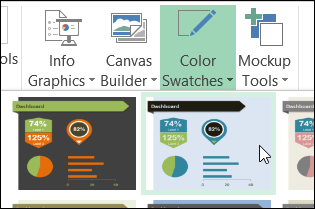
The add-in creates a new group on the Ribbon’s Insert tab. You can use the Mockup Tools to lay out the components during the planning phase.
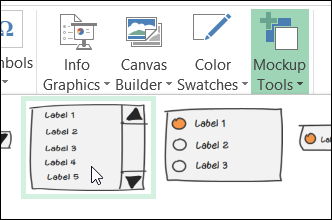
Then, use the Info Graphics, Canvas Builder and Color Swatches tools to create a dashboard layout, and link it to your data.
There are lots of colours and shapes to choose from, so you can break out of your usual layout, and dazzle your co-workers, and boss, with something new.
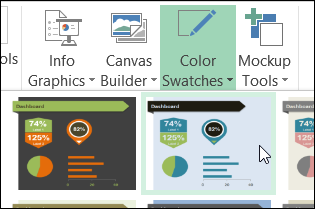
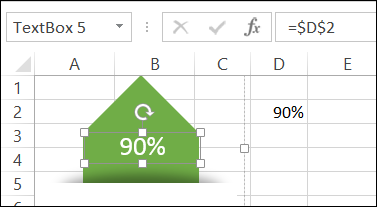
In the screen shot below, I’ve added a pointer from the Info Graphics tab, and linked its textbox to the value in cell D2. A couple of clicks, and it was done.
Enter the Giveaway
Mike Alexander, from Bacon Bits Blog, has donated 2 copies of his Dashboard Tools add-in for this giveaway. If you’d like a chance to win a copy, please read the rules, and then make a comment below.
NOTE: If you’re reading this in email, or an RSS feed, please go to my blog to add your comment.
- In your comment, tell us a benefit you’d get from using Mike’s dashboard tools add-in
- Include your email address, so I can contact you if you win. Your contact information won’t be publicly visible, and it won’t be used for any other mailings.
- The deadline is Wednesday, September 11th, 2013, at 12 noon Eastern Daylight Time.
- One entry per person.
- The 2 winners will be announced on Thursday, September 12th, 2013.
- Each winner will have 24 hours to claim the prize, and if not claimed, another name will be selected.
___________________