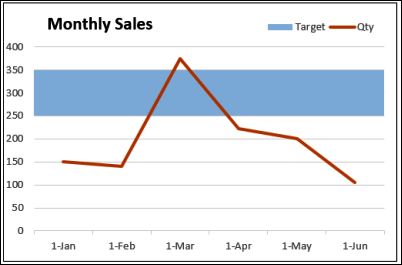
With an Excel line chart, you can show the sales results from a date range, to see how things have gone. For example, in the chart shown below, you can see the sales quantities for the first six months of the year. To add context to those numbers, you can create an Excel line graph with target range.
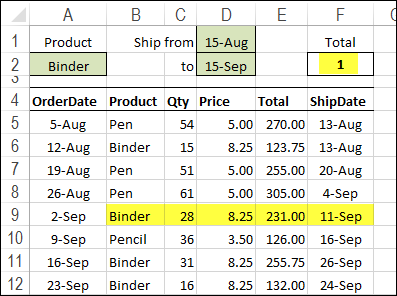
If you have a list on your Excel worksheet, and a date in each row, you can use a formula to count items in a date range. For example, how many Pencil shipments went out in September, based on the Ship Date column?
I’m updating some of the pages on my website, and found an old video that shows how to fill blank cell in Excel 2003. Wow, that version came out 10 years ago! So, it’s time to do an update.
You can see the new video below, and I show the steps in Excel 2013. The same instructions will work in Excel 2010 or 2007.
[Update] I’ve also added a newer video, that shows the steps in Excel 365.
Blank Cells on the Worksheet
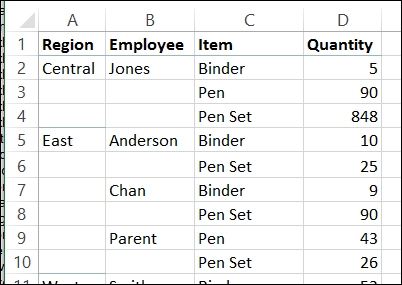
It’s a solution to a common problem – you get data from someone, and some columns have blank cells, so headings are easier to read. If you want to sort or filter the list, you need to fill in the blanks, by copying the value from above.
Blank cells on worksheet
With a few simple steps, you can fill all the cells, using the first value shown above the blank cells.
Video: Fill Blank Cells – Excel 365
This video shows a quick way to select and fill all the blanks, and use a mouse shortcut to change the formulas to values. I used Excel 365for this video.
The steps are the same in other versions of Excel.
Video: Fill Blank Cells – Excel 2013
This video shows a quick way to select and fill all the blanks, and use a mouse shortcut to change the formulas to values. I used Excel 2013 for this video.
Get the Sample File
To download the sample file, please visit my Contextures website: Fill Blank Cells
The file is zipped, and in xlsm format – it also contains a macro that you can use to fill blank cells.
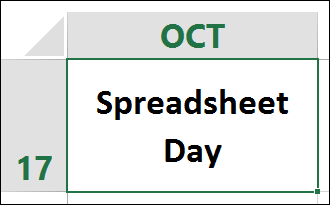
Happy Spreadsheet Day! Yes, October 17th is Spreadsheet Day, in honour of the date that VisiCalc was first shipped, way back in 1979.
I might be the only person who celebrates, but spreadsheets do need some love, and it’s a good excuse to leave work early.
Top 5 Spreadsheet Articles for 2013
To mark this auspicious occasion, here are five of my favourite spreadsheet articles from the past year.
I post a few links each week in my Excel newsletter, and these 5 articles show the broad range of things you can do in a spreadsheet, and why you should be careful while working in one!
Here they are, in no particular order:
In his Not Just Numbers blog, Glen Feechan offers his Ten Principles for Excel Good Practice. You’ll find some sound advice in this list, and check the comments too.
See a few creative uses for Excel on Microsoft’s Excel team blog. One of the examples — the Think Maths website — lets you create art in Excel. Just upload a small photo, and they’ll send you an Excel workbook with each pixel in a separate cell.
One of the early spreadsheet programs was Trapeze, and Andrew Wulf talks about developing it, and other programs, in his blog post: How I Did Agile Long Before It Was A Thing
Over at the Daily Dose of Excel blog, there’s an interesting discussion on How to Be Great at Excel. Read Dick Kusleika’s short article, and add your opinion in the comments section.
Today, we’ll see a little magic from the COUNTIF function – it can do the work of seven formulas in one! We’ll use it to check winning numbers in an imaginary lottery.
There is a sample file on my Contextures site, which creates dependent drop down lists from items that are sorted in columns. You can see the lists in the screen shot below. On the data entry sheet, you select a region from the first drop down, and only the customers in that region appear in the second drop down.
A couple of years ago, we looked at the Excel SUBTOTAL function, and saw how you could allow users to select the function they want. In the example shown below, the total formulas are controlled by the drop down list at the top of the sheet.
Today, we’ll use a similar technique to change functions with AGGREGATE – one of Excel’s newer functions.
Even if a worksheet is protected, you are able to scroll in any direction, and see what is on the sheet. To prevent scrolling on Excel worksheet, change the ScrollArea property for the worksheet, either manually or with a macro.