
Poor Advanced Filter! It’s hidden in a dark corner of the Ribbon’s Data tab, overshadowed by its better known, and more popular sibling, AutoFilter.
Sometimes, though, it’s worth the extra effort to use an Advanced Filter. Keep reading, to see the benefits, and learn how to set up an Excel Advanced Filter.
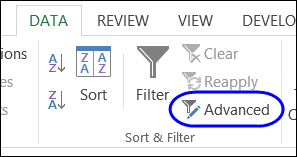
Filter Commands on Ribbon
Here’s the Advanced Filter command on the Excel Ribbon. The AutoFilter command is much bigger, and easier to find, and just takes one click to set up.
Right-Click Commands
Even without the Ribbon command, it’s easy to filter a list with the built in AutoFilter feature — just right-click on a cell, click Filter, then click Filter by Selected Cell.
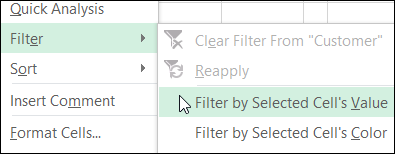
Instantly, the list is filtered, and if the list didn’t already have drop down arrows in the headings cells, those are added automatically, when the AutoFilter is applied.
Using an AutoFilter
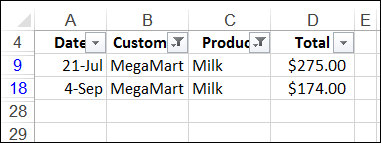
With an AutoFilter, you can select a criteria in each column of the list, to see the records that meet all of the criteria. For example, see all the orders with a specific customer AND a specific product.
In the screen shot below, the list is filtered to show orders where the customer is MegaMart AND the product is Milk.
Advantage to Advanced Filter
However, with an AutoFilter, there is a limitation — you can’t see all the orders with a specific customer OR a specific product. To filter a table for one set of criteria OR another, you can use an Advanced Filter.
It takes a bit more effort to use the Advance Filter feature. You’ll need to set up a criteria range, to let Excel know what you want in the filter results.
But, there are definite advantages – you can create complex criteria, and you can send the results to a different location in the workbook.
Advanced Filter Criteria
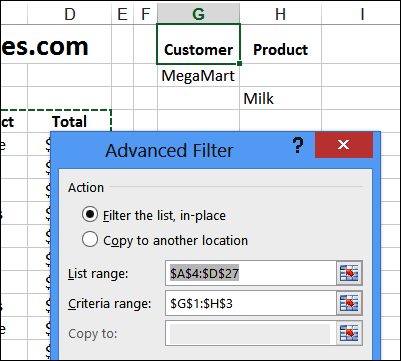
In the example shown below, the criteria range is in G1:H3.
- The heading cells match the columns in the list that’s being filtered.
- The first row of criteria request a specific customer – MegaMart – and any product
- The second row of criteria request a specific product – Mile – and any customer
- When the filter runs it will return any orders where the customer is MegaMart OR the product is Milk.
Download the Sample File
For more information on Advanced Filters, and to download the sample file, visit the Advanced Filter page on my Contextures website.
Video: Set Up an Advanced Filter
To see the steps for setting up the criteria range, and running the Advanced Filter, watch this short video.
More Excel Filter Examples
Advanced Filter Criteria Slicers
___________________
Advanced filters suck! On the file having lots of formulas it takes a year to filter because it recalculates after each line.
Hello,
Thank you for this! Is there a way that when manually changing the value in the criteria range, that the data dynamically re-filters without me having to take the manual route of “Advanced Filter” once more? I want to edit my reference cell to a different company branch and have the employees in that branch appear without having to manually filter again.
Ex: I have cell $A$2 referencing branch “511”. When changing this number to “513” to reference another branch, I would like the filter to automatically refresh the employee data list without having to select the data table, then select advanced filter, then click okay. I know it’s not much work to do this, but I create these reports for 50 branches and would like to make the process as efficient as possible. All other numbers in my reporting are referenced by this one-cell and it would be awesome if the filter could also automatically refresh to this value.
Respectfully,
Dylan