Filter Pivot Table for Date Range

In a pivot table, you might want to see all the orders that were shipped on a specific date.

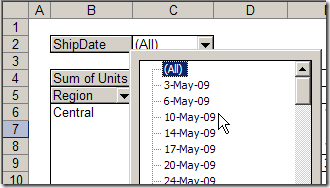
To do that, you’d move the Ship Date field to the Page area, and select a date from the drop down list.

Filter Pivot Table for Specific Date

Filter for Date Range

Sometimes though, you’d like to show the orders shipped in a date range, instead of just a single date. For example, you might like to show orders with ship dates in the upcoming week, so you can do some planning.

To accomplish this, you could manually hide all the dates in the Ship Date page field, except the dates for next week. However, that might take quite a while if there are lots of dates.

Another option is to add a new field to the source data, to test the ship dates, then add it to the pivot table, as a filter. This might slow things down a bit, if your source data table is very large.

We’ll look at both options in Excel 2003 — the steps are slightly different in Excel 2007.

Manually Hide the Dates

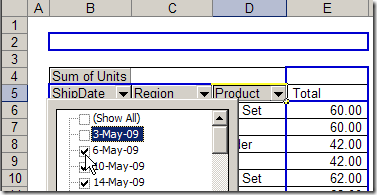
In Excel 2003, there are no check boxes beside the items in a Page field’s drop down list, to allow you to select multiple items.

To hide some of the items in a pivot table’s Page field, temporarily move the field to the Row area, and select the items there, then drag the date field back to the Page area.

PivotShipDate01a

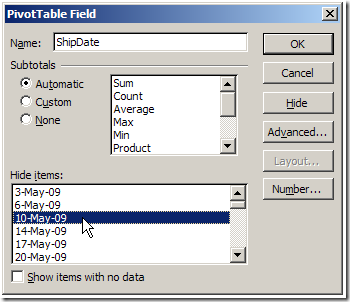
Or, without moving the field in the Page area, you can change the field’s settings.

  1. Double-click on the Ship Date field button.
  2. In the PivotTable Field dialog box, click on dates in the Hide Items list.
  3. Click OK to close the dialog box.

PivotShipDate02

Add a New Field to the Source Data

Manually hiding the dates might work well if you only need to do this occasionally, and the list of dates isn’t too long. Otherwise, the best solution might be to add a column to the pivot table’s source data.

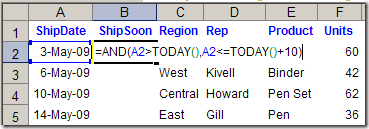
In this case, we’ll add a column named ShipSoon, and use a formula to test if the ship date is within the next 10 days.

  1. In the source data table, add a column with the heading ShipSoon. In this example, the new column is to the right of column A.
  2. In the first data row of the new column, enter a formula that checks the ShipDate in that row. Our first ship date is in cell A2, and the formula will test the date, to see if it’s within 10 days of today’s date.

=AND(A2>TODAY(),A2<=TODAY()+10)

PivotShipDate04a

  • Copy the formula down to the last row of data.

Each row will show TRUE or FALSE as the result of the formula.

Update the Pivot Table

Next, you’ll update the pivot table, and add the new field.

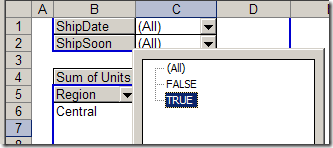
  1. Refresh the pivot table, and add the ShipSoon field to the Page area.
  2. From the ShipSoon Page field dropdown list, select TRUE.

PivotShipDate07a

Refresh the Pivot Table

Remember to refresh the pivot table each day to see the current calculations for the ShipSoon field.

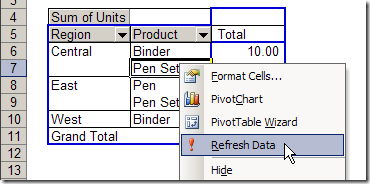
  • To manually refresh the pivot table, right-click on a cell in the pivot table, then click on Refresh Data.

PivotShipDate10a

Or, you can set the pivot table to automatically refresh when you open the Excel file.

  1. Right-click on a cell in the pivot table
  2. Click Table Options
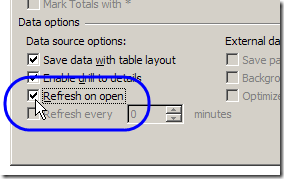
  3. In the Data Options section, add a check mark to Refresh on Open
  4. Click OK to close the dialog box.

PivotShipDate11

____________________

Create Multiple Home Pages in Firefox

Do you have two or more web pages that you use frequently? I like Google as a home page, and use it many times during the day.

I also refer to my own website several times, to make sure everything is working okay, or look up one of the Excel tips that are stored there.

I had Google set as my home page in Firefox, then opened Contextures.com later.

MultiTabsFireFox

It’s not a terribly painful process, but I’ve found a way to set multiple home pages, instead of one.

Set Multiple Home Pages

Here’s how I set up the multiple pages:

  • On the Firefox toolbar, click Tools
  • Click Options
  • Click  the Main heading, then click the Use Current Pages button
Firefox Options Use Current Pages button
  • The URLs will appear in the Home Page box, separated by the pipe separator.
  • Click OK, to close the Options dialog box.

The next time you open Firefox, both home pages will automatically open.
_______________________

Excel VLOOKUP-Change Percent to Letter Grade

Usually when I use VLOOKUP, I want to pull information for an exact match.

For example, if I enter a customer number in one cell, I want the customer name in the adjacent cell. I don’t want the name of a customer whose number is CLOSE to the one that I entered.

Continue reading “Excel VLOOKUP-Change Percent to Letter Grade”

Excel Table of Contents for Price List

Today’s challenge was to create a table of contents in Excel, for a downloaded price list.

Section Headings

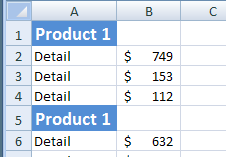
The data came from Crystal Reports and had formatting on the section headings.

Some of the headings were repeated, but we didn’t want the TOC to include the duplicates.

Price List Headings and products

Heading Cell Format

I’ve created a table of contents based on sheet names, in other workbooks, but hadn’t tried to index a sheet’s contents.

In this case, all the heading cells were blue, so I decided to write a macro that would create a TOC entry for any blue cell.

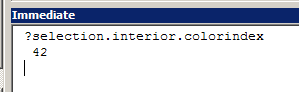
A quick test in the Immediate window showed me the colour index — 42.

PriceListColour

What Excel VBA Macro Code Does

The macro that I wrote does the following steps:

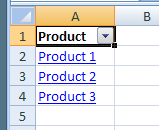
  • checks for a TOC sheet
  • deletes the old one, if it exists
  • then creates a new TOC sheet
  • first instance of each heading is added to the TOC sheet
  • adds a hyperlink to the cell where that heading is located.
  • creates an AutoFilter for the list

The price list has a few hundred product categories, so that Autofilter makes it easier to find the product that you want.

PriceListTOC

The CreateHyperlinks Code

Here’s the Excel VBA code that I wrote, and you can add your own error handling.

You can also download the sample Hyperlink TOC file (Excel 2007 format).

Sub CreateHyperlinks()
Dim c As Range
Dim ws As Worksheet
Dim wsTOC As Worksheet
Dim lRowTOC As Long
Dim lColor As Long
Dim strTOC As String
Dim strHead As String
lRowTOC = 2
lColor = 42
strTOC = "TOC"
strHead = ""
On Error Resume Next
Application.DisplayAlerts = False
Worksheets(strTOC).Delete
Application.DisplayAlerts = True
On Error GoTo 0
Set wsTOC = Worksheets.Add
With wsTOC
  .Name = strTOC
  .Cells(1, 1).Value = "Product"
  .Cells(1, 1).Font.Bold = True
End With
For Each ws In ThisWorkbook.Worksheets
  If ws.Name <> strTOC Then
    For Each c In ws.UsedRange.Columns(1).Cells
      If c.Interior.ColorIndex = lColor Then
        'don't index duplicate headings
        If strHead <> c.Value Then
          wsTOC.Cells(lRowTOC, 1).Value = c.Value
          wsTOC.Hyperlinks.Add _
          Anchor:=wsTOC.Cells(lRowTOC, 1), _
          Address:="", _
          SubAddress:=c.Parent.Name _
          & "!" & c.Address, _
          TextToDisplay:=c.Value
          lRowTOC = lRowTOC + 1
          strHead = c.Value
        End If
      End If
    Next c
  End If
Next ws
wsTOC.Columns(1).AutoFilter
wsTOC.Columns(1).AutoFit
End Sub

___________________

Sorting Columns Instead of Rows in Excel

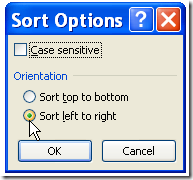
Usually when you sort data in Excel, you sort the rows, to put them in a different order. For example, you could sort the rows in a Customer list by the customer names in column A. Occasionally, you might need to sort a list horizontally, to put the columns in a different order. Here are the steps for sorting columns instead of rows in Excel, and there’s a video too.

Continue reading “Sorting Columns Instead of Rows in Excel”

Advanced Excel Conference

[Update] This conference is no longer available.

Excel Resources

For information on other Excel Resources, such as tips and tutorials, Excel  videos, and online courses, see the following pages on my Contextures website.

Excel Help – Online Resource List

Excel FAQs

Excel, Key Skills

Excel Resources

Excel Resources, Mac

Excel Resources, Power BI

Other Online Excel Resources

List of online Excel help forums and other resources where you can ask questions or find answers

There’s a wealth of Excel information on the Microsoft web site

List of resources if you need help with Power BI questions and problems

Links to Microsoft Support Pages on Excel Topics

Great reference – Excel Function Bible (free) by Norman Harker and Ron de Bruin

_____________________

Summer Hours for Contextures Blog

Monday was Victoria Day in Canada, which is the unofficial start of summer. However, my tomato plants are huddled in the garage, wearing little polar fleece sweaters, hoping it will warm up soon.

It dipped to 1°C last night, but at least it didn’t snow!

DSC_0039

Despite the frosty weather, I’m putting the Contextures Blog on summer hours, and will be posting Monday, Wednesday and Friday.

I hope it’s warmer where you are!
_____________

Dynamic Dependent Data Validation Lists

Roger Govier has created a sample workbook and instructions that show you how to create dynamic dependent data validation lists.

His technique lets you create multiple levels of dependent data validation, without defining a named range for each list.

INDEX and MATCH Functions

Instead, Roger’s formula uses the INDEX function, with MATCH, to find a column heading, then shows the list from that column.

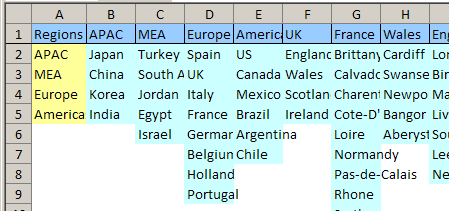
For example, on one sheet you can list regions, countries, areas and cities.

on one sheet you can list regions, countries, areas and citie

Data Entry Sheet Drop Downs

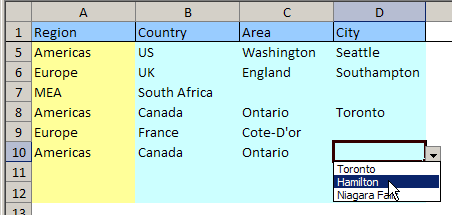
Then, on another sheet, select a region in column A, and see only the related countries in column B’s data validation drop down.

In column C, you’d see only the areas in the selected column, then only the applicable cities in column D.

RJG_DataValIndex

How It Works

With Roger’s technique, you’ll create four defined ranges, then use two of those ranges as the source for data validation drop down lists.

The ranges are dynamic, so you can add more items to any list, or add new lists, and the defined ranges will automatically adjust.

There are full instructions for Data Validation – Dynamic Dependent Lists, and a sample workbook that you can download.

Also, Roger Govier‘s contact information is at the bottom of that page.

Tech4ULogo
____________________

Microsoft Office 2010 Information

If you’re eagerly awaiting the next release of Microsoft Office, you can find some early information at the new official Office 2010 blog.

There’s not much news there yet, but you can subscribe to the RSS feed and read any updates as they’re posted.

Office Site and Forums

Also, there’s an Office 2010 web site, where you can apply to join the Technical Beta. I’ve signed up — did you?

Ask your questions in the Office forums on the Microsoft site.

Excel Team Blog

For Excel related news, watch the Microsoft Excel blog. They did a great job leading up to Excel 2007, and I hope they’ll do the same for this version.

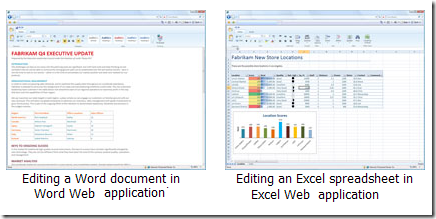
There are even a few screen shots in the Microsoft press gallery.

Office 2010 Screen Shots

_______________

Excel Drop Down List From Different Workbook

In Excel, you can create a drop down Data Validation list, so it’s easy to enter valid items in a cell.

Usually, the list of valid items is stored in the same workbook, but it’s possible to set up a drop down from a list in another workbook — as long as the other workbook is open.

Continue reading “Excel Drop Down List From Different Workbook”